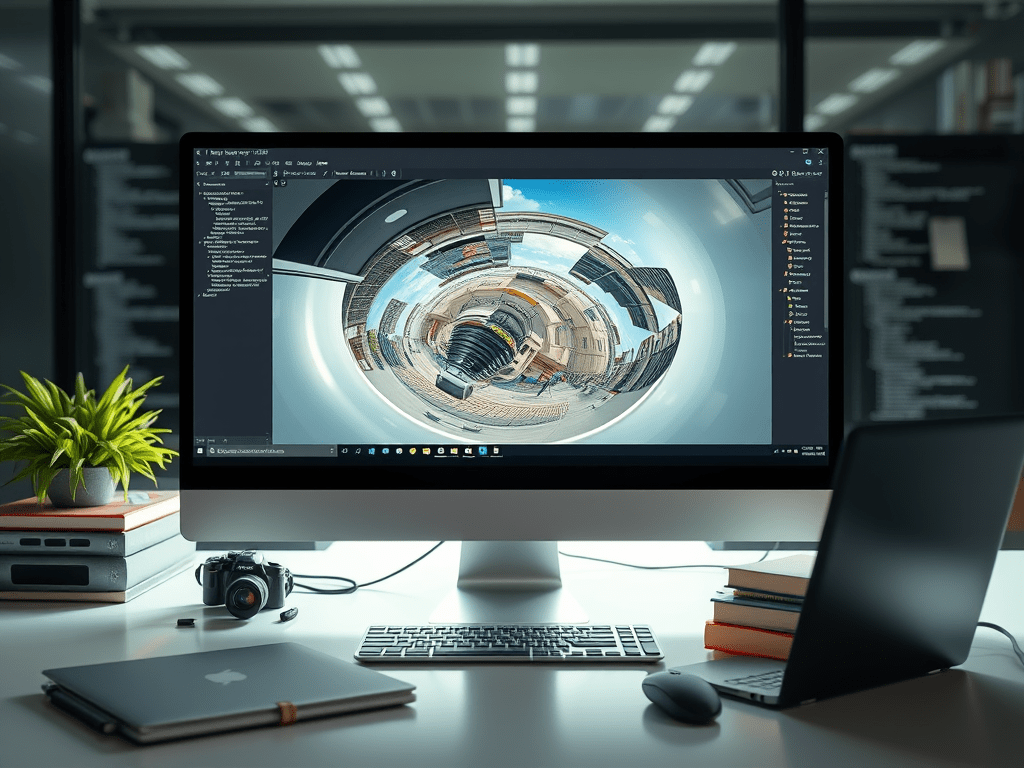
Neste artigo, você aprenderá como criar uma Web Part SPFx com React para exibir imagens 360° equirectangulares em SharePoint Online, utilizando a biblioteca Photo Sphere Viewer (PSV) na versão v5+.
🌀 Como Criar uma Web Part SPFx para Visualização de Imagens 360° com Photo Sphere Viewer v5
Neste artigo, você aprenderá como criar uma Web Part SPFx com React para exibir imagens 360° equirectangulares em SharePoint Online, utilizando a biblioteca Photo Sphere Viewer (PSV) na versão v5+.
Ao final, você terá uma Web Part chamada Image360Viewer com suporte a rotação, zoom e fullscreen, totalmente funcional e embutida no SharePoint.
✅ Requisitos
- Node.js (v16+ recomendado)
- SharePoint Framework (SPFx v1.13+)
- Gulp CLI
- Familiaridade com React e TypeScript
- Imagem equirectangular (formato 2:1
.jpgou.png)
🔧 Etapas Técnicas
1. Criar a Web Part SPFx
yo @microsoft/sharepoint
Responda:
- Solution Name:
Image360Viewer - Web Part Name:
Image360Viewer - Framework: React
- Online workbench: Sim
2. Instalar a biblioteca necessária
npm install photo-sphere-viewer three
⚠️ A versão do PSV publicada no NPM é a v5.4.x (mesmo sem tag oficial), portanto, a API usada deve ser a da v5, com
defaultLong,defaultLat,fov.
3. Criar o componente Image360Viewer.tsx
Caminho: src/webparts/image360Viewer/components/Image360Viewer.tsx
import * as React from 'react';
import { useRef, useEffect } from 'react';
import styles from './Image360Viewer.module.scss';
import type { IImage360ViewerProps } from './IImage360ViewerProps';

import { Viewer } from 'photo-sphere-viewer';
import 'photo-sphere-viewer/dist/photo-sphere-viewer.css';
import * as THREE from 'three';

// PSV v5 exige THREE global
(window as any).THREE = THREE;

const Image360Viewer: React.FC<IImage360ViewerProps> = (props) => {
  const containerRef = useRef<HTMLDivElement>(null);
  const viewerRef = useRef<any>(null);

  useEffect(() => {
    if (!containerRef.current || !props.imageUrl) return;

    if (viewerRef.current) {
      viewerRef.current.destroy();
      viewerRef.current = null;
    }

    viewerRef.current = new Viewer({
      container: containerRef.current,
      panorama: props.imageUrl,
      caption: props.caption || '',
      defaultLong: Number(props.defaultYaw) || 0,
      defaultLat: Number(props.defaultPitch) || 0,
      fov: props.defaultFov || 70,
      mousewheel: props.mouseWheel !== false,
      touchmoveTwoFingers: true,
      minFov: 30,
      maxFov: 90,
      autorotateDelay: props.autorotate ? 1000 : undefined,
      autorotateSpeed: props.autorotate ? '1rpm' : 0,
      navbar: [
        ...(props.showZoom ? ['zoom'] : []),
        ...(props.showAutorotate ? ['autorotate'] : []),
        ...(props.showFullscreen ? ['fullscreen'] : [])
      ]
    });

    return () => {
      viewerRef.current?.destroy();
      viewerRef.current = null;
    };
  }, [props]);

  return (
    <div
      ref={containerRef}
      className={styles.viewer}
      style={{
        width: props.width || '100%',
        height: props.height || '480px'
      }}
    />
  );
};

export default Image360Viewer;
4. Criar o arquivo de props
Caminho: src/webparts/image360Viewer/components/IImage360ViewerProps.ts
export interface IImage360ViewerProps {
  imageUrl: string;
  caption?: string;
  defaultYaw?: string;
  defaultPitch?: string;
  defaultFov?: number;
  mouseWheel?: boolean;
  autorotate?: boolean;
  showZoom?: boolean;
  showAutorotate?: boolean;
  showFullscreen?: boolean;
  width?: string;
  height?: string;
}
5. Criar o estilo SCSS simples
Caminho: src/webparts/image360Viewer/components/Image360Viewer.module.scss
.viewer {
  border-radius: 8px;
  overflow: hidden;
}
6. Executar no Workbench
gulp clean
gulp build
gulp serve
Abra:
https://localhost:4321/temp/workbench.html
Adicione a Web Part Image360Viewer, configure uma imagem 360 válida no imageUrl (ex: /sites/yoursite/SiteAssets/pano.jpg) e pronto!
🎯 Considerações finais
- A biblioteca PSV v5 exige que você use os nomes
defaultLong,defaultLat,fov - Mesmo que o
package.jsondiga4.8.1, owebpackpode puxar a versão5.xinternamente - Se você vir erros como
"Unknown option defaultYaw"ou"defaultFov", o bundler está usando a API v5
🧠 Dica extra: conversão de graus para radianos
| Direção | Valor em radianos |
|---|---|
| Norte | 0 |
| Leste | 1.57 |
| Sul | 3.14 |
| Oeste | 4.71 |
| Cima | 0.17 |
| Baixo | -0.17 |

 edvaldo b. guimarães filho