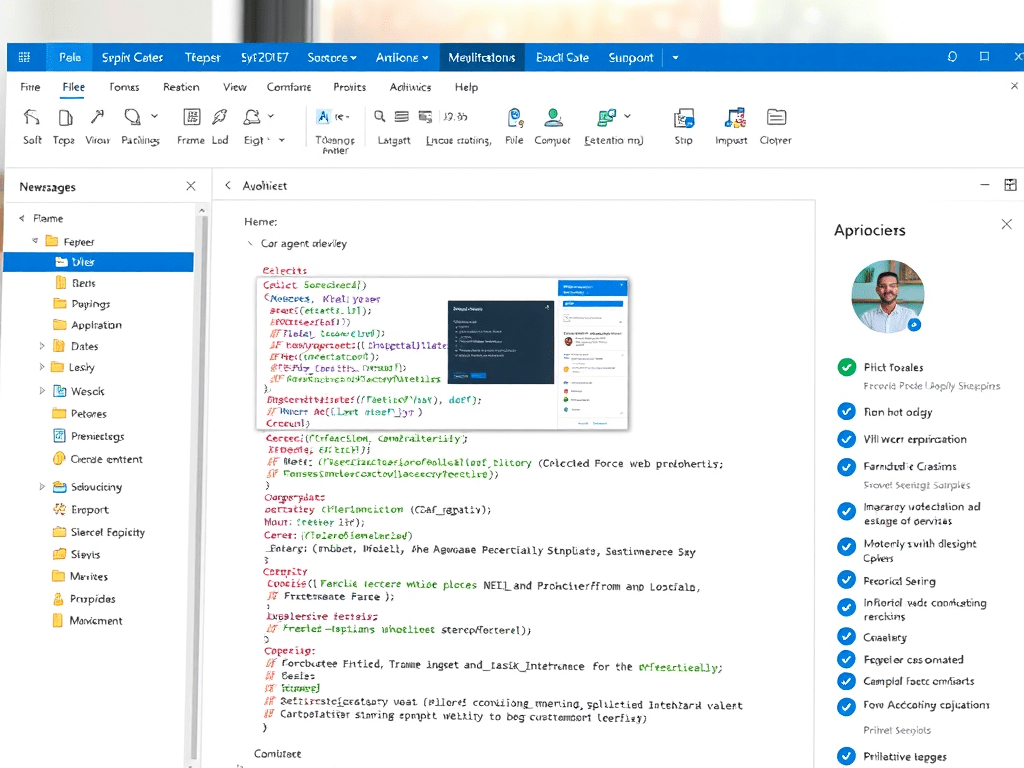
Embedding a Copilot Studio Agent in SharePoint as a Web Part (SPFx) — Two Production Patterns
This article shows two reliable ways to bring a Microsoft Copilot Studio agent into a SharePoint Online modern page as a “web part experience”:
- Fast embed (iframe) — simplest path using the Copilot Studio Web channel embed snippet
- Custom chat UI (Direct Line token) — best for enterprise portals where you want full control and stronger security
I’ll also call out a third option many people overlook: publishing the agent to SharePoint via the SharePoint channel (no SPFx required).
Throughout the article, I’ll use placeholders like:
https://contoso.sharepoint.com/sites/ExampleSiteExample List,Shared Documents/KnowledgeBasehttps://contoso-functions.azurewebsites.net/api/directline-token
0) What you’re really embedding
Copilot Studio can publish an agent to a website using an iframe snippet, and Microsoft explicitly documents that this is supported for live sites (the demo site is for testing only). (Microsoft Learn)
Also important: Copilot Studio web embedding uses Bot Framework Direct Line under the hood, and you can enable web/Direct Line channel security based on secrets/tokens. (Microsoft Learn)
1) Option A — The “iframe embed” SPFx web part (fastest)
When to choose this
- You want it working quickly inside a SharePoint page
- You don’t need deep UI customization
- You’re fine with Copilot Studio’s hosted chat surface
How it works
Copilot Studio gives you an iframe code snippet for your agent. (Microsoft Learn)
SharePoint (and SPFx) can host iframes; SharePoint even has an Embed web part that wraps a URL in an iframe. (Microsoft Support)
So your SPFx web part can simply render:
http://COPILOT_EMBED_URL
Steps
- Copilot Studio → Publish → Channels → Web and copy the iframe embed snippet. (Microsoft Learn)
- Extract the
src="..."URL. - Create an SPFx web part that renders an
<iframe>and exposes the URL in the Property Pane.
Minimal SPFx code (React)
CopilotEmbed.tsx
import * as React from "react";export interface ICopilotEmbedProps { iframeSrc: string; heightPx: number;}export const CopilotEmbed: React.FC<ICopilotEmbedProps> = ({ iframeSrc, heightPx }) => { if (!iframeSrc) { return ( <div style={{ padding: 12 }}> <strong>Copilot agent not configured.</strong> <div>Paste the Copilot Web embed URL (iframe src) in the web part properties.</div> </div> ); } return ( <div style={{ width: "100%" }}> <iframe title="Copilot Studio Agent" src={iframeSrc} style={{ width: "100%", height: `${heightPx}px`, border: "0", borderRadius: "8px", }} allow="clipboard-read; clipboard-write" /> </div> );};
CopilotEmbedWebPart.ts
import * as React from "react";import * as ReactDom from "react-dom";import { Version } from "@microsoft/sp-core-library";import { BaseClientSideWebPart } from "@microsoft/sp-webpart-base";import { IPropertyPaneConfiguration, PropertyPaneTextField, PropertyPaneSlider } from "@microsoft/sp-property-pane";import { CopilotEmbed } from "./components/CopilotEmbed";export interface ICopilotEmbedWebPartProps { iframeSrc: string; heightPx: number;}export default class CopilotEmbedWebPart extends BaseClientSideWebPart<ICopilotEmbedWebPartProps> { public render(): void { const element = React.createElement(CopilotEmbed, { iframeSrc: this.properties.iframeSrc, heightPx: this.properties.heightPx ?? 700, }); ReactDom.render(element, this.domElement); } protected onDispose(): void { ReactDom.unmountComponentAtNode(this.domElement); } protected get dataVersion(): Version { return Version.parse("1.0"); } protected getPropertyPaneConfiguration(): IPropertyPaneConfiguration { return { pages: [ { header: { description: "Copilot Studio Agent Embed" }, groups: [ { groupName: "Settings", groupFields: [ PropertyPaneTextField("iframeSrc", { label: "Copilot Web embed URL (iframe src)", multiline: true, }), PropertyPaneSlider("heightPx", { label: "Height (px)", min: 400, max: 1200, value: this.properties.heightPx ?? 700, }), ], }, ], }, ], }; }}
Security note (very important)
If you rely on a public embed without channel security, anyone with the URL may be able to reach the agent depending on how it’s configured. Microsoft provides web/Direct Line channel security to limit usage to your controlled locations and to rotate secrets/tokens. (Microsoft Learn)
2) Option B — Custom chat UI in SPFx using Direct Line tokens (enterprise-grade)
When to choose this
- You want to control the chat UI styling/layout
- You want stronger security (no secrets in the browser)
- You want a consistent portal component that you can evolve
How it works (architecture)
Copilot Studio uses Bot Framework Direct Line for web chat. (Microsoft Learn)
Direct Line supports generating a token via:
POST /v3/directline/tokens/generate(Microsoft Learn)
Critical rule: Never place the Direct Line secret in SPFx (browser). Microsoft explicitly warns against exposing secrets in browser-delivered code and recommends acquiring tokens using a service. (Microsoft Learn)
So we do:
SPFx (browser) ---> Azure Function (server) ---> Direct Line (token) | | |---- uses token ---------| v Web Chat UI connects to agent
Steps
- In Copilot Studio, enable/configure Web channel security and obtain the secret (for server use). (Microsoft Learn)
- Create a tiny Azure Function that calls the Direct Line token generate endpoint. (Microsoft Learn)
- In SPFx, render a custom chat UI (BotFramework WebChat) and call your function for a token.
2A) Azure Function — Token minting endpoint (C#)
What it does: uses DIRECT_LINE_SECRET from environment settings and returns the JSON from Direct Line token generation.
using System.Net;using System.Net.Http.Headers;using System.Text;using Microsoft.Azure.Functions.Worker;using Microsoft.Azure.Functions.Worker.Http;public class DirectLineTokenFunction{ [Function("directline-token")] public async Task<HttpResponseData> Run( [HttpTrigger(AuthorizationLevel.Function, "get")] HttpRequestData req) { var secret = Environment.GetEnvironmentVariable("DIRECT_LINE_SECRET"); if (string.IsNullOrWhiteSpace(secret)) { var bad = req.CreateResponse(HttpStatusCode.InternalServerError); await bad.WriteStringAsync("Missing DIRECT_LINE_SECRET."); return bad; } // Direct Line token endpoint: POST /v3/directline/tokens/generate // Documented by Microsoft in Direct Line 3.0 auth and API reference. // https://directline.botframework.com/v3/directline/tokens/generate using var http = new HttpClient(); http.DefaultRequestHeaders.Authorization = new AuthenticationHeaderValue("Bearer", secret); var resp = await http.PostAsync( "https://directline.botframework.com/v3/directline/tokens/generate", new StringContent("{}", Encoding.UTF8, "application/json") ); if (!resp.IsSuccessStatusCode) { var fail = req.CreateResponse(HttpStatusCode.BadGateway); await fail.WriteStringAsync("Failed to generate token."); return fail; } var json = await resp.Content.ReadAsStringAsync(); var ok = req.CreateResponse(HttpStatusCode.OK); ok.Headers.Add("Content-Type", "application/json"); await ok.WriteStringAsync(json); return ok; }}
This token generate operation is explicitly documented by Microsoft for Direct Line. (Microsoft Learn)
Function App settings
DIRECT_LINE_SECRET= Copilot Studio web channel secret- Never store it in SPFx, never commit it to Git
2B) SPFx — Custom chat UI using BotFramework WebChat
Install:
npm i botframework-webchat
CopilotWebChat.tsx
import * as React from "react";import ReactWebChat from "botframework-webchat";export interface ICopilotWebChatProps { tokenEndpoint: string; // e.g. https://contoso-functions.azurewebsites.net/api/directline-token?code=... heightPx: number;}export const CopilotWebChat: React.FC<ICopilotWebChatProps> = ({ tokenEndpoint, heightPx }) => { const [directLine, setDirectLine] = React.useState<any>(null); const [error, setError] = React.useState<string>(""); React.useEffect(() => { let alive = true; (async () => { try { if (!tokenEndpoint) { setError("Token endpoint not configured."); return; } const res = await fetch(tokenEndpoint); if (!res.ok) throw new Error(`Token endpoint failed: HTTP ${res.status}`); const data = await res.json(); // expects { token: "..." } if (!data?.token) throw new Error("Token response missing 'token'."); // Create Direct Line connection (WebChat exposes factory on window.WebChat in many builds) const dl = (window as any).WebChat.createDirectLine({ token: data.token }); if (alive) setDirectLine(dl); } catch (e: any) { if (alive) setError(e?.message ?? "Failed to initialize chat."); } })(); return () => { alive = false; }; }, [tokenEndpoint]); if (error) return <div style={{ padding: 12 }}><strong>Copilot chat unavailable</strong><div>{error}</div></div>; if (!directLine) return <div style={{ padding: 12 }}>Loading chat…</div>; return ( <div style={{ width: "100%", height: `${heightPx}px` }}> <ReactWebChat directLine={directLine} /> </div> );};
Why tokens (not secrets)? Because Microsoft warns not to expose secrets in browser code and recommends obtaining tokens via a service. (Microsoft Learn)
3) Option C — Publish the agent directly to SharePoint (no SPFx)
If your goal is simply: “I want this agent available in SharePoint,” you may not need a custom web part at all.
Microsoft provides a SharePoint channel to deploy an agent into a SharePoint site experience. (Microsoft Learn)
This is often the best choice when:
- you want minimal maintenance
- you want the most “native” Copilot-in-SharePoint integration
- you don’t need a custom UI container
Operational checklist (what breaks most projects)
A) Knowledge & permissions
Even if the chat is embedded perfectly, the agent can only answer using content it can retrieve and the user has access to.
B) Don’t treat “instructions” as data access
Instructions can guide behavior, but retrieval depends on the configured knowledge sources and channel security.
C) Token issues
If /tokens/generate returns errors, it is often a bad/rotated secret or an incorrectly secured channel. Direct Line token operations are clearly defined in Microsoft’s docs. (Microsoft Learn)
Recommended decision matrix
| Requirement | Best option |
|---|---|
| “I need it on a SharePoint page today” | Option A (iframe embed SPFx) (Microsoft Learn) |
| “I need enterprise security + custom UI” | Option B (Direct Line token + WebChat + backend) (Microsoft Learn) |
| “I don’t want SPFx at all” | Option C (SharePoint channel) (Microsoft Learn) |
Final summary tables
Build steps
| Step | Option A: Iframe | Option B: Custom UI |
|---|---|---|
| Get agent web URL | Copy iframe snippet, extract src (Microsoft Learn) | Enable channel security; use secret server-side (Microsoft Learn) |
| SharePoint integration | SPFx renders iframe (or Embed web part) (Microsoft Support) | SPFx renders WebChat + fetches token |
| Security model | Basic unless secured | Token-based; no secret in browser (Microsoft Learn) |
| Backend required | No | Yes (Azure Function) |
Technical references
| Topic | Microsoft reference |
|---|---|
| Publish to web via iframe snippet | Copilot Studio web channels (Microsoft Learn) |
| Copilot Studio uses Direct Line for web | Web & Direct Line channel security (Microsoft Learn) |
| Token generation endpoint | Direct Line 3.0 auth + API ref (Microsoft Learn) |
| SharePoint page embed via iframe | Embed web part support (Microsoft Support) |
| Publish agent to SharePoint channel | Copilot Studio SharePoint channel (Microsoft Learn) |

 edvaldo b. guimarães filho