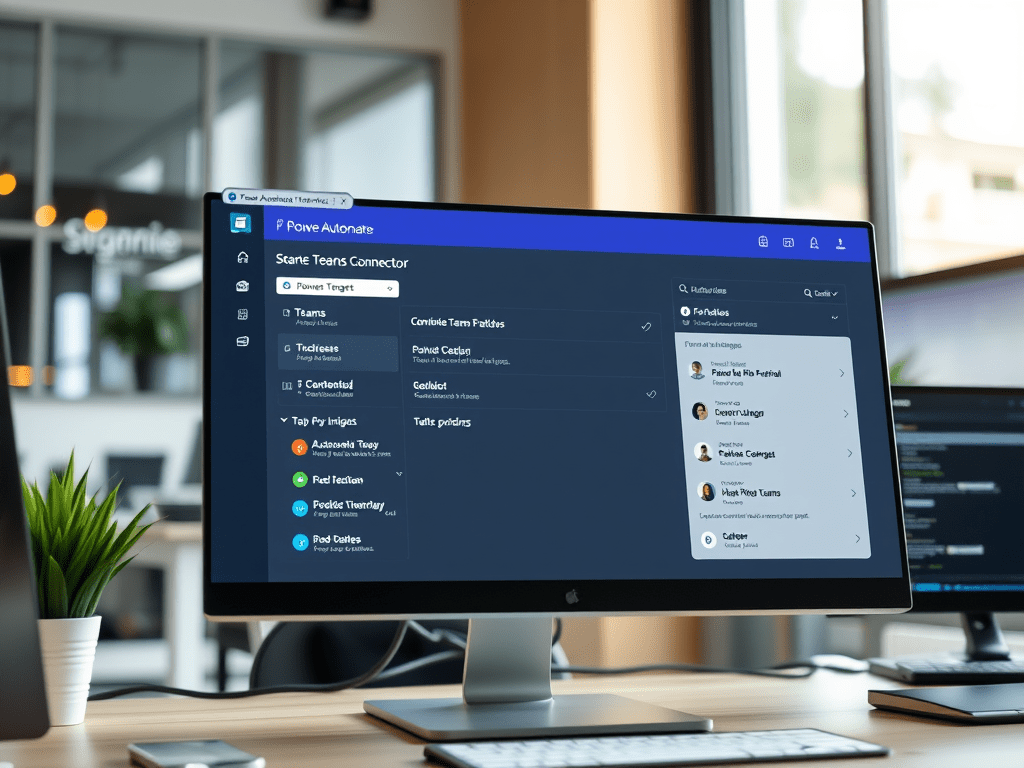
Step-by-step guide to build a Power Automate workflow that sends Microsoft Teams messages. I’ll cover the 3 most common patterns (chat, channel, and “post as Flow bot”), plus typical pitfalls and how to test.
Context: In Power Automate, sending Teams messages is typically done using the Microsoft Teams connector actions like “Post message in a chat or channel”, “Post a message (V3)”, or “Send an HTTP request” (advanced). The simplest/most reliable for most cases is the Teams connector.
Build a Power Automate Workflow to Send Microsoft Teams Messages
What you can send (choose your target first)
You basically have three targets:
- A Teams channel message (e.g., “General” channel of a team)
- A chat message (1:1 or group chat)
- A user “direct notification” (often done via chat, or via Approvals / adaptive cards depending on needs)
Tip: Channel is easier for permissions and troubleshooting; chat can be trickier (especially 1:1) depending on how your org restricts bots/connectors.
Option A — Send a message to a Teams Channel (most common)
Step-by-step (Scheduled or Triggered flow)
1) Create the flow
- Go to Power Automate
- Create
- Choose one:
- Scheduled cloud flow (run every day at 8:00)
- Automated cloud flow (triggered by SharePoint / Forms / email / etc.)
- Instant cloud flow (button click / manual test)
- Choose one:
2) Add your trigger
Examples:
- Recurrence (daily, hourly, etc.)
- When an item is created (SharePoint)
- When a new response is submitted (Forms)
3) Add the Teams action
- New step
- Search: Microsoft Teams
- Pick action: Post a message in a chat or channel (or “Post message in a channel” depending on your tenant UI)
4) Configure the message
Typical fields:
- Post as: Flow bot (common) or User (depends on connector options in your org)
- Post in: Channel
- Team: select the Team
- Channel: select the channel
- Message: build your text
Example message content you can paste:
- Title + key fields
- A clickable URL
- A short list of bullet points
Message example (simple):
Daily report: 14 new items created today.Top item: @{triggerBody()?['Title']}Link: @{triggerBody()?['Link']}
5) Test
- Test → “Manually”
- Trigger it (create an item, wait for schedule, etc.)
- Confirm message appears in the channel.
Common issues (channel)
- You can’t see the Team/Channel in the dropdown: you likely don’t have access, or the connector account doesn’t.
- The message posts but formatting looks ugly: Teams connector supports basic formatting; if you need rich cards, use Adaptive Cards (option C).
Option B — Send a message to a Chat (1:1 or group chat)
Step-by-step (Chat)
1) Trigger
Same as above.
2) Teams action
- Microsoft Teams → Post a message in a chat or channel
- Post in: Chat
3) Choose how to target the chat
Depending on your environment, you’ll see one of these patterns:
- Choose an existing chat from dropdown (works best if it’s already created)
- Use “Chat with Flow bot” style patterns (varies by tenant)
- Or use a Teams/Graph approach for dynamic chat creation (advanced)
4) Message
Same as channel.
Common issues (chat)
- Not all tenants allow bots/connectors to message 1:1 dynamically
- Finding the chat can be annoying if it’s not already created
- If you must notify individuals reliably, many orgs prefer:
- posting in a channel where they’re members, or
- using Approvals / Adaptive Cards (next option)
Option C — Better notifications: Adaptive Card in Teams (recommended for “actionable” messages)
If you want buttons like:
- “Open item”
- “Approve”
- “View details”
Use an Adaptive Card action.
Typical approach:
- Use Teams connector action that posts an Adaptive Card to a channel/chat (connector options vary by tenant).
- The card includes:
- Title
- Facts (Project, Status, Owner)
- Buttons with URLs
This is “cleaner” than plain text and is easier for users to act on.
Option D — Advanced: Send message with HTTP (Graph) (only if you really need it)
This is for scenarios like:
- creating a chat dynamically
- messaging users based on IDs
- more control than connector gives
But it requires:
- Azure AD App Registration
- Graph permissions
- Token handling
If your goal is just “send a Teams message daily/from SharePoint”, don’t start here unless you’re blocked by connector limitations.
Practical example flow (SharePoint → Teams channel)
Use case: Whenever a SharePoint item is created, notify a channel.
Steps:
- Trigger: SharePoint – When an item is created
- Step: (Optional) Compose to format a message
- Step: Teams – Post message in a chat or channel
- Channel: “PMO Updates”
- Message includes Title + CreatedBy + Link
Best practices (so this doesn’t turn into chaos)
- Always include a link to the record (SharePoint item, ticket, etc.)
- Keep messages short: summary + link
- Throttle noise:
- send only when Status = “Critical”
- or batch daily digests instead of spamming each event
- Log errors:
- add a “Scope” for try/catch (Configure run after)
- write failures to a SharePoint “Flow Logs” list
Final checklist: what I need from you (so I can give the exact recipe)
You don’t need to answer now, but here are the 3 decisions that define the flow:
- Do you want to post in a Channel or Chat?
- What triggers it: Schedule or SharePoint item created/updated?
- Do you want plain text or an Adaptive Card?
Summary Table (Steps + Technical Notes)
| Step | What you do | Where | Technical note |
|---|---|---|---|
| 1 | Create flow (Scheduled/Automated/Instant) | Power Automate → Create | Trigger defines how/when message sends |
| 2 | Configure trigger | Recurrence / SharePoint / Forms | Use dynamic content from trigger in message |
| 3 | Add Teams action | Microsoft Teams connector | “Post message in a chat or channel” is the common action |
| 4 | Choose target | Channel or Chat | Channel is easiest; chat may be restricted in some tenants |
| 5 | Format message | Message field (optionally Compose) | Keep short; always include a link |
| 6 | Test + monitor | Test + Run history | Use scopes + “Configure run after” for error handling |

 edvaldo b. guimarães filho