Building a 0–10 “Rating Bar” in SharePoint Column Formatting (and 3 Similar Variations)
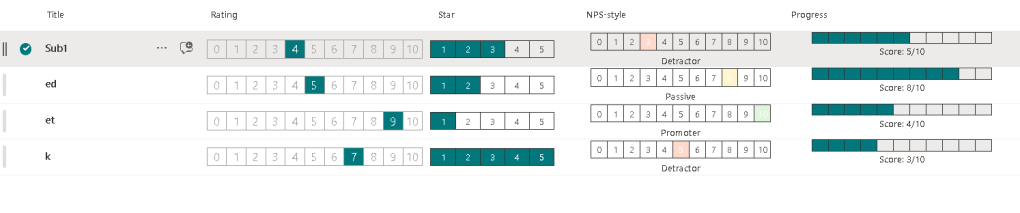
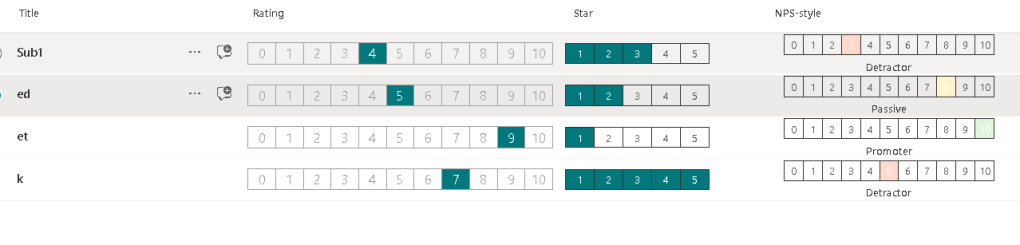
If you’ve ever wanted a compact 0–10 score UI inside a SharePoint list view (or Microsoft Lists), the PnP sample “number-zero-to-ten-rating” is a clean pattern to learn: it renders 11 small boxes (0…10) and highlights the one that matches the field value. The best part: it’s pure column formatting JSON—no SPFx, no Power Automate, no custom CSS files.
This post explains the code you pasted (from PnP) and then gives you 3 similar examples you can reuse right away.
Source reference (PnP sample): (GitHub)
Microsoft Learn (official docs): Column formatting overview (Microsoft Learn) and syntax reference (Microsoft Learn)
1) What this JSON is doing (high level)
The JSON creates:
- A container (
div) that uses Flexbox to lay out child elements horizontally. - A
forEachloop that iterates over an array built withsplit('0,1,2,...,10', ','). - For each number (“score”), it renders a small box with:
- a border (but avoids double borders with a conditional
border-left) - a conditional background class when that “score” equals the current field value
- a conditional text color (white when selected)
- a border (but avoids double borders with a conditional
This is classic SharePoint formatting: you’re building a mini UI using elmType, style, attributes, and expressions—without changing the underlying list data. (Microsoft Learn)
2) The key parts of the code (line-by-line logic)
2.1 Schema + Root element
Your sample starts with the schema and a root div:
"$schema"points to the v2 column formatting schema (GitHub)"elmType": "div"is the root HTML element.
That schema matters because it defines the supported properties (elmType, forEach, txtContent, expressions, etc.). (Microsoft Learn)
2.2 Layout container: Flex row with fixed height
This block:
"style": { "width": "95%", "height": "30px", "display": "flex", "flex-direction": "row", "align-items": "center", "justify-content": "space-evenly", "margin": "5px", "min-width": "220px"},"attributes": { "class": "ms-fontColor-neutralTertiary" }…creates the “bar” area:
display:flex+flex-direction:rowputs boxes in one rowspace-evenlyspreads them evenlymin-width:220pxprevents the bar from collapsing too tightlyms-fontColor-neutralTertiarygives a neutral baseline text color (Fluent UI theme class)
This is pure layout—no data logic yet. (GitHub)
2.3 The trick: forEach + split() to “generate” 0..10
This line is the engine:
"forEach": "score in split('0,1,2,3,4,5,6,7,8,9,10',',')"split(...)returns an array of strings.forEachduplicates the element once per array item (SharePoint supports this pattern). (Microsoft Learn)
So instead of manually writing 11 repeated blocks, the JSON loops.
2.4 Converting strings to numbers and matching the selected value
Inside the repeated element:
"class": "=if(Number([$score])==floor(Number(@currentField)),'ms-bgColor-themePrimary','')"What’s happening:
[$score]comes from the iterator (string “0”, “1”, …)Number([$score])turns it into a number@currentFieldis the current column valuefloor(Number(@currentField))ensures if the field contains decimals, you still match the integer “bucket” (floor is documented in the syntax reference) (Microsoft Learn)- If equal → apply
ms-bgColor-themePrimary(blue theme background). Otherwise empty.
So only the box that matches the field value becomes highlighted.
2.5 Preventing “double borders” between boxes
This is a tiny UI detail:
"border": "1px solid","border-left": "=if(Number([$score])==0,'','none')"- All boxes have a border.
- Every box except “0” removes the left border → so adjacent boxes don’t look like they have a “thick double line” between them.
It’s a small line that makes the component look polished. (GitHub)
2.6 Conditional text color on the selected box
This part:
"class": "='ms-font-m-plus ' + if(Number([$score])==floor(Number(@currentField)),'ms-fontColor-white','')"- Always applies
ms-font-m-plus(a font class). - Adds
ms-fontColor-whiteonly for the selected box—so white text over blue background.
3) How to apply this in SharePoint (quick but complete)
Microsoft Learn’s recommended flow is: open the column menu → format this column → advanced mode → paste JSON. (Microsoft Learn)
Step-by-step:
- Create/choose a Number column (this sample expects numeric values).
- Go to the list view → open the column dropdown → Column settings → Format this column.
- Select Advanced mode.
- Paste the JSON and Save.
- Test values 0, 5, 10 (and optionally decimals like 7.9 to see
floor()behavior).
4) Three similar examples (ready-to-paste)
All examples below use the same core pattern:
forEachto generate segmentsNumber()+@currentField- conditional classes/styles
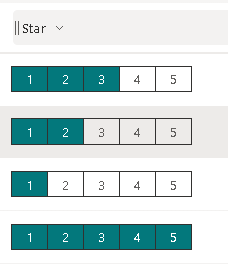
Example 1 — 1–5 “Star Score” blocks (no icons, just segments)
A compact 5-step rating bar (good for “QualityScore” 1..5).
{ "$schema": "https://developer.microsoft.com/json-schemas/sp/v2/column-formatting.schema.json", "elmType": "div", "children": [ { "elmType": "div", "style": { "width": "170px", "height": "26px", "display": "flex", "flex-direction": "row", "align-items": "center" }, "children": [ { "elmType": "div", "forEach": "s in split('1,2,3,4,5',',')", "style": { "width": "32px", "height": "22px", "display": "flex", "justify-content": "center", "align-items": "center", "border": "1px solid", "border-left": "=if(Number([$s])==1,'','none')" }, "attributes": { "class": "=if(Number([$s])<=floor(Number(@currentField)),'ms-bgColor-themePrimary','')" }, "children": [ { "elmType": "span", "txtContent": "[$s]", "attributes": { "class": "=if(Number([$s])<=floor(Number(@currentField)),'ms-fontColor-white','ms-fontColor-neutralSecondary')" } } ] } ] } ]}Behavior: fills all segments up to the score, not just one box.
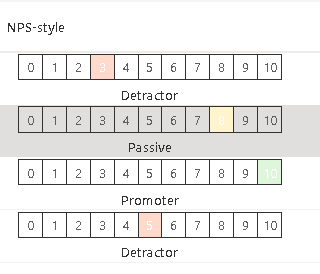
Example 2 — 0–10 NPS-style (Detractor / Passive / Promoter)
Classic NPS buckets:
- 0–6 = detractor
- 7–8 = passive
- 9–10 = promoter
{ "$schema": "https://developer.microsoft.com/json-schemas/sp/v2/column-formatting.schema.json", "elmType": "div", "style": { "display": "flex", "flex-direction": "column", "gap": "4px" }, "children": [ { "elmType": "div", "style": { "width": "240px", "height": "26px", "display": "flex", "flex-direction": "row", "align-items": "center" }, "children": [ { "elmType": "div", "forEach": "n in split('0,1,2,3,4,5,6,7,8,9,10',',')", "style": { "width": "100%", "height": "22px", "display": "flex", "justify-content": "center", "align-items": "center", "border": "1px solid", "border-left": "=if(Number([$n])==0,'','none')" }, "attributes": { "class": "=if(Number([$n])==floor(Number(@currentField)), if(floor(Number(@currentField))<=6,'ms-bgColor-severeWarning', if(floor(Number(@currentField))<=8,'ms-bgColor-warning','ms-bgColor-success')), '')" }, "children": [ { "elmType": "span", "txtContent": "[$n]", "attributes": { "class": "=if(Number([$n])==floor(Number(@currentField)),'ms-fontColor-white','ms-fontColor-neutralSecondary')" } } ] } ] }, { "elmType": "div", "txtContent": "=if(floor(Number(@currentField))<=6,'Detractor', if(floor(Number(@currentField))<=8,'Passive','Promoter'))", "attributes": { "class": "ms-fontSize-12 ms-fontWeight-semibold ms-fontColor-neutralPrimary" } } ]}Behavior: highlights the selected number with a color based on bucket, plus shows the bucket label under the bar.
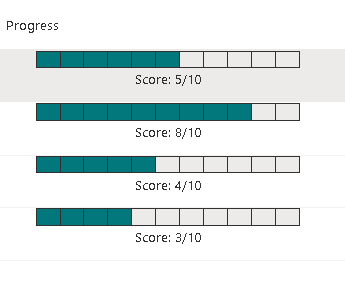
Example 3 — 0–10 “Progress fill” with a label (filled up to value)
Useful for “CompletionScore” out of 10.
{ "$schema": "https://developer.microsoft.com/json-schemas/sp/v2/column-formatting.schema.json", "elmType": "div", "style": { "display": "flex", "flex-direction": "column", "gap": "4px" }, "children": [ { "elmType": "div", "style": { "width": "240px", "height": "14px", "display": "flex", "flex-direction": "row" }, "children": [ { "elmType": "div", "forEach": "p in split('0,1,2,3,4,5,6,7,8,9,10',',')", "style": { "width": "100%", "height": "14px", "border": "1px solid", "border-left": "=if(Number([$p])==0,'','none')" }, "attributes": { "class": "=if(Number([$p])<=floor(Number(@currentField)),'ms-bgColor-themePrimary','ms-bgColor-neutralLight')" } } ] }, { "elmType": "div", "txtContent": "='Score: ' + toString(floor(Number(@currentField))) + '/10'", "attributes": { "class": "ms-fontSize-12 ms-fontColor-neutralPrimary" } } ]}Behavior: segments from 0 up to the score become filled, and the rest remain neutral.
5) Practical tips (so you don’t get stuck)
- Column type: Use a Number column for these patterns. (Text works too, but you’ll fight conversions.)
- Decimals: Keeping
floor(Number(@currentField))is smart when users type7.5.floor()is explicitly supported in SharePoint Online formatting expressions. (Microsoft Learn) - Loop source:
split('0,1,2...')is a convenient way to produce arrays forforEach.forEachis an official concept in the formatting syntax reference. (Microsoft Learn) - Fluent theme classes: Using
ms-bgColor-*andms-fontColor-*keeps your formatting aligned with the tenant theme.
Final tables (Steps + Technical cheat-sheet)
| Step | What you do | Result |
|---|---|---|
| 1 | Create/choose a Number column (e.g., Score) | Field can store 0–10 |
| 2 | Column menu → Format this column | Opens formatting panel |
| 3 | Advanced mode | JSON editor appears |
| 4 | Paste JSON + Save | Bar renders in the view |
| 5 | Test values (0, 5, 10, 7.9) | Confirms highlight + floor() behavior |
| JSON concept | Where it appears | Why it matters |
|---|---|---|
$schema v2 | Header | Enables supported formatting features (GitHub) |
elmType | div, span | Defines the HTML-like structure |
| Flexbox styles | container style | Aligns the bar and segments in one row |
forEach | score in ... | Repeats an element per item in an array (Microsoft Learn) |
split() | split('0,1,2...') | Generates an array for looping (Microsoft Learn) |
@currentField | comparisons | Reads the current column value (Microsoft Learn) |
Number() + floor() | comparisons | Converts values + normalizes decimals (Microsoft Learn) |
| Conditional class | =if(...,'ms-bgColor-...','') | Applies highlight only when condition matches |

 edvaldo b. guimarães filho