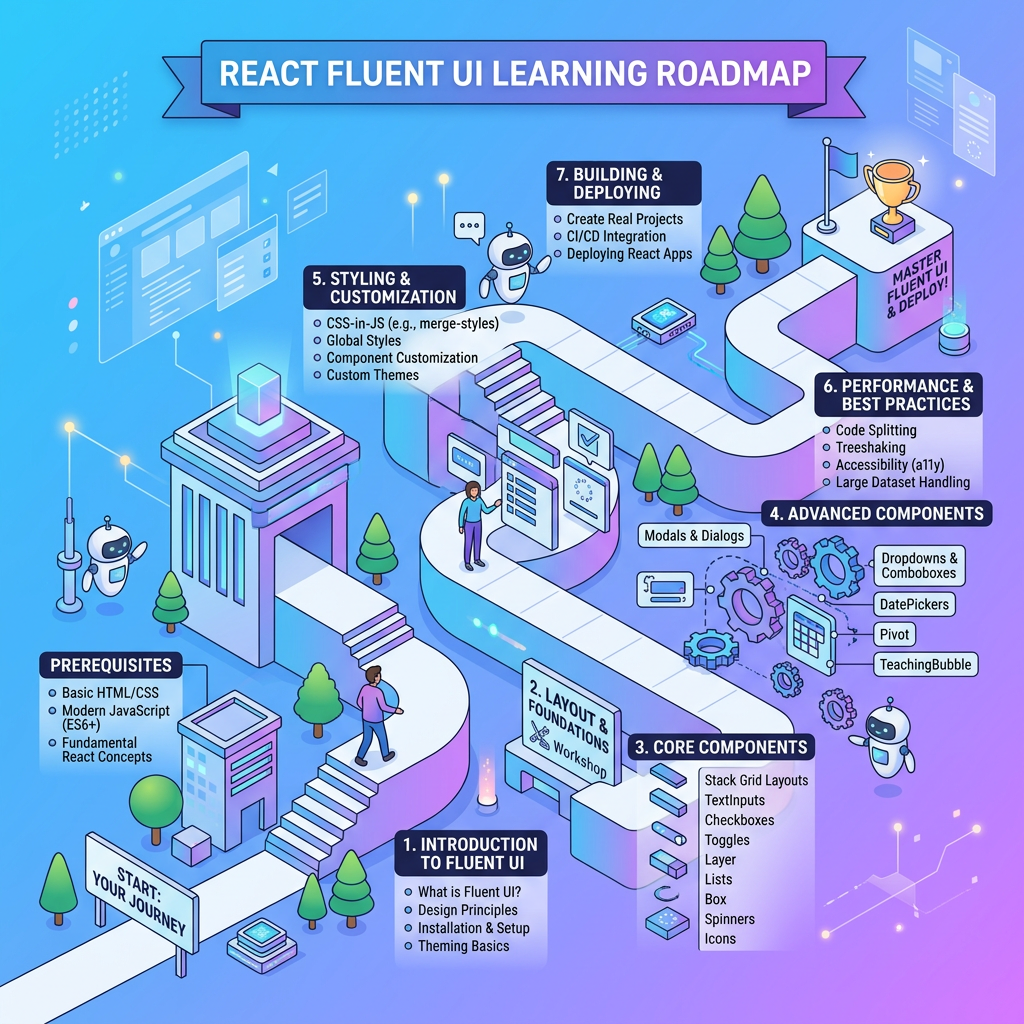
This article documents the complete construction of App 01 — Hello React Fluent, the first application in the 100-app React + Fluent UI learning roadmap. This app belongs to Block 1 — Fundamentals and UI, whose purpose is to teach the foundation of React: JSX, components, composition, props, project structure, and declarative UI. The project roadmap defines App 01 as “Hello React Fluent”, focused on JSX, components, Vite, and FluentProvider.
App 01 — Hello React Fluent: Building the First React + Fluent UI App from Zero
Introduction
This article documents the complete construction of App 01 — Hello React Fluent, the first application in the 100-app React + Fluent UI learning roadmap. This app belongs to Block 1 — Fundamentals and UI, whose purpose is to teach the foundation of React: JSX, components, composition, props, project structure, and declarative UI. The project roadmap defines App 01 as “Hello React Fluent”, focused on JSX, components, Vite, and FluentProvider.
The objective is not only to make the screen work. The objective is to understand what each file does, why Vite exists, why React needs an entry point, why Fluent UI needs a provider, how CSS affects the layout, and how each visual control participates in the final interface.
1. Creating the Project with PowerShell
First, create the root folder for the full learning project.
cd E:\EkisReactLabmkdir React-Fluent-100Appscd React-Fluent-100Apps
This creates a clean workspace where all 100 apps will live.
Now create App 01 with Vite:
npm create vite@latest bloco01-app01-hello-react-fluent -- --template react-ts
This command means:
| Part | Meaning |
|---|---|
npm create vite@latest | Downloads and executes the latest Vite project generator |
bloco01-app01-hello-react-fluent | Name of the project folder |
-- | Separates npm arguments from Vite arguments |
--template react-ts | Creates a React project using TypeScript |
Enter the project folder:
cd bloco01-app01-hello-react-fluent
Install the base dependencies:
npm install
Install Fluent UI:
npm install @fluentui/react-components @fluentui/react-icons
Open the project in VS Code:
code .
Run the development server:
npm run dev
2. What Vite Does
Vite is the development tool that runs the React application locally.
When you run:
npm run dev
Vite starts a local development server, usually at:
http://localhost:5173
Vite gives you:
| Feature | Explanation |
|---|---|
| Fast startup | The project opens quickly |
| Hot Module Replacement | When you save a file, the browser updates automatically |
| TypeScript support | The project understands .tsx files |
| Build pipeline | Later, Vite can generate production files |
| Modern React support | Works well with React 18+ and modern ES modules |
Vite is not React. React is the UI library. Vite is the tool that runs, builds, and serves the project during development.
3. Final Folder Structure
For App 01, use this structure:
src/ components/ AppHeader.tsx InfoCard.tsx data/ appInfo.ts styles/ app.css App.tsx main.tsx
Create the folders:
mkdir src\componentsmkdir src\datamkdir src\styles
Create the files:
New-Item src\components\AppHeader.tsxNew-Item src\components\InfoCard.tsxNew-Item src\data\appInfo.tsNew-Item src\styles\app.css
4. Understanding main.tsx
File:
src/main.tsx
Code:
import React from "react";import ReactDOM from "react-dom/client";import { FluentProvider, webLightTheme,} from "@fluentui/react-components";import App from "./App";import "./styles/app.css";ReactDOM.createRoot(document.getElementById("root")!).render( <React.StrictMode> <FluentProvider theme={webLightTheme}> <App /> </FluentProvider> </React.StrictMode>);
Explanation
import React from "react";
Imports React. Even when React is not directly referenced in every line, it is still part of the JSX rendering environment.
import ReactDOM from "react-dom/client";
Imports the modern React DOM rendering API. This is responsible for rendering React into the browser.
FluentProvider
This is required by Fluent UI. It provides the design system theme to all components inside it.
webLightTheme
This is the default light Microsoft-style theme.
import App from "./App";
Imports the main application component.
import "./styles/app.css";
Loads the custom CSS file.
document.getElementById("root")!
Finds the <div id="root"></div> inside index.html.
The ! tells TypeScript:
I know this element exists.
<React.StrictMode>
Helps detect bad React patterns during development.
<FluentProvider theme={webLightTheme}>
Everything inside this provider receives Fluent UI styling.
<App />
This renders the main app.
5. Understanding appInfo.ts
File:
src/data/appInfo.ts
Code:
export const appInfo = { appNumber: "App 01", appName: "Hello React Fluent", block: "Block 1 — Fundamentals and UI", concept: "First React component with Fluent UI", description: "This application introduces React, TypeScript, Vite, JSX, components, and Microsoft Fluent UI through a simple enterprise-style interface.", technologies: [ "React", "TypeScript", "Vite", "Fluent UI", "JSX", "CSS", ],};
Explanation
This file separates data from UI.
Instead of hardcoding every text directly inside the component, we store reusable information here.
This teaches an important React pattern:
Data and UI should be separated when possible.
The object contains:
| Property | Purpose |
|---|---|
appNumber | Identifies the app number |
appName | Name of the app |
block | Learning block |
concept | Main technical concept |
description | App explanation |
technologies | List rendered in the UI |
This file exports appInfo, so other files can import it.
6. Understanding AppHeader.tsx
File:
src/components/AppHeader.tsx
Code:
import { Text, Title1 } from "@fluentui/react-components";type AppHeaderProps = { appNumber: string; appName: string; block: string;};export function AppHeader({ appNumber, appName, block,}: AppHeaderProps) { return ( <header className="app-header"> <Text size={300} weight="semibold"> {block} </Text> <Title1> {appNumber} — {appName} </Title1> <Text size={400}> Building the foundation for modern React enterprise applications. </Text> </header> );}
Explanation
This is a reusable component.
type AppHeaderProps = { appNumber: string; appName: string; block: string;};
This defines the expected props.
Props are inputs passed into a React component.
export function AppHeader(...)
Exports the component so it can be used in App.tsx.
<header className="app-header">
Uses semantic HTML. A header represents introductory content.
<Text>
Fluent UI text component.
<Title1>
Fluent UI large title component.
This component receives data from outside and renders it.
That is a core React concept:
Components should receive data and return UI.
7. Understanding InfoCard.tsx
File:
src/components/InfoCard.tsx
Code:
import { Badge, Body1, Button, Card, CardHeader, Text,} from "@fluentui/react-components";import { Rocket24Regular } from "@fluentui/react-icons";type InfoCardProps = { title: string; description: string; concept: string; technologies: string[];};export function InfoCard({ title, description, concept, technologies,}: InfoCardProps) { return ( <Card className="info-card"> <CardHeader image={<Rocket24Regular />} header={<Text weight="semibold">{title}</Text>} description={<Text>{concept}</Text>} /> <Body1>{description}</Body1> <div className="badge-list"> {technologies.map((technology) => ( <Badge key={technology} appearance="filled"> {technology} </Badge> ))} </div> <Button appearance="primary"> Fluent UI is working </Button> </Card> );}
Explanation of Fluent UI Controls
Card
<Card className="info-card">
Card is a Fluent UI container. It creates a clean visual block with spacing, border, and Microsoft-style design.
Use Card for:
| Scenario | Example |
|---|---|
| Dashboard widget | KPI card |
| Profile block | User card |
| Form section | Login card |
| Content group | News block |
CardHeader
<CardHeader />
Organizes the top part of the card.
It receives:
imageheaderdescription
Rocket Icon
<Rocket24Regular />
This is an icon from Fluent UI icons.
The 24 means the icon size is 24 pixels.
Text
<Text weight="semibold">
A Fluent UI typography component.
Body1
<Body1>{description}</Body1>
Used for normal body text with Fluent UI typography.
Badge
<Badge appearance="filled">
A badge is a small label. Here it shows the technologies used in the app.
Button
<Button appearance="primary">
A Fluent UI button with primary action style.
The prop:
appearance="primary"
means this is the main action button.
8. Understanding .map()
This code is very important:
{technologies.map((technology) => ( <Badge key={technology} appearance="filled"> {technology} </Badge>))}
It transforms an array into UI.
The array:
["React", "TypeScript", "Vite", "Fluent UI"]
becomes:
<Badge>React</Badge><Badge>TypeScript</Badge><Badge>Vite</Badge><Badge>Fluent UI</Badge>
The key is required by React when rendering lists.
key={technology}
React uses keys to identify each item efficiently.
9. Understanding App.tsx
File:
src/App.tsx
Code:
import { AppHeader } from "./components/AppHeader";import { InfoCard } from "./components/InfoCard";import { appInfo } from "./data/appInfo";function App() { return ( <main className="app-shell"> <section className="app-content"> <AppHeader appNumber={appInfo.appNumber} appName={appInfo.appName} block={appInfo.block} /> <InfoCard title="Welcome to React with Fluent UI" description={appInfo.description} concept={appInfo.concept} technologies={appInfo.technologies} /> </section> </main> );}export default App;
Explanation
import { AppHeader } from "./components/AppHeader";
Imports the header component.
import { InfoCard } from "./components/InfoCard";
Imports the card component.
import { appInfo } from "./data/appInfo";
Imports the data object.
function App()
This is the root application component.
<main className="app-shell">
The main layout wrapper.
<section className="app-content">
Creates a centered content area.
<AppHeader />
Uses the custom component.
<InfoCard />
Uses the second custom component.
This file teaches composition:
App is composed of AppHeader + InfoCard.
This is exactly how React applications grow.
10. Understanding CSS
File:
src/styles/app.css
Code:
* { box-sizing: border-box;}body { margin: 0; font-family: "Segoe UI", Arial, sans-serif; background: #f5f5f5;}.app-shell { min-height: 100vh; padding: 48px; display: flex; justify-content: center; align-items: center;}.app-content { width: 100%; max-width: 720px;}.app-header { margin-bottom: 32px; display: flex; flex-direction: column; gap: 8px;}.info-card { padding: 24px; display: flex; flex-direction: column; gap: 20px;}.badge-list { display: flex; flex-wrap: wrap; gap: 8px;}
CSS Explanation
Universal selector
* { box-sizing: border-box;}
This makes sizing more predictable.
Without this, padding and borders can unexpectedly increase element width.
Body
body { margin: 0;}
Browsers add default margin. We remove it.
font-family: "Segoe UI", Arial, sans-serif;
Segoe UI is the Microsoft-style font.
background: #f5f5f5;
Light gray background.
App Shell
.app-shell { min-height: 100vh;}
Makes the app fill the full screen height.
padding: 48px;
Adds internal spacing.
display: flex;justify-content: center;align-items: center;
Centers the content horizontally and vertically.
App Content
.app-content { width: 100%; max-width: 720px;}
Prevents the content from becoming too wide.
Header
.app-header { margin-bottom: 32px;}
Creates space between the header and the card.
display: flex;flex-direction: column;gap: 8px;
Stacks texts vertically with spacing.
Info Card
.info-card { padding: 24px;}
Adds space inside the card.
display: flex;flex-direction: column;gap: 20px;
Stacks card content vertically.
Badge List
.badge-list { display: flex; flex-wrap: wrap; gap: 8px;}
Creates a flexible row of badges. If there is no space, badges wrap to the next line.
11. Complete PowerShell Script for the App
cd E:\EkisReactLabmkdir React-Fluent-100Appscd React-Fluent-100Appsnpm create vite@latest bloco01-app01-hello-react-fluent -- --template react-tscd bloco01-app01-hello-react-fluentnpm installnpm install @fluentui/react-components @fluentui/react-iconsmkdir src\componentsmkdir src\datamkdir src\stylesNew-Item src\components\AppHeader.tsxNew-Item src\components\InfoCard.tsxNew-Item src\data\appInfo.tsNew-Item src\styles\app.csscode .
Run:
npm run dev
12. What This App Teaches
| Concept | File | Explanation |
|---|---|---|
| Vite | Project setup | Runs the React development server |
| React entry point | main.tsx | Starts React in the browser |
| FluentProvider | main.tsx | Provides Fluent UI theme |
| Root component | App.tsx | Main application component |
| Component composition | App.tsx | Combines smaller components |
| Props | AppHeader.tsx, InfoCard.tsx | Sends data into components |
| Static data | appInfo.ts | Separates data from UI |
| Fluent UI Card | InfoCard.tsx | Creates enterprise visual container |
| Fluent UI Button | InfoCard.tsx | Creates Microsoft-style action |
| CSS layout | app.css | Controls spacing, alignment, and layout |
| Rendering lists | InfoCard.tsx | Uses .map() to render badges |
13. Technical Summary
This first app establishes the base architecture for the full React + Fluent UI learning path. It uses Vite for fast development, React for declarative UI, TypeScript for safer code, Fluent UI for Microsoft-style enterprise controls, and CSS for layout control. The app is intentionally simple but structurally important because it introduces the same patterns that will be reused across future apps: separate data, reusable components, clear file organization, typed props, visual composition, and a clean root component.
14. Official Documentation
| Topic | Official Link |
|---|---|
| React Learn | https://react.dev/learn |
| Your First Component | https://react.dev/learn/your-first-component |
| Writing Markup with JSX | https://react.dev/learn/writing-markup-with-jsx |
| Rendering Lists | https://react.dev/learn/rendering-lists |
| Passing Props | https://react.dev/learn/passing-props-to-a-component |
| Vite Guide | https://vite.dev/guide/ |
| Fluent UI React Components | https://developer.microsoft.com/en-us/fluentui#/controls/web |
| TypeScript Docs | https://www.typescriptlang.org/docs/ |
| Node.js | https://nodejs.org |


