Building a React Calculator with React State, TypeScript, Vite, and Fluent UI
The calculator is one of the most important learning exercises in frontend development because it forces the developer to understand how user interaction changes application state and how the interface reacts to those changes. In traditional JavaScript development, calculators are often implemented imperatively by directly manipulating the DOM. In React, however, the calculator becomes an exercise in declarative rendering, component composition, event handling, and state transitions.
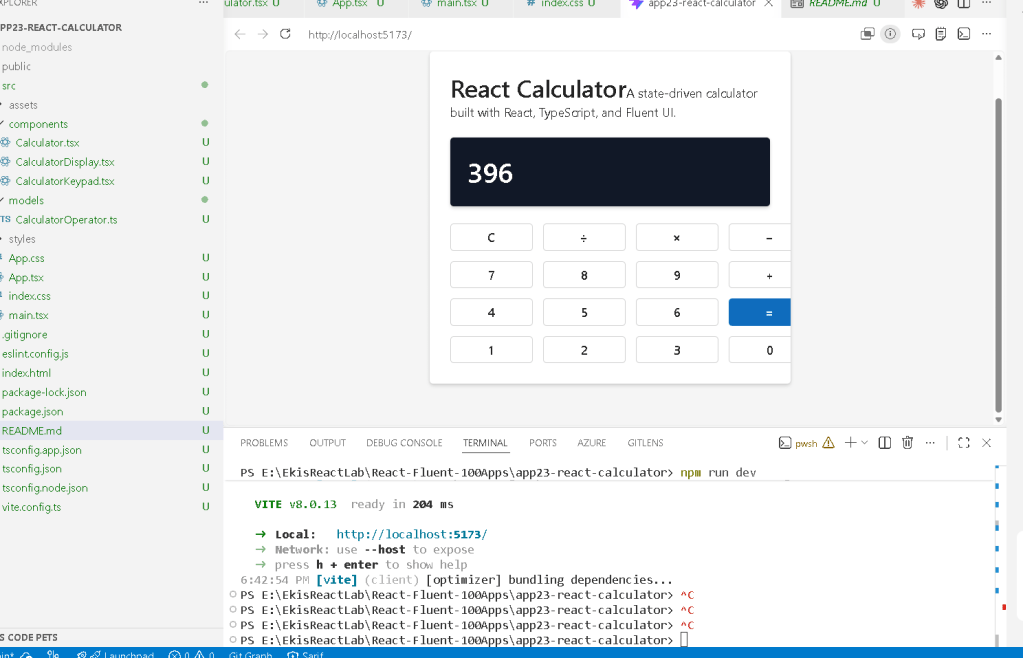
App 23 — React Calculator belongs to Block 2 — Interactivity and State in the React + Fluent UI roadmap. This block introduces the most important concept in modern React:
The UI is a function of state.
The calculator is an ideal project for learning this mental model because every button click changes the state of the application, and React automatically re-renders the UI based on the updated state.
This app is based on:
- React functional components
useState- event-driven rendering
- derived state
- TypeScript typing
- Fluent UI enterprise components
- Vite modern tooling
The roadmap defines App 23 as:
“React Calculator / Functional calculator / Events and derived state.”
The application also reinforces concepts from:
- “State: A Component’s Memory”
- “Responding to Events”
- “Queueing a Series of State Updates”
from the official React Learn documentation.
Why the Calculator Is Important in React
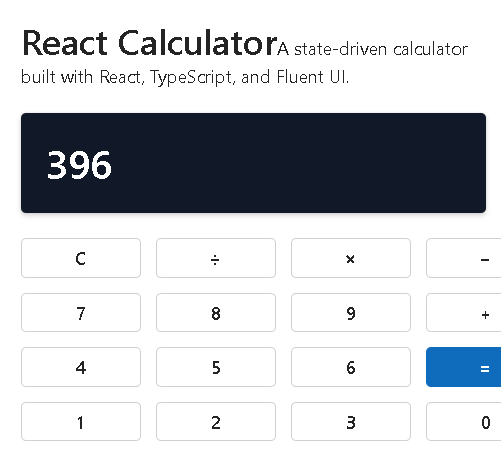
A calculator is deceptively simple.
Visually, it is only:
- buttons
- a display
- mathematical operations
But architecturally, it introduces several extremely important React concepts:
- state transitions
- event handlers
- component communication
- derived values
- rendering flow
- conditional logic
- UI synchronization
This app is also important because it demonstrates something fundamental:
React does not directly manipulate the DOM.
Instead:
- user clicks a button
- React updates state
- component re-renders
- UI updates automatically
This is the declarative React model.
Creating the Project
The project starts with Vite.
npm create vite@latest app23-react-calculator -- --template react-ts
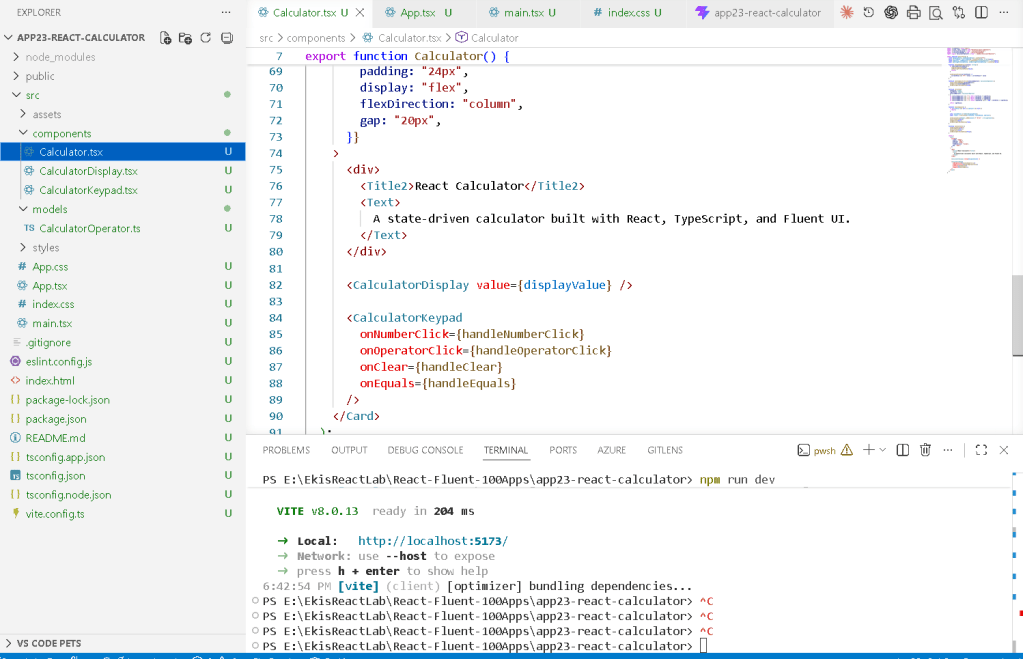
This command creates:
- React project
- TypeScript support
- Vite configuration
- modern build system
The react-ts template is important because TypeScript introduces:
- static typing
- autocomplete
- safer refactoring
- improved maintainability
After creation:
npm install
Then Fluent UI:
npm install @fluentui/react-components @fluentui/react-icons
Fluent UI provides Microsoft-style enterprise controls and accessibility behavior automatically.
The Final Project Structure
src/ components/ Calculator.tsx CalculatorDisplay.tsx CalculatorKeypad.tsx models/ CalculatorOperator.ts styles/ App.tsx main.tsx index.css
This structure already follows professional React architecture principles:
- separation of responsibilities
- reusable components
- isolated data models
- scalable organization
Understanding the React Rendering Flow
Before analyzing the calculator itself, we must understand how the React application enters the browser.
The rendering flow is:
index.html ↓main.tsx ↓<App /> ↓<Calculator /> ↓<CalculatorDisplay /><CalculatorKeypad />
React renders components recursively.
Each component returns JSX.
React converts that JSX into:
- JavaScript objects
- virtual DOM representation
- real DOM updates
The browser finally displays HTML.
Understanding main.tsx
The file:
import React from "react";import ReactDOM from "react-dom/client";import { FluentProvider, webLightTheme,} from "@fluentui/react-components";import App from "./App";
imports:
- React
- ReactDOM
- Fluent UI provider
- root application component
Then:
ReactDOM.createRoot( document.getElementById("root")!)
connects React to:
<div id="root"></div>
inside index.html.
This means React will render the application inside the browser DOM element with id "root".
Why FluentProvider Matters
<FluentProvider theme={webLightTheme}>
This activates Fluent UI globally.
Without it:
- Fluent components lose styling
- theme tokens disappear
- typography becomes inconsistent
- accessibility behavior may not work properly
The provider injects:
- colors
- typography
- spacing
- design tokens
- Microsoft visual identity
This is similar to a global UI context.
Understanding App.tsx
The file:
function App() { return ( <main> <Calculator /> </main> );}
is intentionally simple.
Its responsibility is:
- page layout
- application composition
This follows a key React principle:
Components should have one responsibility.
App.tsx does not contain calculator logic.
Instead, it delegates that responsibility to:
<Calculator />
Understanding Component Composition
The calculator architecture is:
App Calculator CalculatorDisplay CalculatorKeypad
This is called component composition.
Instead of building one giant file, the interface becomes a hierarchy of reusable UI pieces.
This improves:
- readability
- maintainability
- scalability
- testing
- separation of concerns
Understanding CalculatorOperator.ts
export type CalculatorOperator = "+" | "-" | "*" | "/";
This is a TypeScript union type.
It restricts operators to valid values only.
Without TypeScript, a developer could accidentally write:
"%"
or:
"invalid"
TypeScript prevents this.
This is important because enterprise React applications rely heavily on predictable data structures.
Understanding the Calculator State
The calculator stores four state values:
const [displayValue, setDisplayValue] = useState("0");const [firstValue, setFirstValue] = useState<number | null>(null);const [operator, setOperator] = useState<CalculatorOperator | null>(null);const [waitingForSecondValue, setWaitingForSecondValue] = useState(false);
This is the heart of the application.
What Is React State?
React state is component memory.
Unlike normal variables:
- state persists between renders
- state triggers re-rendering
- state represents UI data
According to React Learn:
State is a component’s memory.
Understanding displayValue
const [displayValue, setDisplayValue]
This stores what appears on the calculator screen.
Examples:
"0""25""128""Error"
This value directly drives the UI.
The display component simply renders the current state.
This is declarative rendering.
Understanding firstValue
const [firstValue, setFirstValue]
This stores the first number before an operator is selected.
Example flow:
User types 25User presses +
Now:
firstValue = 25operator = "+"
The app is waiting for the second number.
Understanding operator
const [operator, setOperator]
Stores the selected mathematical operator.
Possible values:
+-*/
This allows the app to know which calculation should happen later.
Understanding waitingForSecondValue
const [waitingForSecondValue, setWaitingForSecondValue]
This is one of the most important state variables in the app.
It controls calculator flow.
Example:
User types 25User presses +
At this moment:
waitingForSecondValue = true
Now the next number should replace the display instead of appending to it.
Without this state variable, the calculator would behave incorrectly.
Understanding Event Handling
Buttons use:
onClick={...}
Example:
<Button onClick={() => onNumberClick("7")}> 7</Button>
This means:
- when user clicks button
- execute function
- update React state
React events are declarative.
You are not manually attaching DOM listeners.
React handles event delegation internally.
Understanding handleNumberClick
function handleNumberClick(value: string)
This function updates the calculator display.
The critical logic is:
if (waitingForSecondValue) { setDisplayValue(value); setWaitingForSecondValue(false); return;}
This means:
If we are waiting for the second number,replace the display completely.
Otherwise:
setDisplayValue((currentValue) => currentValue === "0" ? value : currentValue + value);
This appends digits.
Example:
Current: "2"Clicked: "5"Result: "25"
Why Functional State Updates Matter
This line:
setDisplayValue((currentValue) => ...)
uses a functional update.
This is important because React batches state updates.
According to React Learn:
React queues state updates before re-rendering.
Queueing a Series of State Updates
Using the previous state safely avoids stale values.
Understanding handleOperatorClick
function handleOperatorClick(selectedOperator)
This stores:
- current display as first value
- selected operator
- waiting mode
setFirstValue(Number(displayValue));setOperator(selectedOperator);setWaitingForSecondValue(true);
This creates the calculator transition:
first number →operator →second number →result
Understanding Derived State
The result is not permanently stored.
Instead, it is calculated when needed.
This is called derived state.
React recommends:
- storing minimal state
- deriving values whenever possible
This avoids duplication and synchronization problems.
Understanding calculate()
function calculate( leftValue, rightValue, selectedOperator)
This function contains the mathematical rules.
Example:
if (selectedOperator === "+") return leftValue + rightValue;
The calculation logic is isolated from the UI.
This separation is important.
UI components should not mix:
- rendering
- business logic
- mathematical rules
Understanding handleEquals
function handleEquals()
This executes the calculation.
Flow:
Read second valueRun calculationUpdate displayReset temporary state
The result becomes:
setDisplayValue(String(result));
Since the display depends on state:
- React re-renders
- UI updates automatically
No manual DOM manipulation is needed.
Division by Zero Handling
return rightValue === 0 ? NaN : leftValue / rightValue;
This prevents invalid division.
Later:
Number.isNaN(result)
shows:
"Error"
This demonstrates conditional rendering logic.
Understanding handleClear
function handleClear()
resets all calculator state.
setDisplayValue("0");setFirstValue(null);setOperator(null);setWaitingForSecondValue(false);
This restores the initial application state.
Understanding the Display Component
CalculatorDisplay.tsx is intentionally isolated.
Its responsibility is only:
- receiving props
- rendering UI
It does not:
- calculate
- manage state
- know calculator rules
This is extremely important.
React encourages:
- pure components
- isolated responsibilities
- predictable rendering
Why the Display Uses Props
interface CalculatorDisplayProps { value: string;}
The display receives data from its parent.
This demonstrates React’s unidirectional data flow:
Parent state ↓Props ↓Child component
Child components should not directly mutate parent state.
Understanding CalculatorKeypad.tsx
The keypad component contains all buttons.
Its responsibility is:
- rendering controls
- emitting events upward
Notice:
- keypad has no state
- keypad does not calculate
Instead, it receives callback functions from the parent.
This is another key React pattern.
Parent-to-Child and Child-to-Parent Communication
Flow:
Calculator passes functions ↓CalculatorKeypad calls functions on clicks ↓Calculator updates state ↓React re-renders UI
This is how React applications scale.
Understanding Fluent UI Buttons
<Button appearance="primary">
Fluent UI automatically provides:
- hover states
- focus management
- keyboard accessibility
- Microsoft styling
- spacing consistency
Without Fluent UI, all this behavior would require manual implementation.
Why the Layout Uses CSS Grid
The keypad uses:
gridTemplateColumns: "repeat(4, 1fr)"
This creates:
- four equal columns
- responsive alignment
- consistent spacing
Grid is ideal for calculators because buttons naturally form rows and columns.
React Mental Model Reinforced
This calculator reinforces the correct React mental model:
React is NOT:
- manual DOM updates
- imperative UI programming
- jQuery-style manipulation
React IS:
- state-driven rendering
- declarative UI composition
- predictable component architecture
This distinction is fundamental.
Why No useEffect Is Needed
An important architectural decision in this app is:
There is no useEffect.
Why?
Because:
- no external systems exist
- no API calls exist
- no timers exist
- no browser synchronization exists
Everything is internal state logic.
According to React Learn:
“You Might Not Need an Effect.”
This is a very important lesson.
Beginners often overuse effects unnecessarily.
PowerShell Commands Used
Create the project
cd C:\ReactAppsmkdir bloco02cd bloco02npm create vite@latest app23-react-calculator -- --template react-tscd app23-react-calculatornpm install
Install Fluent UI
npm install @fluentui/react-components @fluentui/react-icons
Create folders
mkdir src\componentsmkdir src\modelsmkdir src\styles
Create files
New-Item src\models\CalculatorOperator.ts -ItemType FileNew-Item src\components\Calculator.tsx -ItemType FileNew-Item src\components\CalculatorDisplay.tsx -ItemType FileNew-Item src\components\CalculatorKeypad.tsx -ItemType File
Run development server
npm run dev
Validate production build
npm run build
Preview production build
npm run preview
Technical Summary
| Concept | Explanation |
|---|---|
useState | Component memory |
| State transitions | UI changes driven by state |
| Event handling | Button clicks trigger updates |
| Derived state | Result calculated from existing values |
| Props | Parent-to-child data flow |
| Callback functions | Child-to-parent communication |
| Functional updates | Safe state transitions |
| TypeScript union type | Restricted operator values |
| Fluent UI | Microsoft design system |
| CSS Grid | Calculator button layout |
| Declarative rendering | UI derived from state |
| Pure components | Predictable rendering |
Official Documentation
React
- React Learn
- State: A Component’s Memory
- Responding to Events
- Queueing a Series of State Updates
- You Might Not Need an Effect
Fluent UI
Vite
TypeScript
Current Progress
| Block | App | Name | Status |
|---|---|---|---|
| Block 1 | 01 | Hello React Fluent | Completed |
| Block 1 | 02 | Profile Card | Completed |
| Block 1 | 03 | Product List | Completed |
| Block 1 | 04 | Microsoft Style User Card | Completed |
| Block 1 | 05 | Static Dashboard | Completed |
| Block 1 | 06 | Corporate Sidebar Menu | Completed |
| Block 1 | 07 | Visual Task List | Completed |
| Block 1 | 08 | Timeline of Events | Completed |
| Block 1 | 09 | Employee Table | Completed |
| Block 1 | 10 | Email List | Completed |
| Block 1 | 11 | Grid of Cards | Completed |
| Block 1 | 12 | Image Gallery | Completed |
| Block 1 | 13 | Movie Catalog | Completed |
| Block 1 | 14 | Football Teams List | Completed |
| Block 1 | 15 | News Page | Completed |
| Block 1 | 16 | Static Financial Dashboard | Completed |
| Block 1 | 17 | SharePoint Style Layout | Completed |
| Block 1 | 18 | File Explorer | Completed |
| Block 1 | 19 | Corporate Portal | Completed |
| Block 1 | 20 | Microsoft Style Landing Page | Completed |
| Block 2 | 21 | Modern Counter | Completed |
| Block 2 | 22 | Toggle Theme | Completed |
| Block 2 | 23 | React Calculator | Current |
| Block 2 | 24 | Login Form | Next |


