
Building Your First Interactive React Application — Understanding State with App 21 Modern Counter
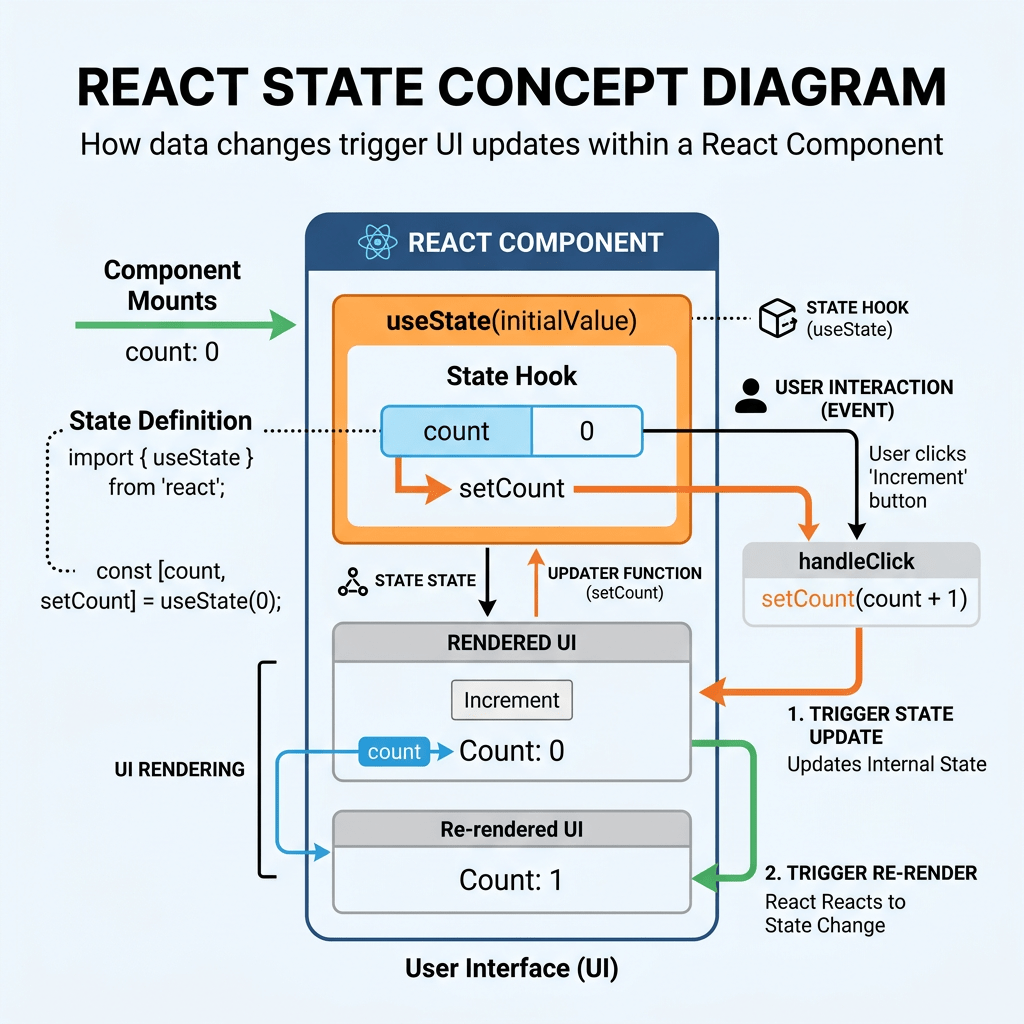
The transition from Block 1 to Block 2 is one of the most important moments in the entire React learning journey.
In Block 1, the applications were mostly static. The UI was built declaratively using components, JSX, props, lists, composition, and Fluent UI layouts. The interface existed, but it did not truly react to user interaction yet.
App 21 — Modern Counter changes that completely.
This application introduces one of the most fundamental concepts in all React development:
React State
State is the mechanism that allows React components to:
- remember information
- react to user interaction
- update the interface dynamically
- create interactive applications
- maintain component memory between renders
Without state, React applications would only display static interfaces.
With state, React applications become dynamic systems.
The official React documentation describes state as:
“A component’s memory.”
This app may visually appear simple, but architecturally it introduces:
useState- event handling
- re-rendering
- derived UI
- state-driven rendering
- declarative updates
- React’s rendering cycle
- component memory
- state transitions
- user interaction flow
Understanding this app correctly is essential because virtually every modern React application depends on state.
The Shift from Static UI to Interactive UI
Before App 21, the applications behaved like static visual compositions.
For example:
- dashboards displayed information
- cards rendered content
- lists displayed data
- sidebars showed menus
But the UI itself did not change dynamically.
In App 21:
- the user clicks a button
- state changes
- React re-renders the component
- the UI updates automatically
This is the true beginning of modern React application behavior.
The Main React Mental Model
One of the most important concepts in React is:
UI = f(state)
This means:
The interface is a function of state.
The UI shown on the screen depends entirely on the current state values.
In App 21:
count = 0
produces one UI.
If:
count = 10
React automatically produces a different UI.
This is declarative programming.
You are not manually manipulating the browser DOM.
You are changing state.
React handles the rendering updates automatically.
Creating the Project
The application was created using Vite with React and TypeScript.
PowerShell Commands
cd C:\ReactAppsmkdir bloco02cd bloco02npm create vite@latest app21-modern-counter -- --template react-tscd app21-modern-counternpm install
Install Fluent UI:
npm install @fluentui/react-components @fluentui/react-icons
Create folders:
mkdir src\componentsmkdir src\styles
Create component file:
New-Item src\components\CounterPanel.tsx -ItemType File
Run the app:
npm run dev
Validate production build:
npm run build
Preview production build:
npm run preview
Project Structure
The final structure becomes:
app21-modern-counter/ src/ components/ CounterPanel.tsx styles/ App.tsx main.tsx index.css
This app intentionally keeps the structure simple because the focus is understanding state itself.
Later applications will expand this structure significantly.
Understanding main.tsx
The entry point remains:
import React from "react";import ReactDOM from "react-dom/client";import { FluentProvider, webLightTheme,} from "@fluentui/react-components";import App from "./App";ReactDOM.createRoot( document.getElementById("root")!).render( <React.StrictMode> <FluentProvider theme={webLightTheme}> <App /> </FluentProvider> </React.StrictMode>);
This file:
- connects React to HTML
- initializes the rendering root
- activates Fluent UI globally
- renders the application
The important difference now is that the application contains dynamic state.
Understanding CounterPanel.tsx
This is the most important file in the application.
import { useState } from "react";
This single line changes everything.
What is useState?
useState is a React Hook.
Hooks are special React functions that allow components to use React features.
The useState Hook allows a component to:
- store data
- preserve data between renders
- update data
- trigger re-rendering
Without useState, variables reset every render.
With useState, React preserves values internally.
The Most Important Line in the App
const [count, setCount] = useState(0);
This is one of the most important lines in all React development.
It creates component state.
Let’s break it apart carefully.
Understanding Array Destructuring
This syntax:
const [count, setCount]
is JavaScript array destructuring.
useState() returns an array with two elements:
[value, updaterFunction]
So:
const [count, setCount] = useState(0);
means:
count current state valuesetCount function used to update the state
Understanding the Initial Value
useState(0)
The number 0 is the initial state value.
When the component renders for the first time:
count = 0
React stores this internally.
This value persists between renders.
Why Normal Variables Do Not Work
Many beginners try:
let count = 0;
This does NOT work correctly in React.
Why?
Because components re-run every render.
When React renders again:
count resets back to 0
Normal variables do not persist between renders.
React state does.
What Happens During Rendering
Every time state changes:
setCount(...)
React:
- stores the new value
- schedules a re-render
- re-runs the component function
- updates the UI
This is extremely important.
The component function runs again after state updates.
Understanding React Re-Rendering
Consider this state:
const [count, setCount] = useState(0);
Initially:
count = 0
The UI renders:
0
Now the user clicks Increase.
The Increase Button
<Button onClick={increment}>
This attaches an event handler.
When the button is clicked:
- the function executes
- state updates
- React re-renders
Understanding Event Handling
The handler:
function increment() { setCount(count + 1);}
works like this:
Step 1:
Current count = 0
Step 2:
setCount(0 + 1)
Step 3:
React stores count = 1
Step 4:
React re-renders component
Step 5:
UI now shows 1
The UI automatically updates.
This is one of the biggest React advantages.
React Does NOT Update the DOM Manually
This is critical to understand.
In old JavaScript approaches, you might write:
document.getElementById("counter").innerText = value;
React does NOT work like that.
Instead:
state changes↓React re-renders↓UI updates automatically
You never manually update the DOM.
Understanding Declarative UI
React is declarative.
You describe:
- what the UI should look like
- based on the current state
You do NOT describe:
- how to manually manipulate the browser
This is the core React philosophy.
Derived State
One of the best parts of this app is:
const status = count === 0 ? "Neutral" : count > 0 ? "Positive" : "Negative";
This is called derived UI.
The status depends on count.
This is important because:
DO NOT duplicate state unnecessarily.
We do NOT store:
const [status, setStatus]
because status can already be calculated from count.
Why Derived State Matters
Bad approach:
const [count, setCount]const [status, setStatus]
This creates duplicated state.
Duplicated state causes bugs because values can become inconsistent.
Correct approach:
Store minimal state.Derive everything else.
This is one of the most important React architectural principles.
React State Best Practices
The official React documentation strongly recommends:
Keep state minimal.
Only store values that truly need memory.
Everything derivable should be calculated.
Understanding Reconciliation
When state changes, React does not rebuild the entire page blindly.
Instead:
- React creates a new virtual UI tree
- compares it with the previous one
- updates only what changed
This process is called:
Reconciliation
In this app:
- only the counter text changes
- React updates only necessary DOM nodes
This makes React efficient.
The Role of the Buttons
The app contains three buttons:
DecreaseIncreaseReset
Each button triggers a state transition.
Decrease
function decrement() { setCount(count - 1);}
Increase
function increment() { setCount(count + 1);}
Reset
function reset() { setCount(0);}
Each action changes the state.
The UI reacts automatically.
Understanding Component Memory
The React docs describe state as memory.
Why?
Because React remembers values between renders.
Without state:
render↓value lost
With state:
render↓React preserves value↓next render uses updated value
This is what makes interactivity possible.
Why useState Is Called a Hook
Hooks allow components to:
- “hook into” React features
Examples of Hooks:
useStateuseEffectuseMemouseCallbackuseReduceruseContext
App 21 introduces the very first Hook.
Why Hooks Matter
Before Hooks, React used:
- class components
- lifecycle methods
this.state
Modern React strongly prefers:
- functional components
- hooks
Hooks produce:
- simpler code
- cleaner architecture
- reusable logic
- easier learning curve
Understanding Component Re-Execution
This surprises many beginners:
The component function runs again after state updates.
When:
setCount(...)
executes:
CounterPanel()
runs again.
This is normal.
React components are not one-time execution functions.
They are rendering functions.
Why React Components Must Be Pure
React expects components to behave like pure functions.
Meaning:
Same state + same props = same UI
This predictability allows React to optimize rendering.
Understanding UI Synchronization
The UI is synchronized automatically with state.
This means:
- no manual DOM manipulation
- no direct HTML editing
- no imperative updates
The UI always reflects current state.
Why There Is No useEffect
This app intentionally does NOT use:
useEffect()
Why?
Because:
- there is no API
- no timer
- no external synchronization
- no browser subscription
- no storage synchronization
React Learn explains:
Effects synchronize with external systems.
This app only updates internal component state.
Therefore:
useEffectis unnecessary
This is extremely important because beginners often overuse effects.
Fluent UI and State
The app combines:
- React state
- Fluent UI enterprise components
For example:
<Button appearance="primary">
and:
<Badge appearance="filled">
The state dynamically changes the displayed content.
This demonstrates:
- state-driven enterprise UI
- dynamic Fluent UI rendering
Understanding State Flow
The complete flow is:
User clicks button↓Event handler runs↓setCount() executes↓React stores new state↓Component re-renders↓JSX recalculates↓UI updates automatically
This is one of the most important diagrams in React development.
Why State Is the Foundation of React
Nearly everything in React depends on state:
- forms
- filters
- APIs
- dashboards
- DataGrid
- authentication
- navigation
- theme switching
- shopping carts
- CRUD systems
App 21 introduces the foundation for all future apps.
Common Beginner Mistakes
1. Using normal variables
Wrong:
let count = 0;
Correct:
const [count, setCount] = useState(0);
2. Mutating state directly
Wrong:
count++;
Correct:
setCount(count + 1);
React state must be updated through the setter function.
3. Duplicating derived state
Wrong:
const [status, setStatus]
Correct:
const status = ...
4. Using useEffect unnecessarily
This app correctly avoids effects.
Technical Summary
| Concept | Explanation |
|---|---|
useState | React Hook for component memory |
| State | Persistent value between renders |
setCount | Updates state |
| Re-render | React re-executes component |
| Declarative UI | UI derived from state |
| Event handler | Function triggered by user interaction |
| Derived state | Calculated from existing state |
| Component memory | React preserves values internally |
| Reconciliation | React updates only changed DOM parts |
| Pure component | Predictable rendering behavior |
Official Documentation
React Learn
- State: A Component’s Memory
- Responding to Events
- Render and Commit
- Queueing a Series of State Updates
- Keeping Components Pure
Fluent UI
Vite
TypeScript
Current Project Progress
| Block | App | Name | Status |
|---|---|---|---|
| Block 1 | 01–20 | Fundamentals and UI | Completed |
| Block 2 | 21 | Modern Counter | Completed |
| Block 2 | 22 | Toggle Theme | Next |
| Block 2 | 23 | React Calculator | Upcoming |
| Block 2 | 24 | Login Form | Upcoming |
| Block 2 | 25 | User Registration | Upcoming |


