
Technical Blog Article — App 24: Login Form with React State, TypeScript, and Fluent UI
App 24 is one of the most important applications in the entire React learning roadmap because this is the moment where React stops being “static UI rendering” and starts becoming a true interactive system driven by state.
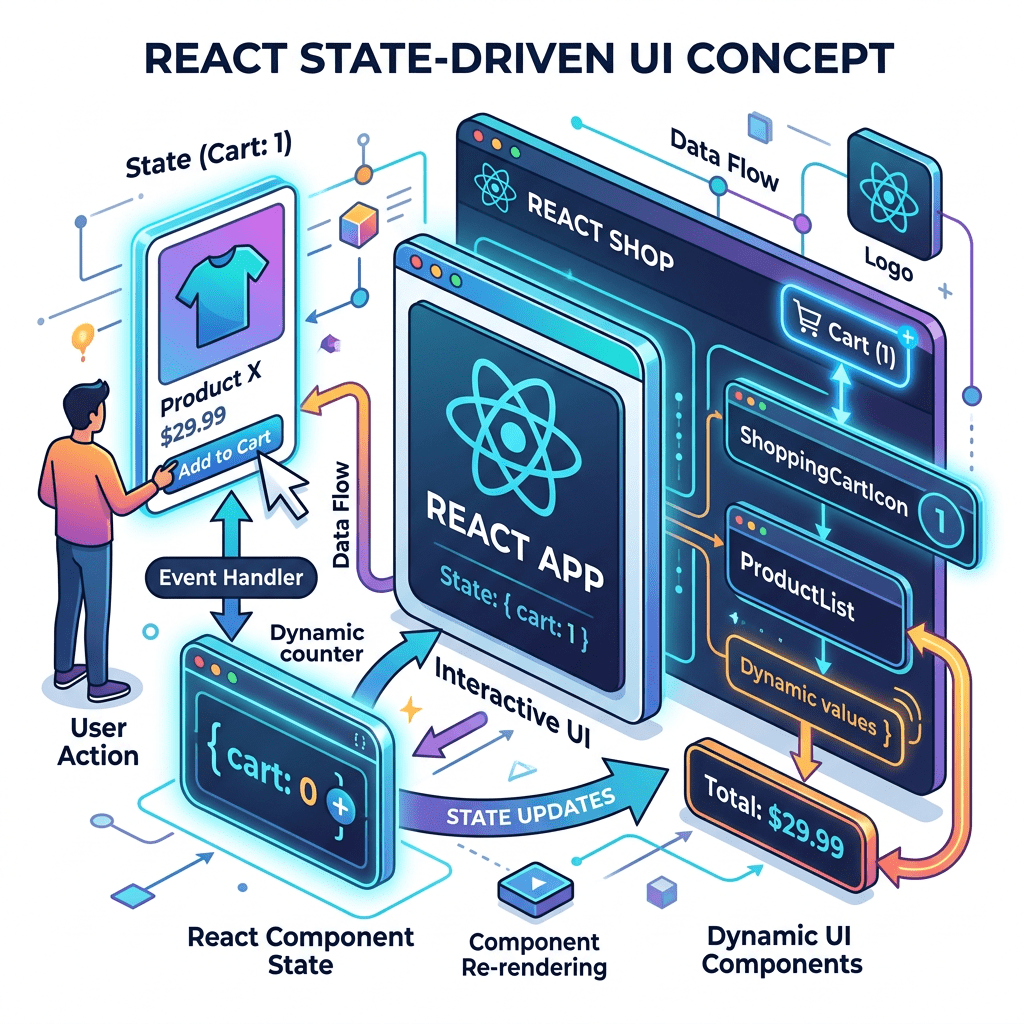
Until now, most apps were essentially:
- rendering data
- composing components
- organizing layouts
- building declarative interfaces
But App 24 introduces one of the core foundations of React:
State-driven UI
This application teaches:
useState- controlled inputs
- form state
- validation
- derived state
- event handling
- React rendering flow
- TypeScript generics with hooks
- immutable state updates
According to React Learn — State: A Component’s Memory, state is React’s mechanism for storing information between renders.
This is the first time the application truly “remembers” something.
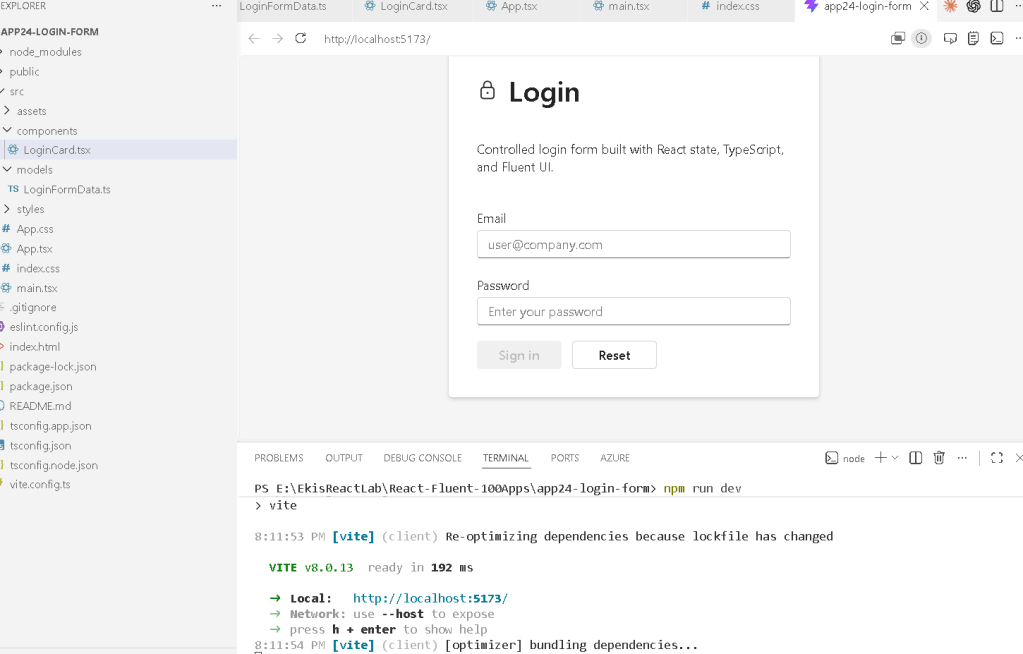
Why Login Forms Are Important in React
A login form may seem simple visually, but architecturally it introduces several critical frontend concepts:
- handling user input
- storing form values
- validating data
- reacting to changes
- updating UI dynamically
- preventing invalid actions
- handling submit events
Almost every enterprise React application contains forms:
- login forms
- search forms
- registration forms
- filters
- dashboards
- CRUD systems
Understanding App 24 correctly is essential before moving into:
- registration systems
- CRUD apps
- APIs
- dynamic dashboards
- enterprise forms
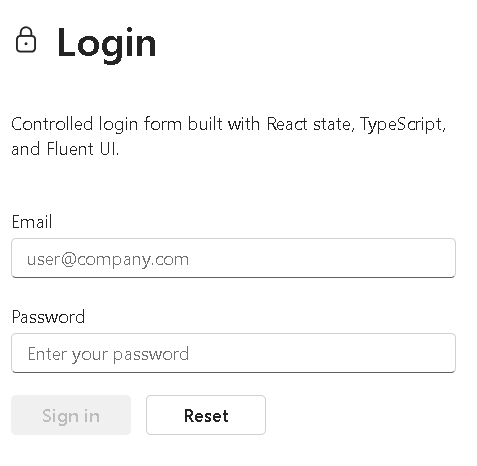
Project Creation
PowerShell Commands
cd C:\ReactAppsmkdir bloco02cd bloco02npm create vite@latest app24-login-form -- --template react-tscd app24-login-formnpm installnpm install @fluentui/react-components @fluentui/react-icons
Create folders:
mkdir src\componentsmkdir src\modelsmkdir src\styles
Create files:
New-Item src\models\LoginFormData.ts -ItemType FileNew-Item src\components\LoginCard.tsx -ItemType File
Run the project:
npm run dev
Validate production build:
npm run build
Understanding the Mental Model of React State
Before understanding the code itself, you must understand the React mental model.
React components are functions.
Example:
function App() { return <h1>Hello</h1>;}
But React components are special functions because:
- React can call them many times
- React re-renders them
- React tracks state changes
- React updates the UI automatically
The problem is:
Normal JavaScript variables disappear when the function runs again.
Example:
function Example() { let counter = 0; counter++; console.log(counter); return <div>{counter}</div>;}
Every render resets:
counter = 0
So React needed a way to preserve values between renders.
That mechanism is:
useState()
The Most Important Line in App 24
This is the line you specifically mentioned:
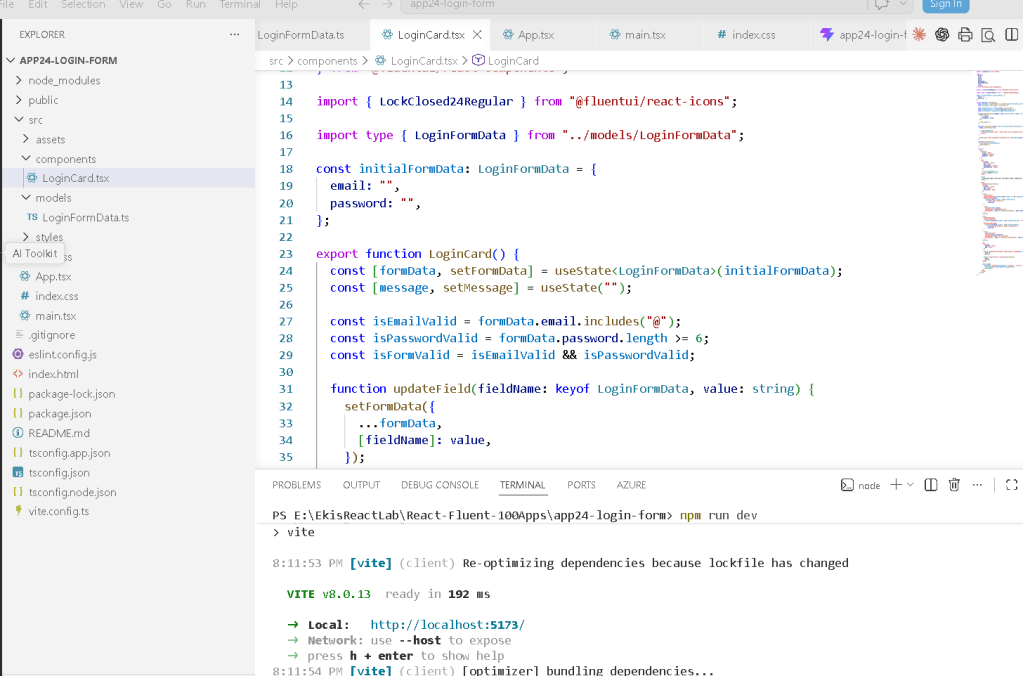
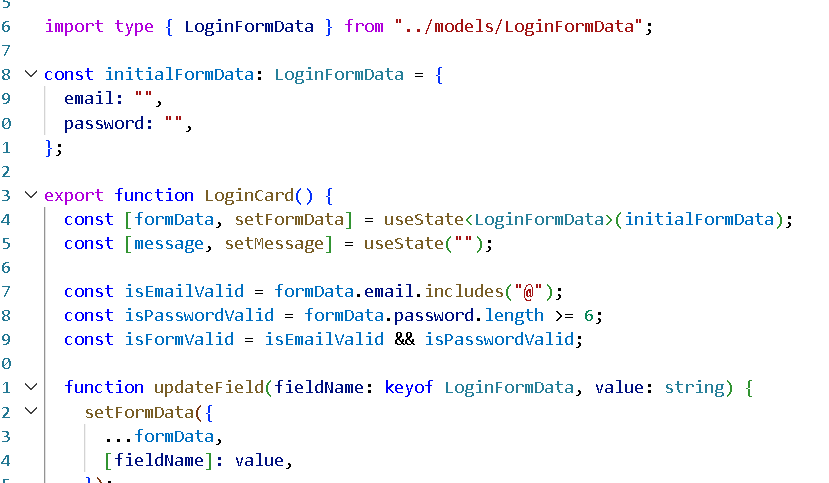
const [formData, setFormData] = useState<LoginFormData>(initialFormData);
This line is extremely important.
Let’s break it apart slowly.
Part 1 — useState()
useState()
useState is a React Hook.
Hooks are special React functions that add behavior to components.
useState specifically adds:
memory
to a component.
Without state:
- the component cannot remember values
- the UI cannot react to changes
- forms cannot work properly
Part 2 — What useState Returns
This is critical.
useState() returns TWO things:
1. the current state value2. a function that updates the state
Conceptually:
const [ currentValue, updateFunction] = useState(initialValue);
Example:
const [name, setName] = useState("Edvaldo");
This means:
name contains the current valuesetName() changes the value
Part 3 — Array Destructuring
This syntax:
const [formData, setFormData]
is NOT React syntax.
It is JavaScript array destructuring.
Example:
const colors = ["red", "blue"];const [firstColor, secondColor] = colors;
Now:
firstColor = "red"secondColor = "blue"
React uses the same mechanism.
useState() returns an array internally:
[ currentState, stateUpdaterFunction]
React convention:
valuesetValue
Examples:
const [counter, setCounter]const [name, setName]const [isOpen, setIsOpen]const [formData, setFormData]
Part 4 — formData
formData
This variable contains the current state.
Current login form values:
emailpassword
Example:
{ email: "user@company.com", password: "123456"}
Part 5 — setFormData
setFormData
This is the updater function created by React.
You NEVER directly modify state like this:
❌ WRONG:
formData.email = "new@email.com";
Why?
Because React would not know the state changed.
Instead, React requires:
setFormData(newValue);
This tells React:
State changed.Re-render the component.Update the UI.
This is one of the most important React concepts.
Part 6 — useState<LoginFormData>
This part is TypeScript.
useState<LoginFormData>
This is called a:
generic type
It tells TypeScript:
The state must follow the LoginFormData interface.
The interface:
export interface LoginFormData { email: string; password: string;}
So TypeScript now knows:
formData.email is stringformData.password is string
This provides:
- autocomplete
- validation
- safer code
- better refactoring
- compile-time checking
Part 7 — initialFormData
initialFormData
This is the initial state value.
Example:
const initialFormData: LoginFormData = { email: "", password: "",};
This means:
When the component starts:email = ""password = ""
The Full Meaning of the Line
Now we can finally translate the entire line:
const [formData, setFormData] = useState<LoginFormData>(initialFormData);
into plain English:
Create a React state variable called formData.Its structure must follow LoginFormData.Initialize it using initialFormData.Also create a function called setFormDatathat can update the state later.
Visual Mental Model
Think of React state like this:
React Memory BoxformData-------------------email: ""password: ""-------------------
When the user types:
email: "user@company.com"
React updates the memory box.
Then React automatically re-renders the UI.
Why React Re-renders
This is critical.
When:
setFormData(...)
runs:
React:
- stores the new state
- re-runs the component
- compares UI changes
- updates the browser DOM
This is the React rendering cycle.
Understanding Controlled Inputs
This is another critical concept.
Example:
<Input value={formData.email} onChange={(_, data) => updateField("email", data.value) }/>
This is a:
controlled input
The input value comes FROM React state.
The flow is:
User types ->onChange event fires ->updateField() ->setFormData() ->React updates state ->Component re-renders ->Input receives new value
This is React’s unidirectional data flow.
Understanding updateField()
function updateField( fieldName: keyof LoginFormData, value: string) { setFormData({ ...formData, [fieldName]: value, });}
This function updates ONE field inside the object.
Why ...formData Exists
This is another very important concept.
State updates should be immutable.
We DO NOT modify objects directly.
❌ WRONG:
formData.email = value;
✅ CORRECT:
setFormData({ ...formData, email: value,});
The spread operator:
...formData
copies all existing properties.
Then:
[fieldName]: value
overwrites only the changed field.
Example:
Before:
{ email: "", password: "123"}
User types email:
{ email: "user@company.com", password: "123"}
Password stays preserved.
Understanding Derived State
This section is extremely important:
const isEmailValid = formData.email.includes("@");const isPasswordValid = formData.password.length >= 6;const isFormValid = isEmailValid && isPasswordValid;
This is called:
derived state
React Learn strongly recommends:
Do not store values that can be calculated.
Notice:
isFormValid
is NOT stored in state.
We calculate it dynamically.
Why?
Because:
- it depends on other values
- it can always be recalculated
- storing duplicate state causes bugs
This is a VERY important React principle.
Understanding Validation
formData.email.includes("@")
Checks whether the email contains:
@
And:
formData.password.length >= 6
Checks password length.
These validations automatically recalculate every render.
Why the Button Disables Automatically
<Button disabled={!isFormValid}>
This is declarative UI.
We are NOT manually enabling/disabling buttons.
Instead:
If form is valid button enabledIf form is invalid button disabled
React automatically reflects state into the UI.
This is one of React’s greatest strengths.
Understanding handleSubmit()
function handleSubmit( event: React.FormEvent<HTMLFormElement>) { event.preventDefault();}
Normally, HTML forms:
- refresh the page
- send data to the server
React SPAs usually prevent that behavior.
So:
event.preventDefault();
stops the page reload.
Then React handles the form logic internally.
Understanding handleReset()
setFormData(initialFormData);
This resets the form back to:
email = ""password = ""
Because state is replaced with the original object.
React Rendering Flow in This App
The complete rendering cycle:
Component loads ->useState creates state ->React renders inputs ->User types ->onChange fires ->setFormData runs ->React stores new state ->Component runs again ->UI updates automatically
This is the core React architecture.
Why This App Matters
App 24 is one of the most foundational apps in the entire roadmap because it teaches:
- state
- controlled forms
- derived values
- immutable updates
- reactivity
- rendering flow
- validation
- event handling
Without fully understanding this app, advanced React becomes extremely difficult.
Technical Summary
| Concept | Meaning |
|---|---|
useState() | React memory mechanism |
| Array destructuring | Extracts state + updater |
formData | Current state value |
setFormData() | Updates state |
Generic <LoginFormData> | TypeScript typing |
| Controlled input | Input controlled by React |
| Immutable update | Create new object instead of mutating |
| Derived state | Calculated values instead of stored values |
| Re-render | React updates UI after state change |
| Declarative UI | UI reflects state automatically |
Official Documentation
React
- State: A Component’s Memory
- Reacting to Input with State
- Choosing the State Structure
- Updating Objects in State
Fluent UI
TypeScript
Current Project Progress
| Block | App | Name | Status |
|---|---|---|---|
| Block 1 | 01 | Hello React Fluent | Completed |
| Block 1 | 02 | Profile Card | Completed |
| Block 1 | 03 | Product List | Completed |
| Block 1 | 04 | Microsoft Style User Card | Completed |
| Block 1 | 05 | Static Dashboard | Completed |
| Block 1 | 06 | Corporate Sidebar Menu | Completed |
| Block 1 | 07 | Visual Task List | Completed |
| Block 2 | 21 | Modern Counter | Completed |
| Block 2 | 22 | Toggle Theme | Completed |
| Block 2 | 23 | React Calculator | Completed |
| Block 2 | 24 | Login Form | Current |
| Block 2 | 25 | User Registration | Next |


