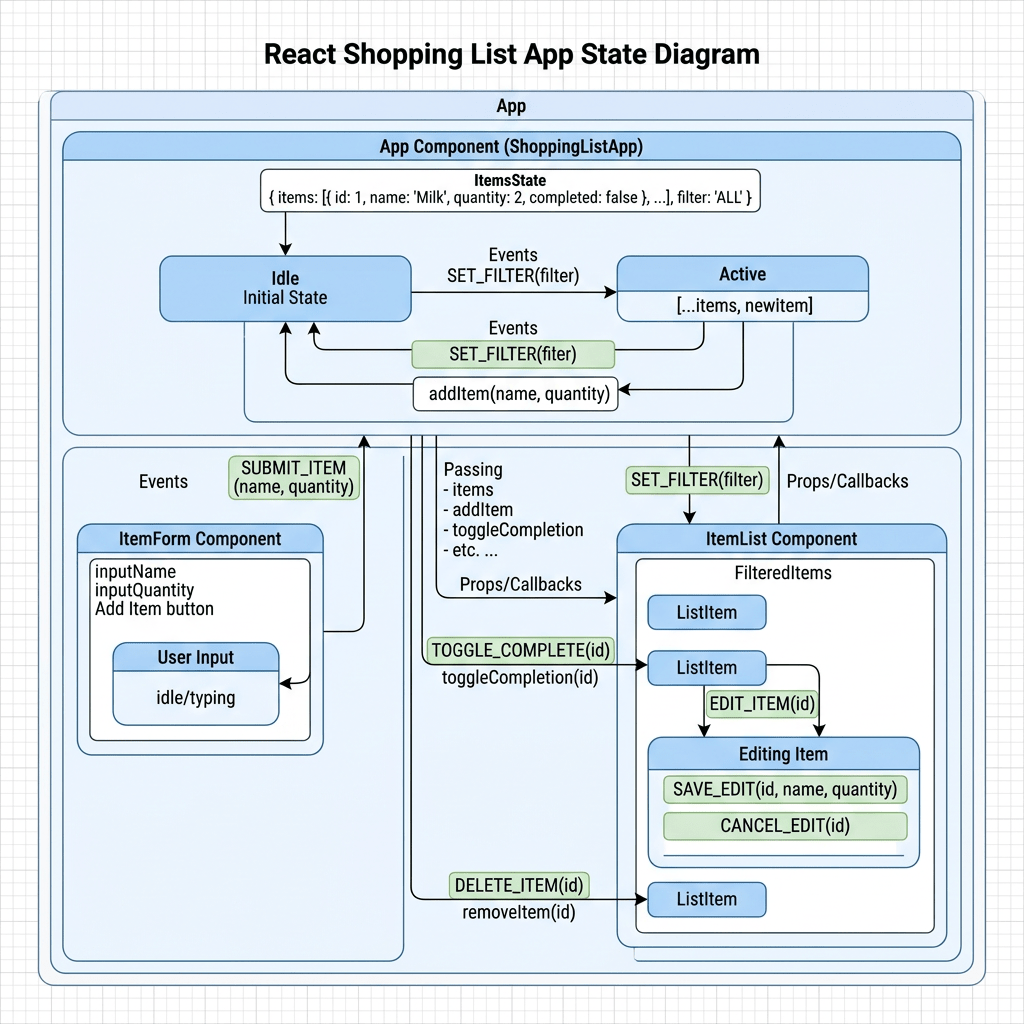
Technical Blog Article — App 27: Building a Shopping List with React State, map(), filter(), and Fluent UI
The twenty-seventh application in the React + Fluent UI learning roadmap is App 27 — Shopping List. This application belongs to Block 2 — Interactivity and State, the phase where the project transitions from static UI composition into dynamic interfaces driven by React state. The roadmap defines this app as a dynamic list focused on map() and filter() rendering.
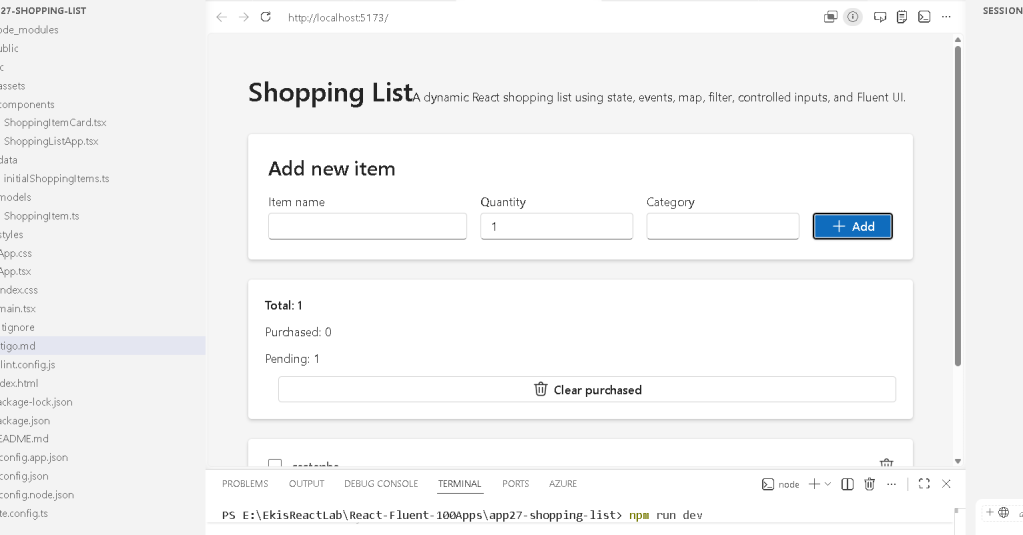
At first glance, a shopping list may appear simple. However, architecturally this application introduces several extremely important React concepts that are foundational for all modern React development:
useState- controlled inputs
- immutable updates
- array rendering
map()filter()- derived state
- component composition
- event handling
- Fluent UI enterprise components
This app is especially important because it teaches one of the core React mental models:
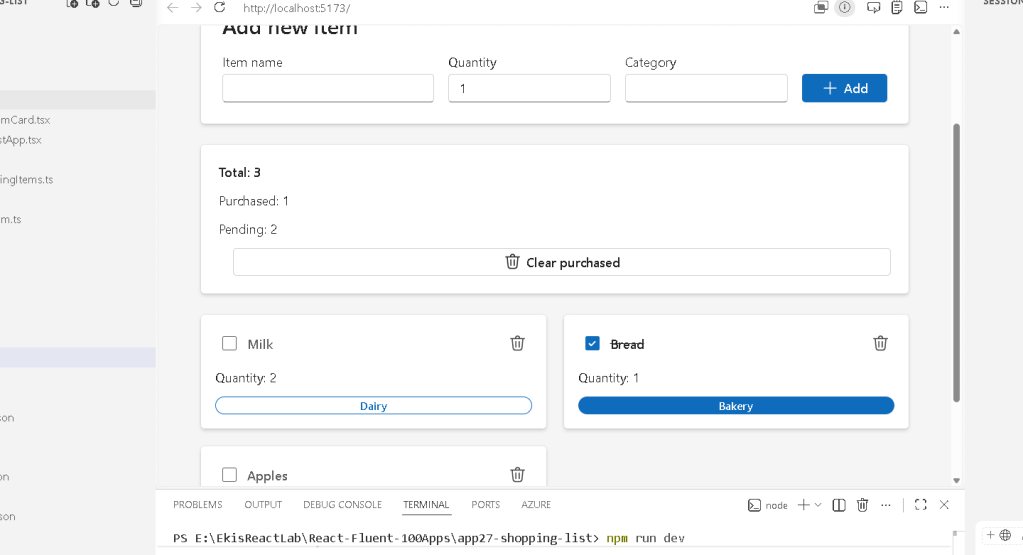
The UI is a function of state.
Instead of manually manipulating HTML elements, React applications update the UI automatically whenever state changes.
This is the beginning of true React thinking.
1. The Goal of the Application
The application simulates a modern enterprise shopping list interface where users can:
- add items
- toggle purchased status
- remove items
- clear completed items
- visualize totals dynamically
The app uses:
- React
- TypeScript
- Vite
- Fluent UI
and follows the architectural principles defined by the official React Learn documentation:
- declarative rendering
- immutable state updates
- component composition
- derived state
- pure rendering logic
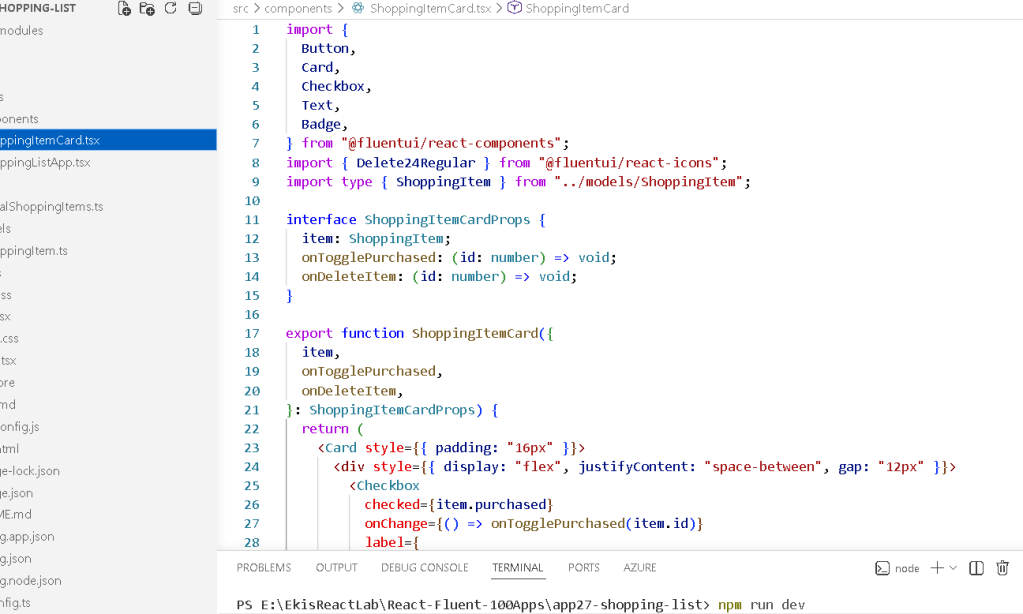
2. Project Creation
The project begins with Vite.
Why Vite?
Vite is the modern standard development environment for React applications because it provides:
- extremely fast startup
- instant hot reload
- modern ES module support
- optimized production builds
- lightweight configuration
Project creation:
cd C:\ReactAppsmkdir bloco02cd bloco02npm create vite@latest app27-shopping-list -- --template react-ts
This command creates:
- a React project
- TypeScript configuration
- Vite configuration
- development scripts
- base folder structure
3. Installing Dependencies
After creating the project:
cd app27-shopping-listnpm install
Then Fluent UI is installed:
npm install @fluentui/react-components @fluentui/react-icons
Fluent UI provides:
- enterprise components
- accessibility support
- Microsoft design standards
- typography systems
- layout consistency
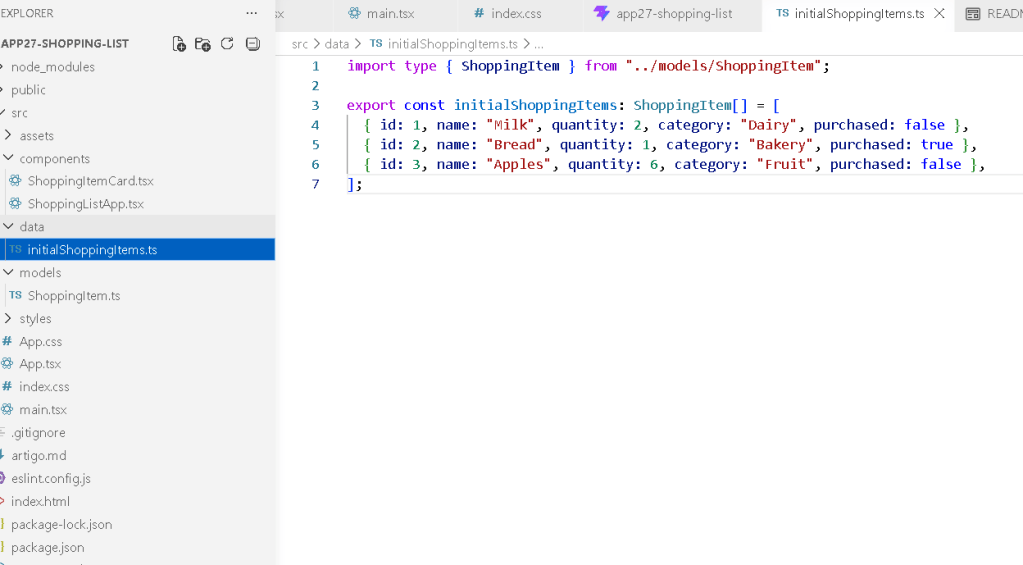
4. Creating the Folder Structure
Folders:
mkdir src\componentsmkdir src\modelsmkdir src\datamkdir src\styles
Files:
New-Item src\models\ShoppingItem.ts -ItemType FileNew-Item src\data\initialShoppingItems.ts -ItemType FileNew-Item src\components\ShoppingListApp.tsx -ItemType FileNew-Item src\components\ShoppingItemCard.tsx -ItemType File
This structure is extremely important.
Modern React applications should separate responsibilities.
5. Understanding the Architecture
The application structure becomes:
src/ components/ ShoppingListApp.tsx ShoppingItemCard.tsx models/ ShoppingItem.ts data/ initialShoppingItems.ts styles/ App.tsx main.tsx index.css
Each folder has a specific responsibility.
6. The TypeScript Model
File:
src/models/ShoppingItem.ts
Code:
export interface ShoppingItem { id: number; name: string; quantity: number; category: string; purchased: boolean;}
This file defines the shape of a shopping item.
This is one of the most important concepts in TypeScript:
- defining data contracts
Each shopping item must contain:
| Property | Type |
|---|---|
id | number |
name | string |
quantity | number |
category | string |
purchased | boolean |
7. Why Interfaces Matter
Without TypeScript, mistakes like this could happen:
quantity: "five"
But TypeScript prevents this because quantity must be a number.
Benefits:
- autocomplete
- validation
- safer refactoring
- better maintainability
- enterprise scalability
8. The Initial Data File
File:
src/data/initialShoppingItems.ts
Code:
import type { ShoppingItem } from "../models/ShoppingItem";export const initialShoppingItems: ShoppingItem[] = [ { id: 1, name: "Milk", quantity: 2, category: "Dairy", purchased: false }, { id: 2, name: "Bread", quantity: 1, category: "Bakery", purchased: true }, { id: 3, name: "Apples", quantity: 6, category: "Fruit", purchased: false },];
This introduces another core React idea:
UI should be derived from data.
The interface is not hardcoded manually.
Instead:
- data exists
- React transforms data into UI
9. Understanding useState
Inside:
ShoppingListApp.tsx
we find:
const [items, setItems] = useState<ShoppingItem[]>(initialShoppingItems);
This is one of the most important lines in the entire application.
10. The React State Pattern
This syntax:
const [items, setItems] = useState(...)
creates:
- a state variable
- a function that updates the state
Conceptually:
items current application datasetItems function used to replace the data
React re-renders automatically whenever setItems() is called.
11. Why React State Is Different
In traditional JavaScript, developers manually updated HTML.
Example:
find elementchange textappend HTMLremove nodes
React works differently.
Instead:
- state changes
- React calculates UI changes
- React updates the DOM automatically
This is declarative UI rendering.
12. Controlled Inputs
The app also contains:
const [name, setName] = useState("");const [quantity, setQuantity] = useState("1");const [category, setCategory] = useState("");
These states control the form inputs.
Example:
<Input value={name} onChange={(_, data) => setName(data.value)}/>
This is called a controlled component.
The input value comes from React state.
13. Why Controlled Inputs Matter
React becomes the source of truth.
Instead of reading values directly from the DOM, React already knows the current values.
Benefits:
- validation
- predictable behavior
- centralized state
- easier debugging
14. Adding New Items
Function:
function handleAddItem() {
This function:
- validates inputs
- creates a new object
- updates state
15. Creating the New Object
const newItem: ShoppingItem = { id: Date.now(), name: name.trim(), quantity: Number(quantity), category: category.trim(), purchased: false,};
Important concepts:
- object creation
- TypeScript typing
- string cleanup
- numeric conversion
16. Why Date.now() Is Used
id: Date.now()
This generates a unique numeric ID.
React lists require stable keys.
17. Updating Arrays in React
The most important line:
setItems((currentItems) => [...currentItems, newItem]);
This introduces immutable updates.
18. Why Immutable Updates Matter
React state should NEVER be modified directly.
Wrong:
items.push(newItem)
Correct:
[...currentItems, newItem]
This creates:
- a new array
- preserving immutability
React detects:
- old array
- new array
and re-renders.
19. Understanding the Spread Operator
...currentItems
This copies all previous array items.
Conceptually:
old items+new item=new array
20. Resetting the Form
After insertion:
setName("");setQuantity("1");setCategory("");
This resets the form visually.
Because inputs are controlled by state, changing state changes the UI.
21. Toggling Purchased State
Function:
function handleTogglePurchased(id: number)
This updates one specific item.
22. Using map() for Updates
currentItems.map((item) =>
This is extremely important.
map() transforms arrays.
React commonly uses:
map()for renderingmap()for updating
23. Immutable Object Updates
Inside map():
item.id === id ? { ...item, purchased: !item.purchased } : item
This means:
If this is the correct item: create a new object invert purchased valueOtherwise: keep original item
24. Why Object Spread Matters
{ ...item, purchased: !item.purchased }
This copies:
- all old properties
and changes only:
purchased
Again:
- immutable updates
- predictable rendering
25. Deleting Items with filter()
Function:
function handleDeleteItem(id: number)
Uses:
filter((item) => item.id !== id)
This creates:
- a new array
- without the deleted item
26. Understanding filter()
filter() keeps items matching a condition.
Conceptually:
Keep every itemEXCEPTthe deleted one
This is another core React pattern.
27. Clearing Purchased Items
Function:
handleClearPurchased()
Uses:
filter((item) => !item.purchased)
Meaning:
Keep only non-purchased items
28. Derived State
The app calculates:
const totalItems = items.length;const purchasedItems = items.filter((item) => item.purchased).length;const pendingItems = items.filter((item) => !item.purchased).length;
This introduces one of the most important React concepts:
Derived state.
29. Why Derived State Matters
We DO NOT store:
- totalItems
- purchasedItems
- pendingItems
inside state.
Instead, we calculate them from existing data.
This follows React Learn guidance:
Avoid redundant state.
30. Rendering with map()
The UI rendering:
{items.map((item) => (
converts:
- data array
into: - component array
31. Component Composition
Structure:
App ShoppingListApp ShoppingItemCard
This is React composition.
Each component has one responsibility.
32. The ShoppingItemCard
This component receives props:
interface ShoppingItemCardProps { item: ShoppingItem; onTogglePurchased: (id: number) => void; onDeleteItem: (id: number) => void;}
This teaches:
- props
- callback functions
- parent-child communication
33. Callback Functions
The child component does NOT directly modify state.
Instead:
- it calls parent functions
Example:
onTogglePurchased(item.id)
This is very important architecturally.
State lives in the parent component.
34. Why State Is Centralized
This pattern is called:
- lifting state up
Benefits:
- predictable updates
- centralized logic
- easier debugging
35. Fluent UI Components
The app uses:
| Component | Purpose |
|---|---|
Card | Item container |
Button | Actions |
Input | Form fields |
Checkbox | Purchased toggle |
Badge | Category display |
Text | Typography |
36. Why Fluent UI Matters
Fluent UI provides:
- accessibility
- keyboard navigation
- Microsoft design language
- responsive behavior
- enterprise consistency
Without Fluent UI, all styling would need manual implementation.
37. Responsive Grid Layout
The app uses:
gridTemplateColumns: "repeat(auto-fit, minmax(260px, 1fr))"
This creates a responsive layout.
Meaning:
Create as many columns as fit.Each card must be at least 260px wide.
38. React Rendering Flow
Complete rendering flow:
main.tsx renders AppApp renders ShoppingListAppShoppingListApp stores state renders ShoppingItemCard listShoppingItemCard displays each item
39. Why No useEffect Yet?
This app intentionally avoids:
useEffect- APIs
- external synchronization
Because React Learn teaches:
Effects are for synchronizing with external systems.
This app only manages internal state.
So useState is enough.
40. What This App Really Teaches
Even though visually simple, this app introduces the foundation of:
- CRUD logic
- enterprise state updates
- immutable rendering
- dynamic UI composition
These same patterns will later evolve into:
- dashboards
- API grids
- Kanban boards
- admin portals
- enterprise systems
Technical Summary
| Concept | Explanation |
|---|---|
useState | Stores component memory |
| Controlled Inputs | React controls form values |
| Immutable Updates | State is replaced, never mutated |
map() | Transforms arrays |
filter() | Removes or selects items |
| Derived State | Values calculated from existing state |
| Props | Component inputs |
| Callback Functions | Child-to-parent communication |
| Fluent UI | Microsoft enterprise design system |
| TypeScript Interfaces | Data contracts |
Official Documentation
React
- React Learn
- State: A Component’s Memory
- Updating Arrays in State
- Rendering Lists
- Responding to Events
- Choosing the State Structure
Fluent UI
Vite
TypeScript
Current Project Progress
| Block | App | Name | Status |
|---|---|---|---|
| Block 1 | 01 | Hello React Fluent | Completed |
| Block 1 | 02 | Profile Card | Completed |
| Block 1 | 03 | Product List | Completed |
| Block 1 | 04 | Microsoft Style User Card | Completed |
| Block 1 | 05 | Static Dashboard | Completed |
| Block 1 | 06 | Corporate Sidebar Menu | Completed |
| Block 1 | 07 | Visual Task List | Completed |
| Block 2 | 21 | Modern Counter | Completed |
| Block 2 | 22 | Toggle Theme | Completed |
| Block 2 | 23 | React Calculator | Completed |
| Block 2 | 24 | Login Form | Completed |
| Block 2 | 25 | User Registration | Completed |
| Block 2 | 26 | Complete ToDo List | Completed |
| Block 2 | 27 | Shopping List | Current |
| Block 2 | 28 | Product Filter | Next |


