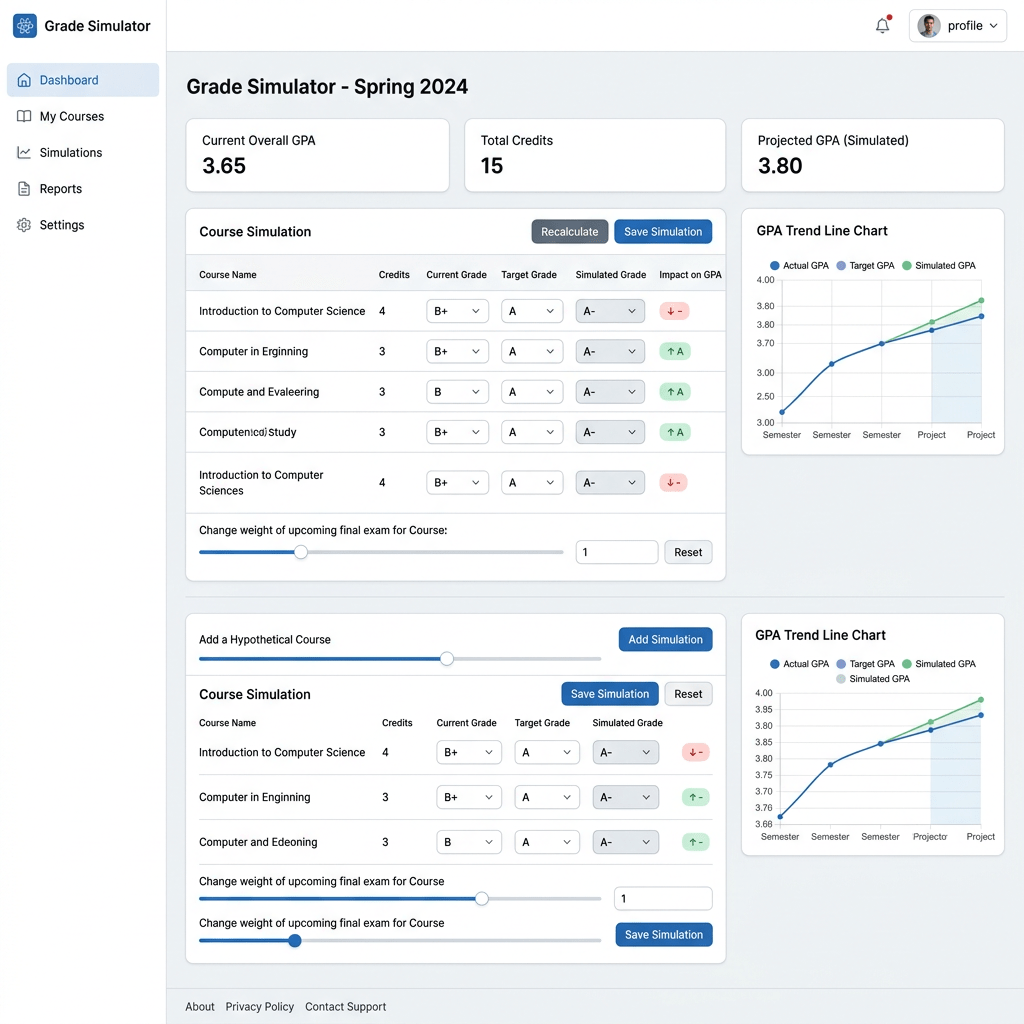
Technical Blog Article — App 31: Grade Simulator with React, TypeScript, Fluent UI, and Derived State
Modern React applications are not built by manually manipulating the DOM or writing imperative UI logic. Instead, React applications are built by describing how the interface should look based on the current state of the application. One of the most important concepts in modern React is understanding the difference between:
- real state
- derived state
- controlled inputs
- validation logic
- rendering logic
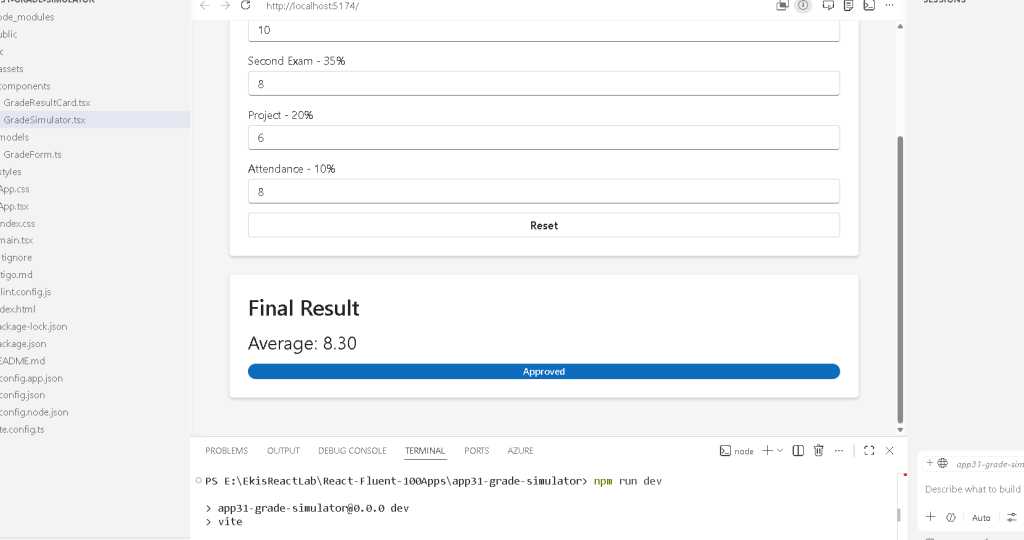
App 31 — Grade Simulator is one of the most important applications in Block 2 because it introduces the idea that React components should calculate UI from state instead of storing redundant information.
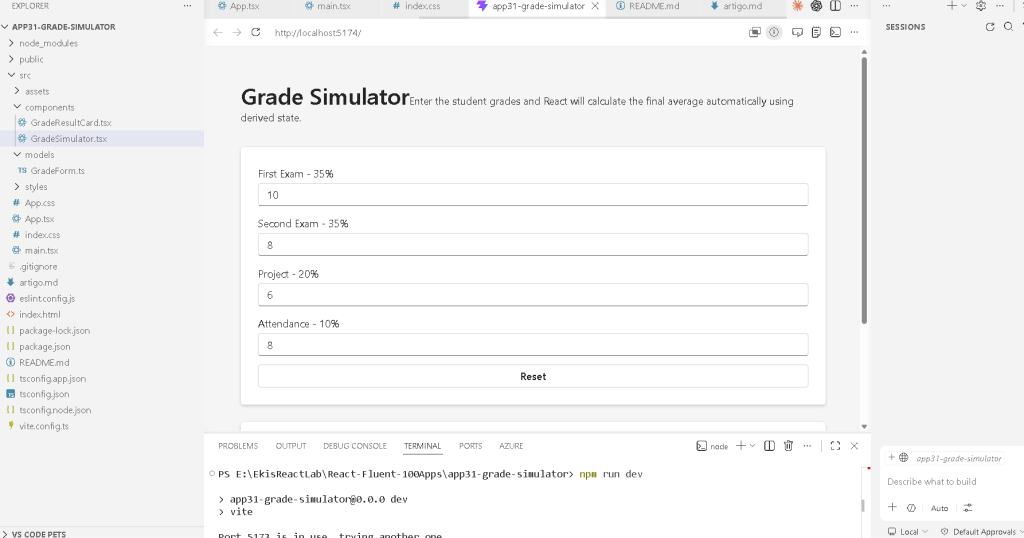
This application simulates a school grading system where the user enters:
- first exam grade
- second exam grade
- project grade
- attendance score
React then calculates:
- weighted average
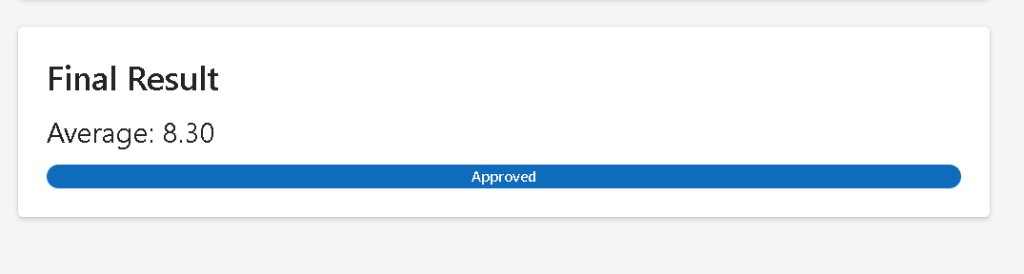
- final status
- validation messages
This app belongs to Block 2 — Interactivity and State, whose goal is to teach:
useState- controlled forms
- events
- validation
- derived state
- conditional rendering
- state structure
The roadmap defines this block as the transition from static UI into dynamic, interactive applications.
Why This App Is Architecturally Important
At first glance, the app seems simple.
However, this application introduces one of the most important mental shifts in React:
Do not store values that can be calculated.
This principle comes directly from the official React Learn documentation:
“Avoid redundant state.”
The app stores only the raw user inputs.
Everything else is calculated dynamically:
- average
- approval status
- validation state
This is called derived state.
The Development Environment
The project uses:
- React
- TypeScript
- Vite
- Fluent UI
- VS Code
- Node.js
The app was created using Vite because Vite provides:
- fast development server
- Hot Module Replacement
- native ES Modules
- optimized builds
- excellent React support
Project creation:
mkdir bloco02cd bloco02npm create vite@latest app31-grade-simulator -- --template react-tscd app31-grade-simulatornpm install
Install Fluent UI:
npm install @fluentui/react-componentsnpm install @fluentui/react-icons
Create the architecture folders:
mkdir src\componentsmkdir src\modelsmkdir src\styles
Create the files:
New-Item src\models\GradeForm.ts -ItemType FileNew-Item src\components\GradeSimulator.tsx -ItemType FileNew-Item src\components\GradeResultCard.tsx -ItemType File
Final Folder Structure
src/ components/ GradeSimulator.tsx GradeResultCard.tsx models/ GradeForm.ts styles/ App.tsx main.tsx index.css
This architecture already follows enterprise React organization:
| Folder | Responsibility |
|---|---|
components/ | Reusable UI components |
models/ | TypeScript models/interfaces |
styles/ | Future CSS organization |
App.tsx | Root application component |
main.tsx | React entry point |
Understanding the TypeScript Model
File:
src/models/GradeForm.ts
Code:
export interface GradeForm { firstExam: string; secondExam: string; project: string; attendance: string;}
This interface defines the structure of the form state.
The important detail is:
string
instead of:
number
Why?
Because HTML input fields always return strings.
Even when:
type="number"
the browser still provides the value as text.
This is an extremely important React concept.
Why Controlled Inputs Matter
The app uses controlled inputs.
A controlled input means:
React controls the input value.
Instead of the browser independently managing the input state, React becomes the source of truth.
Example:
<Input value={form.firstExam} onChange={(_, data) => updateField("firstExam", data.value) }/>
Two things happen here:
1. React sends the value to the input
value={form.firstExam}
2. React receives updates from the input
onChange={(_, data) => updateField("firstExam", data.value)}
This creates a full React-controlled data flow.
Understanding useState
The app stores form data using:
const [form, setForm] = useState<GradeForm>(initialForm);
This is one of the most important constructions in React.
The syntax:
const [state, setState]
means:
| Variable | Purpose |
|---|---|
form | Current state value |
setForm | Function used to update state |
The generic type:
<GradeForm>
tells TypeScript:
This state follows the GradeForm interface.
This gives:
- autocomplete
- type safety
- validation
- safer refactoring
Understanding the Initial State
const initialForm: GradeForm = { firstExam: "", secondExam: "", project: "", attendance: "",};
This defines the initial component state.
When React renders for the first time:
form ={ firstExam: "", secondExam: "", project: "", attendance: ""}
The UI is generated from this object.
Understanding State Updates
The app updates state using:
function updateField( field: keyof GradeForm, value: string) { setForm({ ...form, [field]: value, });}
This is one of the most important React patterns.
Understanding the Spread Operator
...form
copies all existing properties.
Example:
form ={ firstExam: "8", secondExam: "7", project: "9", attendance: ""}
If the user updates attendance:
updateField("attendance", "10")
React creates:
{ firstExam: "8", secondExam: "7", project: "9", attendance: "10"}
Instead of mutating the old object directly.
This is critical because React state must be treated as immutable.
Why React State Must Be Immutable
Wrong approach:
form.firstExam = "10";
Correct approach:
setForm({ ...form, firstExam: "10",});
React expects state updates to create new objects.
This allows React to detect changes efficiently.
Understanding Derived State
The app calculates:
const average = firstExam * 0.35 + secondExam * 0.35 + project * 0.2 + attendance * 0.1;
Notice:
average is NOT stored in state.
This is extremely important.
The app could incorrectly do:
const [average, setAverage] = useState(0);
But this would create duplicated state.
Instead, React Learn recommends calculating values during rendering whenever possible.
Why Derived State Is Better
Derived state avoids synchronization bugs.
Imagine storing:
- grades
- average
separately.
If one changes but the other is not updated correctly, the UI becomes inconsistent.
By calculating average directly from the grades:
grades become the single source of truth
This is one of the core principles of React architecture.
Understanding Validation Logic
The app validates grades using:
const hasInvalidGrade = firstExam > 10 || secondExam > 10 || project > 10 || attendance > 10 || firstExam < 0 || secondExam < 0 || project < 0 || attendance < 0;
This variable is also derived state.
Again:
No need for useState.
The validation is calculated from existing values.
Understanding Conditional Rendering
The app uses:
{hasInvalidGrade ? ( <Card> <Text> Grades must be between 0 and 10. </Text> </Card>) : ( <GradeResultCard average={average} status={status} />)}
This is React conditional rendering.
The UI changes based on data.
React is not manually hiding or showing elements.
Instead:
Different JSX is returned depending on state.
This is declarative UI programming.
Understanding the Approval Status Logic
The app calculates:
const status = average >= 7 ? "Approved" : average >= 5 ? "Recovery" : "Failed";
This uses nested ternary operators.
Equivalent logic:
If average >= 7 ApprovedElse if average >= 5 RecoveryElse Failed
This is another example of derived state.
Understanding Component Composition
The component hierarchy is:
App GradeSimulator GradeResultCard
Each component has a single responsibility.
| Component | Responsibility |
|---|---|
App.tsx | Root application |
GradeSimulator.tsx | Form and calculations |
GradeResultCard.tsx | Final result visualization |
This is React composition.
Understanding Props
The result card receives:
<GradeResultCard average={average} status={status}/>
These are props.
Props are component inputs.
The child component receives data from the parent.
Understanding the Result Card
File:
GradeResultCard.tsx
This component is purely presentational.
It does not contain:
- state
- effects
- calculations
It simply receives data and renders UI.
This is a pure component.
Why Pure Components Matter
Pure components are:
- easier to test
- easier to reuse
- easier to understand
- more predictable
React Learn strongly emphasizes component purity.
Understanding Fluent UI Components
The app uses:
CardInputFieldButtonBadgeTextTitle1Title2
Fluent UI provides:
- Microsoft design system
- accessibility
- consistent spacing
- keyboard navigation
- enterprise typography
- visual consistency
Understanding the Field Component
Example:
<Field label="First Exam - 35%">
This wraps the input with:
- label
- spacing
- accessibility association
Without Fluent UI, you would manually create:
<label><input>
Fluent UI abstracts this professionally.
Understanding the Badge
The result status uses:
<Badge appearance={badgeAppearance}>
The appearance changes dynamically.
This is UI derived from state.
React calculates:
Approved -> filledRecovery -> tintFailed -> outline
Then renders the correct UI automatically.
Understanding the Reset Button
function resetForm() { setForm(initialForm);}
This restores the original state.
Since the UI derives from state:
- inputs reset
- average resets
- status resets
- validation resets
automatically.
This demonstrates one of React’s greatest strengths:
Update state once.React updates the UI automatically.
Why No useEffect Exists Here
This is extremely important.
The app intentionally does NOT use:
useEffect()
Why?
Because:
- calculations happen during rendering
- no external system exists
- no API exists
- no timer exists
- no DOM synchronization exists
According to React Learn:
“You Might Not Need an Effect.”
This app is a perfect example.
A beginner mistake would be:
useEffect(() => { calculateAverage();}, [form]);
This is unnecessary.
The average can simply be calculated directly.
React Mental Model Introduced
This app reinforces the correct React mental model:
State changes ->React re-renders ->Derived values recalculate ->UI updates automatically
You do not manually update the DOM.
You describe the UI from data.
Understanding the Rendering Flow
The rendering flow becomes:
User types into Input ->onChange fires ->setForm updates state ->React re-renders component ->average recalculates ->status recalculates ->validation recalculates ->UI updates automatically
This is one of the most important flows in React.
Production Validation
Run development server:
npm run dev
Validate production build:
npm run build
Preview production build:
npm run preview
The build command validates:
- TypeScript
- JSX
- imports
- bundling
- production compilation
This is equivalent to validating whether the app is production-ready.
Technical Summary
| Concept | Explanation |
|---|---|
useState | Component memory |
| Controlled Inputs | React controls form values |
| Derived State | Calculated values from state |
| Validation Logic | UI validation rules |
| Conditional Rendering | Different JSX based on conditions |
| Props | Component inputs |
| Component Composition | App → Simulator → ResultCard |
| Fluent UI | Enterprise Microsoft UI |
| Immutable Updates | State copied with spread operator |
| TypeScript Interface | Form structure typing |
| Pure Components | Predictable reusable components |
| Declarative Rendering | UI derived from data |
Official Documentation
React
- React Learn
- State: A Component’s Memory
- Choosing the State Structure
- Reacting to Input with State
- Conditional Rendering
- Updating Objects in State
- You Might Not Need an Effect
Fluent UI
Vite
TypeScript
Current Project Progress
| Block | App | Name | Status |
|---|---|---|---|
| Block 1 | 01 | Hello React Fluent | Completed |
| Block 1 | 02 | Profile Card | Completed |
| Block 1 | 03 | Product List | Completed |
| Block 1 | 04 | Microsoft Style User Card | Completed |
| Block 1 | 05 | Static Dashboard | Completed |
| Block 1 | 06 | Corporate Sidebar Menu | Completed |
| Block 1 | 07 | Visual Task List | Completed |
| Block 2 | 21 | Modern Counter | Completed |
| Block 2 | 22 | Toggle Theme | Completed |
| Block 2 | 23 | React Calculator | Completed |
| Block 2 | 24 | Login Form | Completed |
| Block 2 | 25 | User Registration | Completed |
| Block 2 | 26 | ToDo List | Completed |
| Block 2 | 27 | Shopping List | Completed |
| Block 2 | 28 | Product Filter | Completed |
| Block 2 | 29 | Employee Search | Completed |
| Block 2 | 30 | Shopping Cart | Completed |
| Block 2 | 31 | Grade Simulator | Current |
| Block 2 | 32 | Inventory Control | Next |


