Technical Blog Article — App 33: Building a Contact Agenda with React, TypeScript, Fluent UI, and Controlled Components
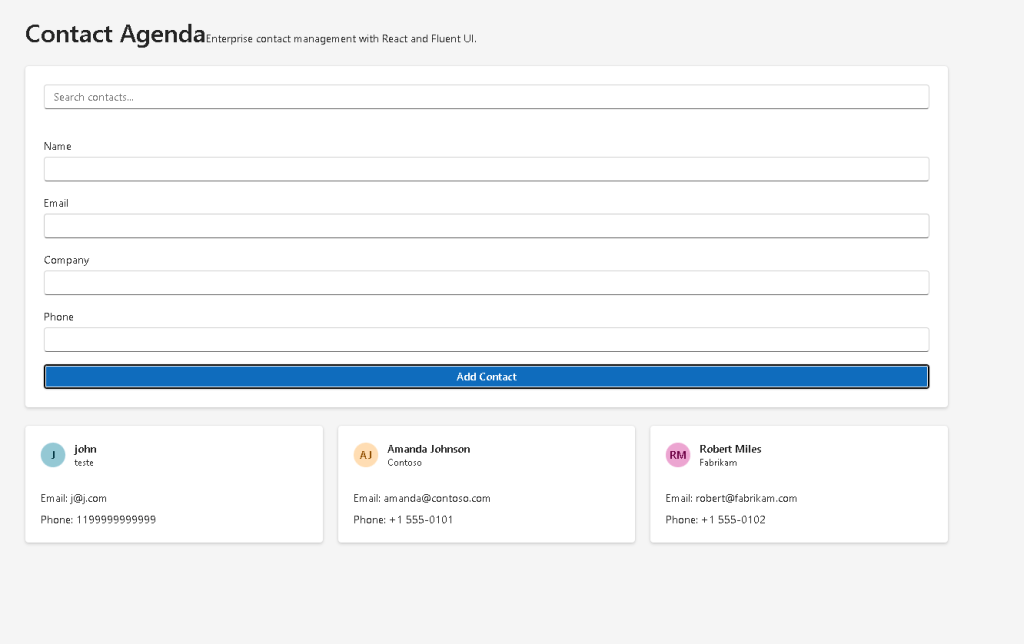
Modern React applications are fundamentally built around one central idea:
The UI is a function of state.
This idea may sound simple initially, but it completely changes how frontend applications are designed. Instead of manually manipulating HTML elements, React applications describe the interface declaratively based on the current application state.
npm run build
- dynamic state management
- controlled forms
- derived state
- array updates
- reusable component composition
- enterprise UI organization
npm run build
The app introduces a real-world enterprise scenario:
a small corporate contact management system.
Even though the application is relatively small, architecturally it introduces many professional React patterns that are used in:
- CRM systems
- internal portals
- Microsoft-style dashboards
- SharePoint solutions
- admin systems
- user management interfaces
The app was built using:
- React
- TypeScript
- Vite
- Fluent UI
- controlled inputs
- reusable components
- declarative rendering
This app is especially important because it introduces the complete React data flow:
User Input ↓Event Handler ↓State Update ↓React Re-Render ↓Updated UI
This flow is the heart of React itself.
Project Goal
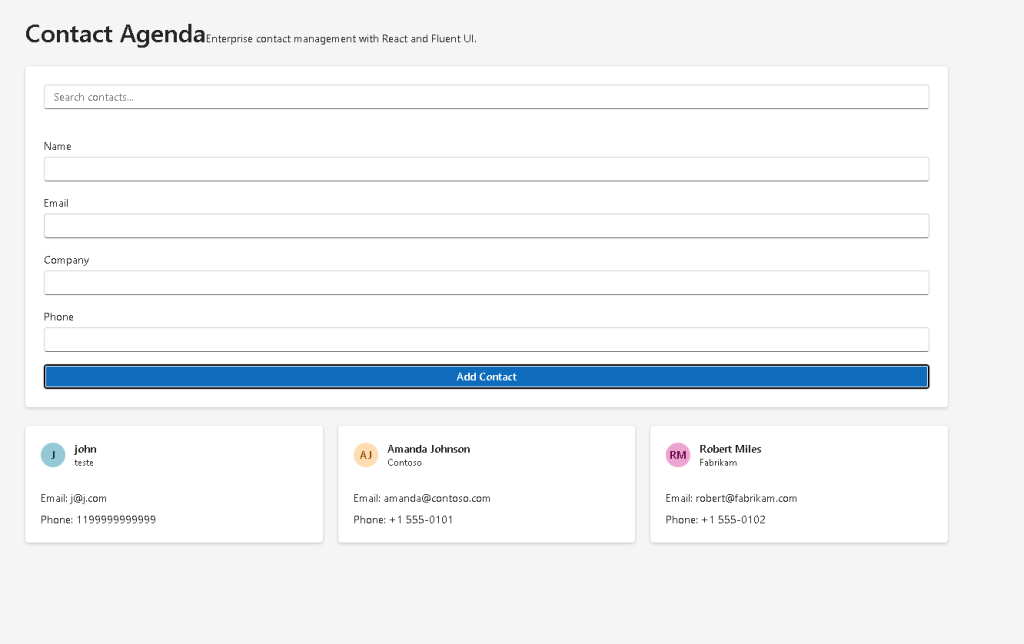
The objective of App 33 is to create an enterprise-style contact agenda with:
- a contact registration form
- a search filter
- reusable contact cards
- controlled inputs
- dynamic rendering
- Fluent UI styling
- TypeScript models
Unlike earlier static UI apps, this application already behaves like a real business application because the UI changes dynamically according to user interaction.
This is the transition point between:
- static UI rendering
and - real reactive applications
React Learn Concepts Used
This app directly connects to several core sections from the official React documentation:
React State
Controlled Inputs
Updating Arrays
State Structure
These concepts are foundational for all modern React development.
Creating the Project
The application starts with Vite.
Why Vite?
Vite provides:
- extremely fast startup
- modern ES module support
- instant Hot Module Replacement
- optimized production builds
- simplified React configuration
Project creation:
cd C:\ReactAppsmkdir bloco02cd bloco02npm create vite@latest app33-contact-agenda -- --template react-ts
The template:
react-ts
automatically configures:
- React
- TypeScript
- Vite
- JSX compilation
- development scripts
Installing Dependencies
After project creation:
cd app33-contact-agendanpm install
Install Fluent UI:
npm install @fluentui/react-components @fluentui/react-icons
Creating the Folder Structure
mkdir src\componentsmkdir src\modelsmkdir src\datamkdir src\styles
This structure is extremely important.
Modern React applications scale through separation of responsibility.
Understanding the Folder Structure
components/
Contains reusable UI components.
Examples:
- ContactCard
- ContactList
- SearchBar
- ContactForm
React applications scale by composing components together.
models/
Contains TypeScript contracts and interfaces.
This helps define:
- object shapes
- API contracts
- application entities
data/
Contains static or mock data.
Later this folder may evolve into:
- API services
- repositories
- fetch layers
styles/
Prepared for:
- reusable CSS
- layouts
- theme customizations
Understanding the Contact Model
File:
src/models/Contact.ts
Code:
export interface Contact { id: number; name: string; email: string; company: string; phone: string;}
This is a TypeScript interface.
It defines the exact shape of a contact object.
This means every contact must contain:
idnameemailcompanyphone
TypeScript is extremely important in enterprise React applications because it provides:
- type safety
- autocomplete
- safer refactoring
- fewer runtime bugs
- clearer architecture
Without TypeScript, mistakes such as this would be easier:
name: 123
TypeScript immediately detects this problem.
Understanding Initial Data
File:
src/data/initialContacts.ts
This file stores the initial contact list.
export const initialContacts: Contact[] = [...]
The important concept here is:
The UI is generated from data.
React applications are usually data-driven.
Instead of manually creating HTML cards one by one, React transforms data into UI components.
Understanding App.tsx
The most important file is:
src/App.tsx
This component orchestrates the entire application.
The First Important useState
const [contacts, setContacts] = useState<Contact[]>(initialContacts);
This is one of the most important lines in the entire app.
It introduces React state.
Understanding useState
useState gives memory to a component.
Without state, React components are static.
State allows components to:
- remember values
- react to user interaction
- trigger re-rendering
The syntax:
const [contacts, setContacts]
creates two things:
| Variable | Purpose |
|---|---|
contacts | current state value |
setContacts | function to update state |
This is fundamental React syntax.
Why React Re-Renders
When this happens:
setContacts(...)
React:
- updates the state
- re-runs the component function
- generates new JSX
- updates the browser DOM
This is why the UI automatically changes.
The Search State
const [search, setSearch] = useState("");
This state stores the current search text.
Again:
search= current valuesetSearch= state updater
Controlled Inputs Explained
Inside SearchBar.tsx:
<Input value={search} onChange={(_, data) => onSearchChange(data.value) }/>
This is called a:
Controlled Input
The input value is fully controlled by React state.
The flow becomes:
User types ↓onChange fires ↓setSearch updates state ↓React re-renders ↓Input displays new value
This is one of the most important React patterns.
Why Controlled Inputs Matter
Controlled inputs provide:
- synchronization
- validation
- predictability
- centralized state management
Enterprise applications almost always use controlled forms.
Understanding the Contact Form
File:
src/components/ContactForm.tsx
The form contains multiple state variables:
const [name, setName] = useState("");const [email, setEmail] = useState("");const [company, setCompany] = useState("");const [phone, setPhone] = useState("");
Each input field has its own controlled state.
Understanding the Submit Flow
Inside:
function handleSubmit()
we create a new contact object:
const newContact: Contact = { id: Date.now(), name, email, company, phone,};
This object is then sent upward:
onAddContact(newContact);
This is extremely important.
Parent → Child vs Child → Parent Communication
React props normally flow:
Parent → Child
But forms often need to send data back upward.
That happens through callback props.
Flow:
App.tsx passes onAddContactContactForm.tsx calls onAddContact(newContact)App.tsx receives the new contact
This is standard React architecture.
Understanding Array Updates
Inside App.tsx:
setContacts((previousContacts) => [ contact, ...previousContacts,]);
This introduces immutable array updates.
React state should NOT be mutated directly.
Wrong:
contacts.push(contact)
Correct:
[contact, ...previousContacts]
This creates a NEW array.
React relies heavily on immutability.
Why Immutability Matters
Immutability helps React:
- detect changes
- optimize rendering
- avoid bugs
- keep updates predictable
This is one of the most important React concepts.
Understanding Derived State
This part is extremely important:
const filteredContacts = contacts.filter((contact) => contact.name .toLowerCase() .includes(search.toLowerCase()) );
Notice:
filteredContactsis NOT state
This is called:
Derived State
The filtered list is calculated from:
- contacts
- search
This follows React Learn best practices:
Avoid duplicating state unnecessarily.
Why Derived State Is Better
Wrong approach:
contacts statefilteredContacts state
This creates synchronization problems.
Correct approach:
contacts state+search state↓derived filtered list
This is cleaner and more predictable.
Understanding List Rendering
Inside ContactList.tsx:
contacts.map((contact) => ( <ContactCard key={contact.id} contact={contact} />))
This transforms:
- data
into - UI
This is declarative rendering.
Understanding React Keys
key={contact.id}
Keys help React identify list items.
They are critical for:
- performance
- stable rendering
- proper DOM reconciliation
Without stable keys, React may render inefficiently.
Understanding ContactCard
File:
src/components/ContactCard.tsx
This component is responsible for displaying one contact.
This is component responsibility separation.
Why Componentization Matters
Instead of creating everything inside App.tsx:
App → ContactList → ContactCard
This creates:
- reusable architecture
- easier maintenance
- cleaner code
- scalability
This is the heart of React architecture.
Understanding Fluent UI Components
The app uses:
- Card
- CardHeader
- Avatar
- Input
- Button
- Text
- Title1
These components already provide:
- accessibility
- spacing
- keyboard support
- typography
- Microsoft design language
This is why Fluent UI is important in enterprise React development.
Understanding the Avatar Component
<Avatar name={contact.name} color="colorful"/>
The Avatar automatically generates initials from the contact name.
This is extremely common in Microsoft-style applications.
Understanding the Layout
The root layout uses:
minHeight: "100vh"
This ensures full screen height.
The app also uses:
maxWidth: "1200px",margin: "0 auto"
This centers the content.
Understanding the Responsive Grid
Inside ContactList:
gridTemplateColumns: "repeat(auto-fit, minmax(300px, 1fr))"
This creates a responsive layout.
Meaning:
Create as many columns as fit.Each column must be at least 300px wide.
This automatically adapts to screen size.
Why No useEffect Yet?
One of the best design decisions in this app is:
No useEffect
Why?
Because there are no external systems yet.
React Learn strongly emphasizes:
Effects should synchronize with external systems.
This app only manages internal UI state.
Therefore:
useStateis enoughuseEffectwould be unnecessary
This is excellent React architecture.
Understanding the Complete React Flow
The complete application flow is:
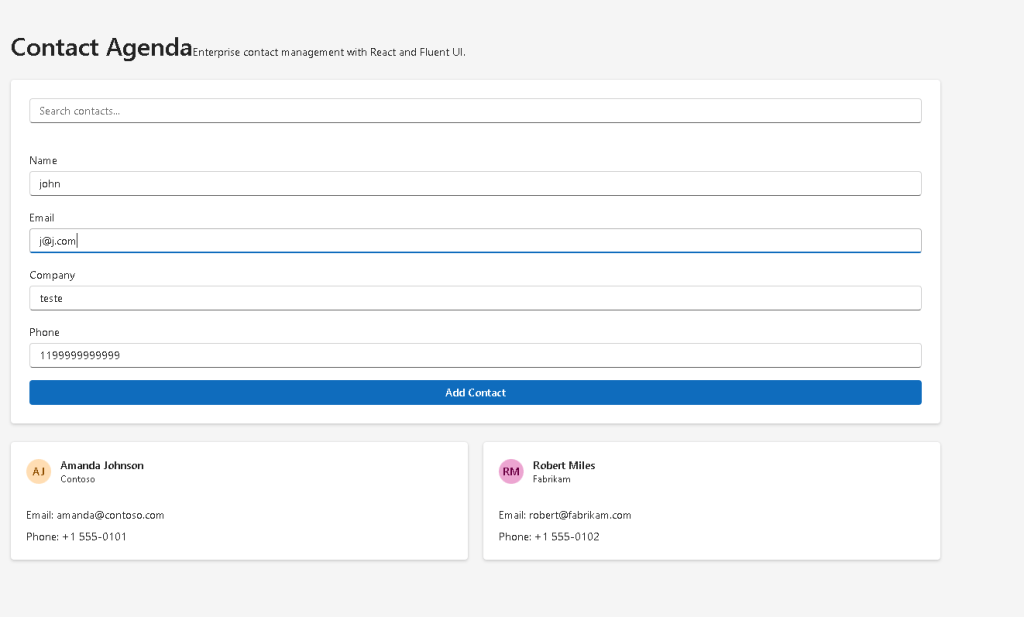
User types into form ↓onChange triggers ↓setState updates ↓React re-renders ↓Contact list updates
This is modern React.
Production Validation
Run:
npm run build
This validates:
- TypeScript
- imports
- JSX compilation
- production build
Always validate production builds.
Technical Summary
| Concept | Purpose |
|---|---|
useState | Component memory |
| Controlled Inputs | Synchronize UI and state |
| Derived State | Calculate filtered data |
| Immutable Updates | Safe React state updates |
map() | Render arrays |
filter() | Dynamic filtering |
| Fluent UI | Enterprise UI components |
| TypeScript Interfaces | Strong typing |
| Callback Props | Child → parent communication |
| Component Composition | Scalable architecture |
Official Documentation
React
- React Learn
- State: A Component’s Memory
- Reacting to Input with State
- Updating Arrays in State
- Choosing the State Structure
Fluent UI
Vite
TypeScript
Current Project Progress
| Block | App | Name | Status |
|---|---|---|---|
| Block 1 | 01 | Hello React Fluent | Completed |
| Block 1 | 02 | Profile Card | Completed |
| Block 1 | 03 | Product List | Completed |
| Block 1 | 04 | Microsoft Style User Card | Completed |
| Block 1 | 05 | Static Dashboard | Completed |
| Block 1 | 06 | Corporate Sidebar Menu | Completed |
| Block 1 | 07 | Visual Task List | Completed |
| Block 2 | 21 | Modern Counter | Completed |
| Block 2 | 22 | Toggle Theme | Completed |
| Block 2 | 23 | React Calculator | Completed |
| Block 2 | 24 | Login Form | Completed |
| Block 2 | 25 | User Registration | Completed |
| Block 2 | 26 | ToDo List | Completed |
| Block 2 | 27 | Shopping List | Completed |
| Block 2 | 28 | Product Filter | Completed |
| Block 2 | 29 | Employee Search | Completed |
| Block 2 | 30 | Shopping Cart | Completed |
| Block 2 | 31 | Grade Simulator | Completed |
| Block 2 | 32 | Inventory Control | Completed |
| Block 2 | 33 | Contact Agenda | Current |


