Technical Blog Article — App 34: Building a Currency Converter with React, TypeScript, Vite, and Fluent UI
Modern React applications are fundamentally built around one central idea:
The user interface is a function of state.
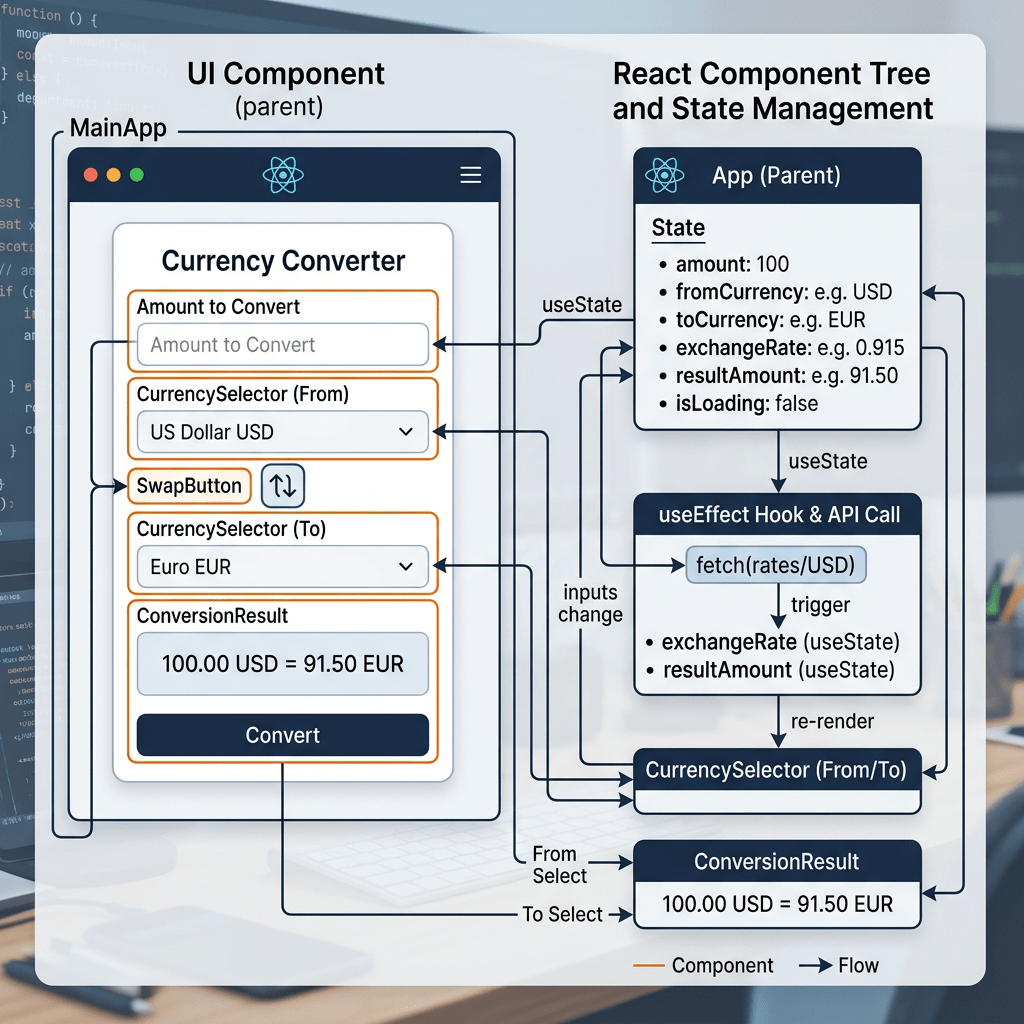
App 34 — Currency Converter — is one of the most important exercises in the entire React roadmap because it reinforces the transition from static UI into real reactive applications.
Up to this point in the project, most applications focused heavily on:
- JSX
- component composition
- props
- layouts
- lists
- Fluent UI visual structures
Now we begin entering the phase where the interface responds dynamically to user interaction.
According to the React roadmap defined for this project, App 34 belongs to Block 2 — Interactivity and State, which focuses on:
useState- events
- forms
- derived state
- calculations
- interactive rendering
- controlled inputs
- state synchronization
The official React Learn documentation describes this phase as the transition from describing the UI to making the UI interactive.
This application is extremely important because it introduces one of the core mental models of React:
User changes state ↓React re-renders ↓UI updates automatically
No manual DOM manipulation exists.
No imperative UI update logic exists.
The UI becomes a mathematical consequence of state.
The Goal of the Application
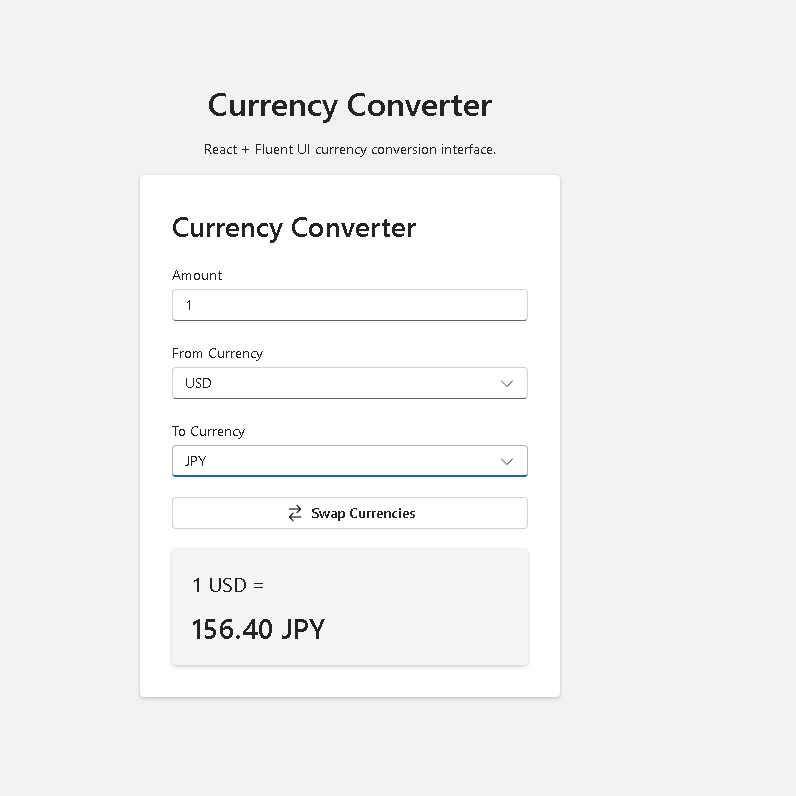
The Currency Converter application contains:
- numeric amount input
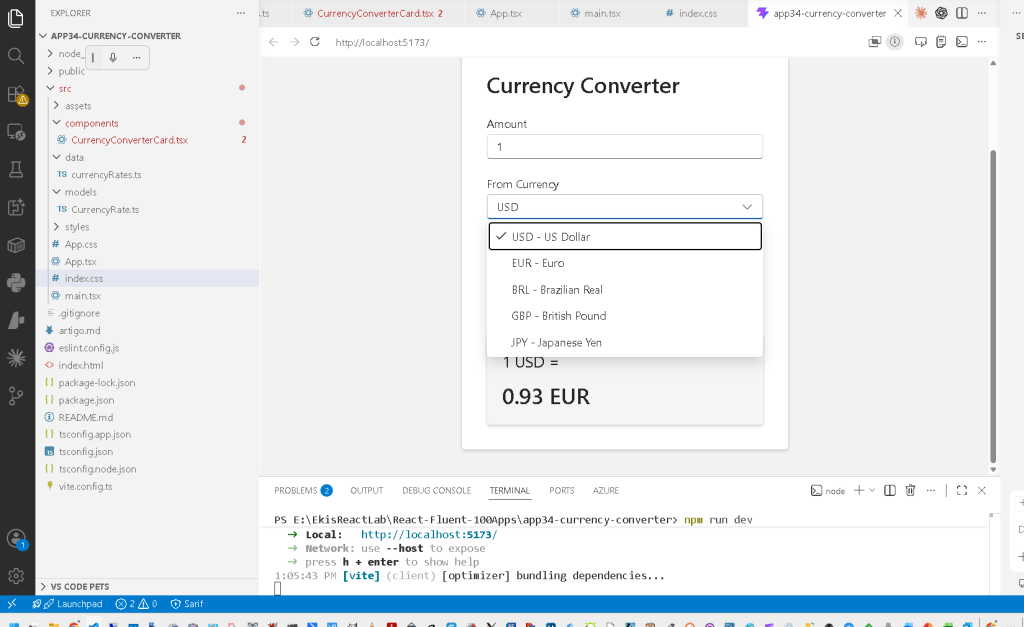
- source currency selector
- target currency selector
- conversion calculation
- automatic result rendering
- currency swapping
- Fluent UI enterprise design
- responsive card layout
Visually, the application is simple.
Architecturally, however, it introduces several foundational React concepts simultaneously:
- multiple related states
- controlled form fields
- derived calculations
- dynamic rendering
- list rendering with
map() - event-driven UI updates
- component-level business logic
- reusable data structures
Why This App Matters in React Learning
Many beginners misunderstand React and attempt to manipulate the DOM directly:
document.getElementById(...)innerHTML = ...
But React applications should not work this way.
Instead, React applications should work like this:
State changes ↓React calculates the new UI ↓React updates the DOM
This distinction is one of the most important conceptual transitions in frontend development.
The Currency Converter demonstrates this perfectly because:
- the user changes values
- React recalculates the conversion
- the interface updates automatically
No manual refresh logic is necessary.
Creating the Project
The project starts with Vite because Vite provides:
- fast startup
- fast Hot Module Replacement
- modern ES Module support
- TypeScript integration
- optimized production builds
Create the project:
cd C:\ReactAppsmkdir bloco02cd bloco02npm create vite@latest app34-currency-converter -- --template react-tscd app34-currency-converter
Install dependencies:
npm installnpm install @fluentui/react-components @fluentui/react-icons
Create the folder structure:
mkdir src\componentsmkdir src\datamkdir src\modelsmkdir src\styles
Create the files:
New-Item src\models\CurrencyRate.ts -ItemType FileNew-Item src\data\currencyRates.ts -ItemType FileNew-Item src\components\CurrencyConverterCard.tsx -ItemType FileNew-Item artigo.md -ItemType File
The Architecture of the Project
The final structure becomes:
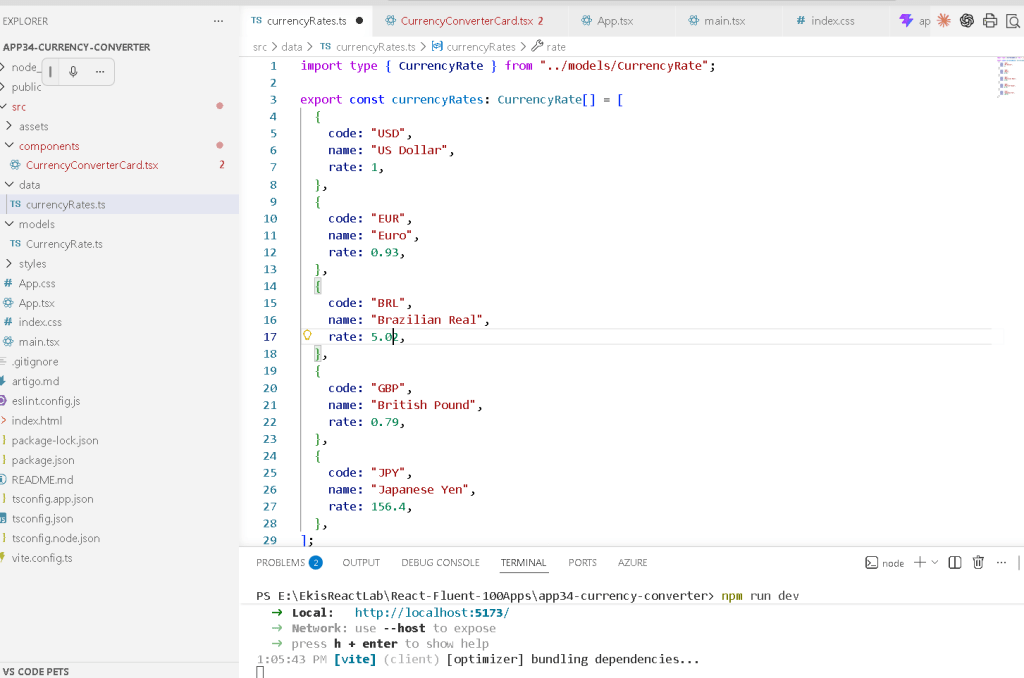
src/ components/ CurrencyConverterCard.tsx data/ currencyRates.ts models/ CurrencyRate.ts styles/ App.tsx main.tsx index.css
This architecture already follows professional React organization principles.
Each folder has a responsibility:
| Folder | Responsibility |
|---|---|
components/ | UI components |
data/ | Static/mock data |
models/ | TypeScript contracts |
styles/ | CSS organization |
App.tsx | Root application component |
main.tsx | React entry point |
This separation becomes critical as applications grow.
Understanding the TypeScript Model
The file:
src/models/CurrencyRate.ts
contains:
export interface CurrencyRate { code: string; name: string; rate: number;}
This interface defines the structure of a currency object.
Every currency must contain:
- a currency code
- a human-readable name
- an exchange rate
TypeScript now guarantees consistency across the application.
Example:
{ code: "USD", name: "US Dollar", rate: 1}
This prevents accidental architecture problems.
For example:
rate: "abc"
would immediately generate a TypeScript error.
This is one of the major reasons TypeScript is heavily used in enterprise React applications.
Why the Data Is Separate
The file:
src/data/currencyRates.ts
contains static currency data.
export const currencyRates: CurrencyRate[] = [...]
This separation is extremely important.
A professional React application should separate:
- UI rendering
- business data
The component should render the data.
The component should not contain hardcoded business values everywhere.
This improves:
- scalability
- readability
- maintainability
- future API integration
Later, the static data can easily become:
- REST API responses
- database data
- external services
without drastically changing the UI layer.
The Core of the App — CurrencyConverterCard.tsx
This file introduces the most important React concepts so far.
The component begins with:
const [amount, setAmount] = useState("1");const [fromCurrency, setFromCurrency] = useState("USD");const [toCurrency, setToCurrency] = useState("BRL");
This is the first time in the roadmap where multiple related states work together to produce derived calculations.
Understanding useState
useState gives memory to a component.
Without state:
- components are static
- inputs cannot change
- the UI cannot react
With state:
- React remembers values between renders
- the interface becomes interactive
The syntax:
const [value, setValue] = useState(initialValue);
creates:
- the current state value
- a function to update the value
Example:
const [amount, setAmount] = useState("1");
means:
amount stores the current input valuesetAmount(...) updates the value
The React Rendering Cycle
This app reinforces the React rendering cycle:
User interaction ↓State update ↓React re-renders component ↓Updated JSX is calculated ↓DOM updates automatically
This is one of the most important concepts in React.
The developer never manually updates the screen.
React handles rendering automatically.
Controlled Inputs
The amount input:
<Input value={amount} onChange={(_, data) => setAmount(data.value)}/>
is called a controlled input.
This means:
- React controls the value
- the UI reflects React state
- the input does not manage itself independently
This is a fundamental React forms concept.
Why Controlled Inputs Matter
Controlled inputs provide:
- predictable UI behavior
- centralized state management
- easier validation
- synchronization between components
- easier debugging
This becomes extremely important later for:
- enterprise forms
- validation systems
- authentication pages
- dynamic workflows
Understanding Dropdown State
The currency dropdowns work similarly.
Example:
selectedOptions={[fromCurrency]}
The selected option comes directly from React state.
When the user changes the selection:
setFromCurrency(data.optionValue || "USD")
updates the state.
React immediately re-renders the UI.
The Most Important Concept — Derived State
One of the best architectural decisions in this app is:
The conversion result is NOT stored in state.
Instead, the result is CALCULATED dynamically.
This is extremely important.
The app does NOT do this:
const [result, setResult] = useState(...)
Instead:
function convertCurrency() {
calculates the value every render.
This follows React Learn guidance:
Avoid redundant state.
The result is derived from:
- amount
- source currency
- target currency
So storing it separately would duplicate information unnecessarily.
Why Derived State Is Better
Derived calculations reduce:
- bugs
- synchronization problems
- duplicated state
- inconsistent UI
Imagine storing both:
- amount
- converted result
If one changes but the other does not update correctly, the UI becomes inconsistent.
Derived state avoids this problem entirely.
Understanding the Currency Formula
The app converts currencies using a normalized USD base.
Formula:
usdValue = amount / sourceRatefinalValue = usdValue * targetRate
This is cleaner than manually handling every currency pair combination.
Example:
100 BRL ↓convert to USD base ↓convert USD to EUR
This architecture scales much better.
React Rendering Flow Inside the Converter
The rendering flow becomes:
User types amount ↓setAmount(...) ↓React re-renders ↓convertCurrency() runs again ↓New conversion value appears
This is pure declarative UI architecture.
Why map() Matters
The dropdown options are generated with:
currencyRates.map(...)
This transforms:
CurrencyRate[]
into:
Option[]
This is one of the most important React rendering patterns.
The UI is generated FROM DATA.
Not manually repeated.
The Importance of key
Inside the dropdown:
key={currency.code}
helps React identify each rendered element.
Keys are critical for:
- efficient rendering
- list reconciliation
- stable updates
React uses keys internally during its diffing algorithm.
Understanding the Swap Function
The swap logic:
function swapCurrencies() { setFromCurrency(toCurrency); setToCurrency(fromCurrency);}
demonstrates:
- multiple state updates
- event-driven state changes
- synchronized rendering
When the button is clicked:
- both states change
- React re-renders once
- the UI updates instantly
Why Fluent UI Matters Here
The app uses Fluent UI controls such as:
CardDropdownInputFieldButtonTextTitle2
This provides:
- Microsoft-style UI
- accessibility
- keyboard navigation
- spacing consistency
- enterprise visual identity
Without Fluent UI, all of this would require manual CSS and accessibility work.
Understanding App.tsx
The App.tsx file centers the converter:
display: "flex",justifyContent: "center",alignItems: "center",
This creates a classic centered enterprise panel layout.
The component tree becomes:
App CurrencyConverterCard
This is simple now, but later evolves into larger application hierarchies.
Understanding main.tsx
The file:
<FluentProvider theme={webLightTheme}>
activates the Fluent UI design system globally.
Without it:
- Fluent UI components would lose styling
- theme tokens would not exist
- enterprise visual consistency would break
This provider pattern becomes extremely important in large React applications.
Why This App Is Important for React Learning
This application introduces the real React mindset:
React is NOT:
- manual DOM manipulation
- imperative UI programming
- jQuery-style logic
React IS:
- state-driven rendering
- declarative UI composition
- automatic synchronization between state and interface
This mental shift is one of the hardest and most important transitions in frontend engineering.
Technical Summary
| Concept | Purpose |
|---|---|
useState | Component memory |
| Controlled Inputs | React controls form fields |
| Derived State | Calculated conversion value |
map() | Dynamic rendering |
| Event Handling | User interaction |
| Re-rendering | Automatic UI updates |
| Fluent UI | Enterprise UI system |
| TypeScript Interface | Strong typing |
| Dropdown State | Selected option management |
| Declarative Rendering | UI derived from state |
Official Documentation
React
- React Learn
- State: A Component’s Memory
- Reacting to Input with State
- Choosing the State Structure
- Rendering Lists
Fluent UI
Vite
TypeScript
Current Project Progress
| Block | App | Name | Status |
|---|---|---|---|
| Block 1 | 01 | Hello React Fluent | Completed |
| Block 1 | 02 | Profile Card | Completed |
| Block 1 | 03 | Product List | Completed |
| Block 1 | 04 | Microsoft Style User Card | Completed |
| Block 1 | 05 | Static Dashboard | Completed |
| Block 1 | 06 | Corporate Sidebar Menu | Completed |
| Block 1 | 07 | Visual Task List | Completed |
| Block 1 | 08 | Timeline of Events | Completed |
| Block 1 | 09 | Employee Table | Completed |
| Block 1 | 10 | Email List | Completed |
| Block 1 | 11 | Grid of Cards | Completed |
| Block 1 | 12 | Image Gallery | Completed |
| Block 1 | 13 | Movie Catalog | Completed |
| Block 1 | 14 | Football Teams | Completed |
| Block 1 | 15 | News Page | Completed |
| Block 1 | 16 | Financial Dashboard | Completed |
| Block 1 | 17 | SharePoint Style Layout | Completed |
| Block 1 | 18 | File Explorer | Completed |
| Block 1 | 19 | Corporate Portal | Completed |
| Block 1 | 20 | Microsoft Landing Page | Completed |
| Block 2 | 21 | Modern Counter | Completed |
| Block 2 | 22 | Toggle Theme | Completed |
| Block 2 | 23 | React Calculator | Completed |
| Block 2 | 24 | Login Form | Completed |
| Block 2 | 25 | User Registration | Completed |
| Block 2 | 26 | ToDo List | Completed |
| Block 2 | 27 | Shopping List | Completed |
| Block 2 | 28 | Product Filter | Completed |
| Block 2 | 29 | Employee Search | Completed |
| Block 2 | 30 | Shopping Cart | Completed |
| Block 2 | 31 | Grade Simulator | Completed |
| Block 2 | 32 | Inventory Control | Completed |
| Block 2 | 33 | Contact Agenda | Completed |
| Block 2 | 34 | Currency Converter | Current |
| Block 2 | 35 | BMI Calculator | Next |


