Technical Blog Article — App 38: Interactive Quiz with React, TypeScript, Vite, and Fluent UI
The React roadmap defined for this project contains 100 progressive applications focused on internalizing the React mental model through repetition, architecture, and practical implementation. App 38 belongs to Block 2 — Interactivity and State, where the main objective is to deeply understand how React interfaces are driven entirely by state changes.
App 38 — Interactive Quiz — is one of the most important applications of the entire second block because it combines multiple React concepts together in a realistic user flow:
- component state
- conditional rendering
- event handling
- derived UI
- form interaction
- score calculation
- list rendering
- controlled components
- component composition
At this point in the learning journey, React stops being only a “rendering library” and starts behaving like a true UI state engine.
The application visually looks simple:
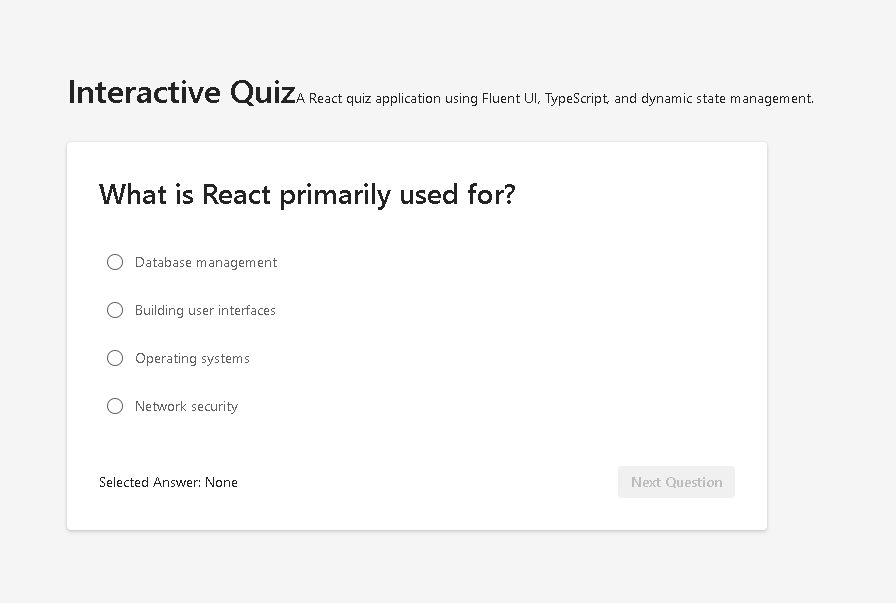
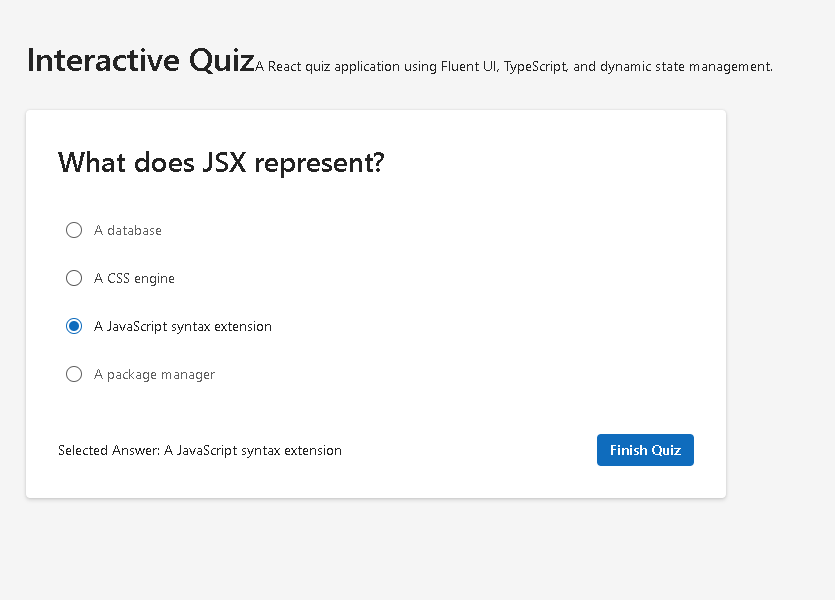
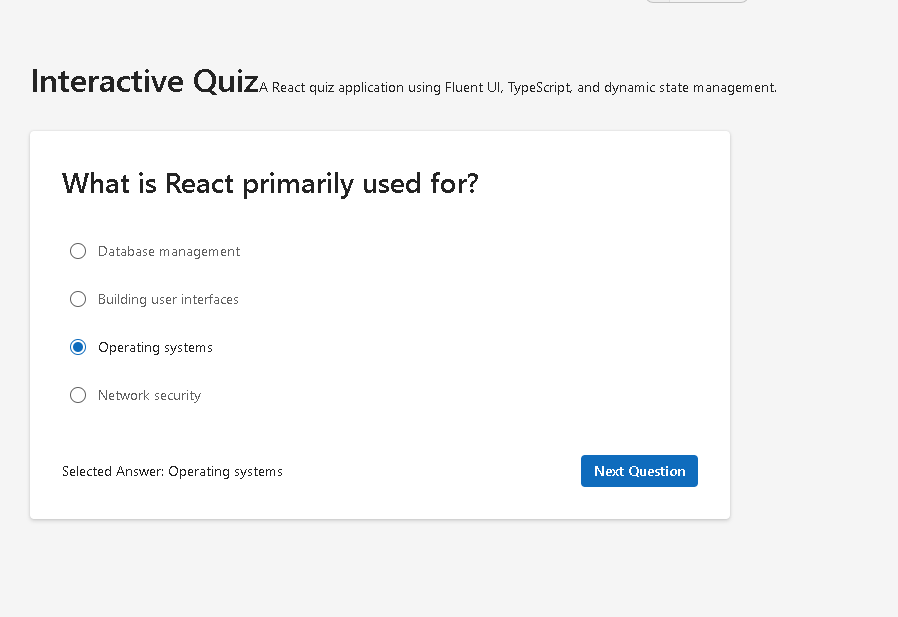
- show a question
- select an answer
- go to the next question
- calculate the final score
But architecturally, this app introduces one of the most important ideas in React:
The UI is a function of state.
The user interface changes automatically because the internal state changes.
No manual DOM manipulation exists.
No imperative UI updates exist.
No document.querySelector() exists.
No manual show/hide logic exists.
Instead, React continuously re-renders the interface according to state.
This app is heavily connected to the official React Learn sections:
- State: A Component’s Memory
- Reacting to Input with State
- Choosing the State Structure
- Conditional Rendering
- Queueing a Series of State Updates
The application also continues using:
- Vite
- TypeScript
- Fluent UI
- component architecture
- enterprise-style UI composition
following the architecture defined throughout the repository.
1. Creating the Project
The project starts with Vite.
mkdir bloco02cd bloco02npm create vite@latest app38-interactive-quiz -- --template react-ts
This command creates:
- a React project
- TypeScript configuration
- Vite development environment
- JSX/TSX support
- npm scripts
- development tooling
The react-ts template is extremely important because TypeScript becomes a core part of the architecture from the beginning.
After project creation:
cd app38-interactive-quiznpm install
Now the dependencies are installed.
Then Fluent UI packages are added:
npm install @fluentui/react-components @fluentui/react-icons
Fluent UI provides:
- enterprise UI components
- accessibility support
- Microsoft design consistency
- keyboard navigation
- responsive behavior
- semantic controls
2. Creating the Folder Structure
mkdir src\componentsmkdir src\datamkdir src\modelsmkdir src\styles
This structure reinforces the architectural separation introduced in earlier apps.
The final structure becomes:
src/ components/ data/ models/ styles/ App.tsx main.tsx index.css
Each folder has a clear responsibility.
| Folder | Responsibility |
|---|---|
components/ | UI building blocks |
data/ | Static quiz data |
models/ | TypeScript contracts |
styles/ | Global/project CSS |
This separation is extremely important in enterprise React applications.
3. Creating the Files
New-Item artigo.md -ItemType FileNew-Item src\models\QuizQuestion.ts -ItemType FileNew-Item src\data\questions.ts -ItemType FileNew-Item src\components\QuizCard.tsx -ItemType FileNew-Item src\components\QuizResult.tsx -ItemType File
One of the important habits of this repository is creating architecture first before writing implementation.
This encourages thinking in:
- responsibilities
- composition
- modularity
- separation of concerns
instead of placing everything inside App.tsx.
4. Understanding the Quiz Model
File:
src/models/QuizQuestion.ts
Code:
export interface QuizQuestion { id: number; question: string; options: string[]; correctAnswer: string;}
This interface defines the structure of a quiz question.
This is extremely important because React applications scale better when data structures are explicitly modeled.
Each question must contain:
- an id
- the question text
- possible answers
- the correct answer
This provides:
- type safety
- autocomplete
- predictable architecture
- safer refactoring
Without TypeScript, a mistake like this could happen:
correctAnswer: 123
TypeScript prevents invalid data shapes.
5. Understanding the Data Layer
File:
src/data/questions.ts
This file contains the quiz questions.
The important concept here is:
UI derives from data.
The interface is not manually written question by question.
Instead:
- the data describes the quiz
- React renders the UI from the data
This is one of the most important React ideas.
The application does not care whether there are:
- 4 questions
- 40 questions
- 400 questions
The rendering logic remains the same.
6. Why the Questions Are Stored Separately
A common beginner mistake is placing all data directly inside components.
Separating the data layer provides:
- cleaner architecture
- easier maintenance
- future API integration
- simpler testing
- reusable datasets
Later, this file could easily be replaced by:
- REST API data
- database responses
- GraphQL queries
- SharePoint lists
- Microsoft Graph responses
without rewriting the UI components.
7. Understanding QuizCard.tsx
This component is responsible for displaying:
- the current question
- possible answers
- answer selection
- next button
The component receives data through props.
This is extremely important.
React applications should follow:
Parent owns stateChild receives propsChild emits events
The props are:
interface QuizCardProps { question: QuizQuestion; selectedAnswer: string; onSelectAnswer: (answer: string) => void; onNextQuestion: () => void; isLastQuestion: boolean;}
This is classic React architecture.
8. Understanding Component Communication
The communication flow is:
App owns the state ↓QuizCard receives data ↓User interacts ↓QuizCard calls callback functions ↓App updates state ↓React re-renders UI
This is the core React rendering cycle.
9. Understanding RadioGroup
Inside the component:
<RadioGroup value={selectedAnswer} onChange={(_, data) => onSelectAnswer(data.value)}>
This creates a controlled component.
The selected value is stored inside React state.
The UI does not own the state.
React owns the state.
This is one of the most important React ideas.
10. Controlled Components
This app reinforces the concept of controlled components introduced in earlier forms apps.
The selected answer is controlled by React:
value={selectedAnswer}
Whenever the user changes the selection:
onChange={(_, data) => onSelectAnswer(data.value)}
React updates state.
Then React re-renders the UI.
This creates a predictable data flow.
11. Rendering the Options
The quiz options are rendered dynamically:
{question.options.map((option) => ( <Radio key={option} value={option} label={option} />))}
This demonstrates declarative rendering.
Instead of manually creating:
- Radio 1
- Radio 2
- Radio 3
- Radio 4
React simply says:
For each option, render a Radio component.
12. Understanding map()
The map() function transforms arrays.
Conceptually:
array of data↓array of UI elements
This is fundamental in React.
Almost every real React app uses:
map()- arrays
- dynamic rendering
13. Understanding Stable Keys
key={option}
Keys help React identify elements during re-rendering.
This becomes critical when:
- lists change
- items are removed
- items are reordered
- items are updated
Without stable keys, React may:
- re-render incorrectly
- lose component state
- produce warnings
14. Understanding the Next Button
<Button appearance="primary" disabled={!selectedAnswer}>
This demonstrates derived UI.
The button becomes enabled only when:
- the user selects an answer
The interface automatically reacts to state.
No manual DOM manipulation exists.
15. Understanding Derived UI
This line:
disabled={!selectedAnswer}
means:
If no answer exists,disable the button.
This is declarative programming.
Instead of saying:
Find buttonDisable button manuallyEnable later manually
React derives the UI from state.
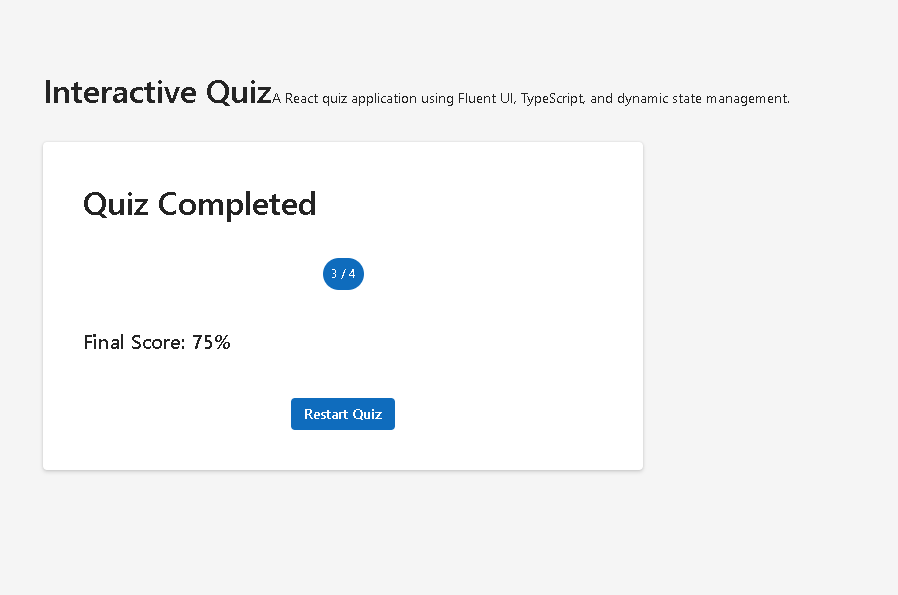
16. Understanding QuizResult.tsx
This component displays:
- final score
- percentage
- restart button
It is only shown when:
isQuizFinished === true
Again, the UI derives from state.
17. Understanding Conditional Rendering
Inside App.tsx:
{isQuizFinished ? ( <QuizResult />) : ( <QuizCard />)}
This is one of the most important React concepts.
React dynamically changes the entire interface according to state.
When:
isQuizFinished = false
→ show questions
When:
isQuizFinished = true
→ show results
18. React Is NOT Imperative UI
This app clearly demonstrates that React is not:
show()hide()appendChild()removeChild()
Instead:
State changes↓React re-renders UI↓UI automatically updates
This is the React mental model.
19. Understanding App.tsx
App.tsx owns all application state.
This is extremely important.
The parent component controls:
- current question
- selected answer
- score
- quiz completion state
This centralizes application behavior.
20. Understanding useState
The app uses multiple state variables:
const [currentQuestionIndex, setCurrentQuestionIndex]
const [selectedAnswer, setSelectedAnswer]
const [score, setScore]
const [isQuizFinished, setIsQuizFinished]
Each one stores a different part of the application memory.
21. Why React State Matters
React state is what allows the interface to evolve over time.
Without state:
- the app would always display the same question
- the score would never change
- the UI would never update
State makes the interface dynamic.
22. Understanding Functional Updates
This line is extremely important:
setScore((previousScore) => previousScore + 1);
This is called a functional state update.
React Learn recommends this whenever:
- the next state depends on the previous state
Why?
Because React batches updates internally.
Using the callback version guarantees correctness.
23. Understanding the Quiz Flow
The application flow is:
Start quiz↓Display question↓User selects answer↓User clicks next↓React validates answer↓Update score↓Move to next question↓Repeat↓Show final result
This is essentially a state machine.
24. Understanding Derived Variables
This line:
const currentQuestion = questions[currentQuestionIndex];
creates derived data.
React Learn strongly recommends deriving values whenever possible instead of duplicating state.
The current question is derived from:
- the question list
- the current index
No duplicated state is necessary.
25. Understanding handleNextQuestion
This function contains the main business logic.
It:
- validates the answer
- updates score
- checks last question
- advances quiz
- resets selected answer
This demonstrates how React event handlers control state transitions.
26. Understanding Quiz Completion
This logic:
if (isLastQuestion) { setIsQuizFinished(true); return;}
changes the application mode.
The app moves from:
- question mode
to:
- result mode
through state only.
27. Understanding Restart Logic
function handleRestartQuiz() { setCurrentQuestionIndex(0); setSelectedAnswer(""); setScore(0); setIsQuizFinished(false);}
This resets the application back to the initial state.
Again:
- no manual DOM reset exists
- no imperative cleanup exists
React simply re-renders the UI according to the new state.
28. Understanding the Layout
The app uses:
display: "flex"justifyContent: "center"alignItems: "center"
This creates centered enterprise-style layout behavior.
The card is placed in the middle of the screen.
This style appears frequently in:
- login pages
- dashboards
- onboarding flows
- quizzes
- setup wizards
29. Understanding Fluent UI in This App
This app uses several Fluent UI components:
| Component | Purpose |
|---|---|
Card | Visual container |
RadioGroup | Controlled answer selection |
Radio | Individual option |
Button | Navigation actions |
Badge | Final score display |
Title1 / Title2 | Typography hierarchy |
Text | Descriptions |
Fluent UI automatically provides:
- spacing
- accessibility
- keyboard navigation
- Microsoft visual identity
- responsive behavior
30. Why This App Matters
This app is one of the first applications where React truly feels interactive.
It introduces:
- dynamic UI
- user-driven rendering
- multi-state interfaces
- state transitions
- controlled components
- event-driven rendering
Without understanding this app deeply, advanced React architecture becomes difficult later.
This app is the bridge between:
- static UI
and - real application behavior
Technical Summary
| Concept | Purpose |
|---|---|
useState | Component memory |
| Controlled Components | React-controlled inputs |
RadioGroup | Answer selection |
| Conditional Rendering | Dynamic UI |
| Functional Updates | Safe state changes |
| Derived State | Avoid duplicated data |
| Props | Component communication |
| Event Handling | User interaction |
map() | Dynamic rendering |
| Fluent UI | Enterprise UI system |
| TypeScript | Type safety |
| Composition | Modular architecture |
Official Documentation
React
- React Learn
- State: A Component’s Memory
- Reacting to Input with State
- Choosing the State Structure
- Conditional Rendering
- Queueing a Series of State Updates
Fluent UI
Vite
TypeScript
Current Project Progress
| Block | App | Name | Status |
|---|---|---|---|
| Block 1 | 01 | Hello React Fluent | Completed |
| Block 1 | 02 | Profile Card | Completed |
| Block 1 | 03 | Product List | Completed |
| Block 1 | 04 | Microsoft Style User Card | Completed |
| Block 1 | 05 | Static Dashboard | Completed |
| Block 1 | 06 | Corporate Sidebar Menu | Completed |
| Block 1 | 07 | Visual Task List | Completed |
| Block 1 | 08 | Timeline Events | Completed |
| Block 1 | 09 | Employee Table | Completed |
| Block 1 | 10 | Email List | Completed |
| Block 1 | 11 | Grid of Cards | Completed |
| Block 1 | 12 | Image Gallery | Completed |
| Block 1 | 13 | Movie Catalog | Completed |
| Block 1 | 14 | Football Teams | Completed |
| Block 1 | 15 | News Page | Completed |
| Block 1 | 16 | Financial Dashboard | Completed |
| Block 1 | 17 | SharePoint Style Layout | Completed |
| Block 1 | 18 | File Explorer | Completed |
| Block 1 | 19 | Corporate Portal | Completed |
| Block 1 | 20 | Microsoft Landing Page | Completed |
| Block 2 | 21 | Modern Counter | Completed |
| Block 2 | 22 | Toggle Theme | Completed |
| Block 2 | 23 | React Calculator | Completed |
| Block 2 | 24 | Login Form | Completed |
| Block 2 | 25 | User Registration | Completed |
| Block 2 | 26 | ToDo List | Completed |
| Block 2 | 27 | Shopping List | Completed |
| Block 2 | 28 | Product Filter | Completed |
| Block 2 | 29 | Employee Search | Completed |
| Block 2 | 30 | Shopping Cart | Completed |
| Block 2 | 31 | Grade Simulator | Completed |
| Block 2 | 32 | Inventory Control | Completed |
| Block 2 | 33 | Contact Agenda | Completed |
| Block 2 | 34 | Currency Converter | Completed |
| Block 2 | 35 | BMI Calculator | Completed |
| Block 2 | 36 | Installment Simulator | Completed |
| Block 2 | 37 | Voting Panel | Completed |
| Block 2 | 38 | Interactive Quiz | Current |
| Block 2 | 39 | Team Manager | Next |


