Building Interactive Maps in SPFx with the PnP Map Control
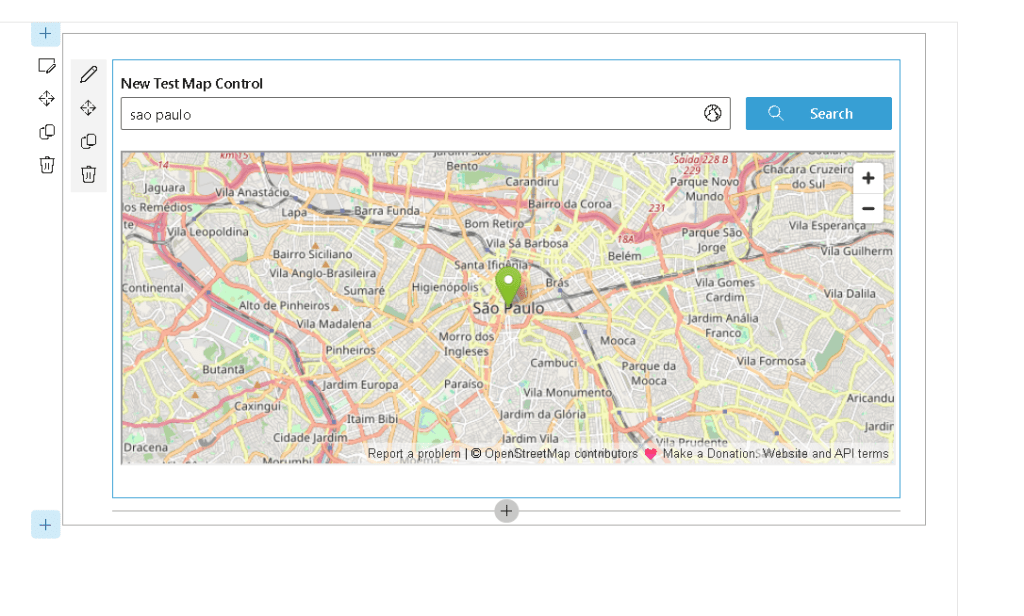
When building SharePoint Framework (SPFx) solutions, location-based experiences are often underestimated. But maps are extremely useful in many business scenarios:
- Office and branch visualization
- Project locations
- Asset tracking
- Customer locations
- Logistics and route planning
- Regional dashboards
- Event geolocation
The SharePoint Framework PnP React Controls library includes a ready-to-use Map component that simplifies embedding map experiences directly inside your web parts.
Official documentation:
PnP Map Control Documentation
This is WP28 in the roadmap.
Why use the Map control?
Without this control, integrating maps in SPFx usually means:
- Consuming external APIs
- Managing script loading
- Handling coordinates manually
- Implementing search behavior
- Building responsive layouts
The PnP Map control abstracts this complexity.
Main benefits:
- Fast setup
- Coordinates support
- Search support
- Built-in rendering
- Multiple map types
- Mobile-friendly UI
- Easy integration with SharePoint data
The Example
Your implementation:
import * as React from 'react';import { IMapControlWpProps } from './IMapControlWpProps';import { Map, ICoordinates, MapType } from "@pnp/spfx-controls-react/lib/Map";const mapControlWp: React.FC<IMapControlWpProps> = ({}) => { return ( <Map titleText="New Test Map Control" coordinates={{ latitude: 51.507351, longitude: -0.127758 }} enableSearch={true} /> );}export default mapControlWp;
This example renders a map centered on London.
London
Coordinates:
| Property | Value |
|---|---|
| Latitude | 51.507351 |
| Longitude | -0.127758 |
Understanding the imports
import { Map, ICoordinates, MapType } from "@pnp/spfx-controls-react/lib/Map";
Map
The main control.
Responsible for:
- Rendering the map
- Showing markers
- Search box
- User interactions
ICoordinates
Defines the location object:
{ latitude: number; longitude: number;}
Used for:
- Initial center point
- Marker placement
- Dynamic updates
MapType
Allows changing visualization style.
Examples:
MapType.standardMapType.satelliteMapType.hybrid
Your current example imports it but does not use it yet.
Breaking down the component
1. Title
titleText="New Test Map Control"
Adds a title above the map.
Useful for:
- Location dashboards
- Branch names
- Site labels
2. Coordinates
coordinates={{ latitude: 51.507351, longitude: -0.127758 }}
Sets the starting position.
This determines:
- Initial camera center
- Initial marker
- Search relevance
Think of it as the default viewport.
3. Search
enableSearch={true}
Enables address/location search.
This makes the control interactive.
Users can search for:
- Cities
- Streets
- Buildings
- ZIP codes
- Points of interest
Example:
- “São Paulo”
- “New York”
- “Microsoft HQ”
Improving the example
You can make it richer:
<Map titleText="Office Location" coordinates={{ latitude: -23.550520, longitude: -46.633308 }} enableSearch={true} mapType={MapType.hybrid}/>
This example centers on:
São Paulo
Benefits:
- Hybrid map view
- Better city visualization
- Better urban navigation
Real-world SPFx scenarios
1. SharePoint list + coordinates
Imagine a list:
| Office | Latitude | Longitude |
|---|---|---|
| Brazil HQ | -23.550520 | -46.633308 |
| London Office | 51.507351 | -0.127758 |
Using PnPjs:
const offices = await sp.web.lists.getByTitle("Offices").items();
You can dynamically render maps.
2. Customer geolocation
Use with:
- CRM integrations
- Delivery apps
- Sales dashboards
3. Event locations
Useful for:
- Training sessions
- Conferences
- Team meetings
4. Asset mapping
Track:
- Warehouses
- Equipment
- Vehicles
Best practices
Use dynamic coordinates
Instead of hardcoding:
coordinates={{ latitude: 51.507351, longitude: -0.127758 }}
Prefer data-driven sources:
- SharePoint Lists
- Microsoft Graph
- APIs
Validate coordinates
Always validate:
if(latitude && longitude)
Avoid rendering invalid maps.
Choose the correct map type
Use:
| Scenario | Recommended |
|---|---|
| General navigation | Standard |
| Building inspection | Satellite |
| Urban planning | Hybrid |
Final version
A cleaner version:
import * as React from 'react';import { Map, MapType } from "@pnp/spfx-controls-react/lib/Map";const MapControlWp: React.FC = () => { return ( <Map titleText="Company Headquarters" coordinates={{ latitude: -23.550520, longitude: -46.633308 }} enableSearch={true} mapType={MapType.hybrid} /> );};export default MapControlWp;
Conclusion
The PnP Map control is one of the fastest ways to bring geospatial intelligence into SharePoint solutions.
It is simple, powerful, and ideal for:
- Dashboards
- Logistics
- Office mapping
- Customer data
- Asset visualization
Combined with:
- PnPjs
- Microsoft Graph
- SharePoint Online
it becomes even more powerful for enterprise-grade scenarios.
Next natural evolution after this control:
- ListView + Map
- LocationPicker + Map
- DynamicForm + Map
- PeoplePicker + Office locations

 edvaldo b. guimarães filho