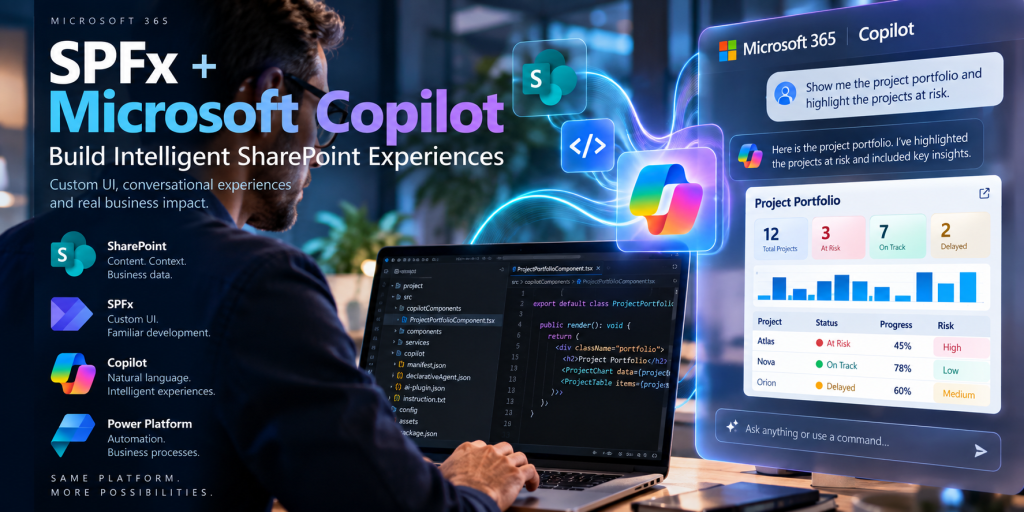
SPFx + Microsoft Copilot
Building Intelligent SharePoint Experiences with SharePoint Copilot Apps, Copilot Components and Declarative Agents
For a SharePoint developer, one of the most important developments in the Microsoft 365 Copilot extensibility model is the emergence of SharePoint Copilot Apps, a new SPFx-based development model that allows interactive client-side components to render directly inside Microsoft 365 Copilot.
This changes an important assumption about Copilot extensibility.
Until recently, it was natural to think about Microsoft 365 Copilot primarily as a conversational environment where extensions contributed Knowledge, Actions and generated responses. SharePoint Framework, meanwhile, remained associated primarily with visual application experiences running inside SharePoint, Microsoft Teams and other supported Microsoft 365 surfaces.
SharePoint Copilot Apps begin to connect these worlds directly.
A developer can now use familiar SPFx concepts and tooling to build an interactive component that participates in a Copilot conversation.
Microsoft currently describes the model as a package containing one or more Copilot components, which are client-side UI components rendered inside Microsoft 365 Copilot, together with a Declarative Agent definition that makes those components discoverable and callable during a conversation.
This gives us a fundamentally different architecture:
User
↓
Microsoft 365 Copilot
↓
Declarative Agent
↓
Tool
↓
Copilot Component
↓
SPFx Client-Side Experience
The Agent provides intelligence and orchestration.
SPFx provides interactive experience.
This is considerably more powerful than simply placing a chatbot inside a SharePoint page.
1. SharePoint Copilot Apps Are Real SPFx Solutions
The first important technical point is that SharePoint Copilot Apps do not introduce a completely unrelated development stack.
Microsoft deliberately builds the model around familiar SharePoint Framework technologies.
The developer continues working with TypeScript, SCSS, the @microsoft/sp-* libraries and the current SPFx build toolchain. The solution is eventually packaged as the familiar .sppkg package and deployed through the SharePoint App Catalog.
This is strategically important for existing SharePoint development teams.
The knowledge accumulated around SPFx project structure, packaging, tenant deployment and client-side development remains relevant.
What changes is the host and the interaction model.
A traditional SPFx Web Part is normally instantiated because a page contains that Web Part.
A Copilot Component can be instantiated because an Agent determines during a conversation that one of its tools is appropriate.
That is a profound difference.
The component is no longer necessarily activated by navigation.
It can be activated by intent.
2. Current Status: Public Preview
Before discussing implementation, an important limitation must be explicit.
As of September 2026, SharePoint Copilot Apps are still a public preview capability.
Microsoft explicitly states that they should not currently be used in production environments because APIs, schemas and tooling can change before General Availability.
There is also an ongoing naming transition.
The SPFx 1.24 preview release notes explain that the capability introduced as SharePoint Copilot Apps will most likely be called Copilot Components going forward, although Microsoft has not yet finalized the GA naming.
For architecture documentation, therefore, it is useful to understand both terms:
SharePoint Copilot App refers to the overall packaged solution model currently documented by Microsoft.
Copilot Component refers to the interactive SPFx component rendered within the Copilot experience.
This distinction may evolve as the feature approaches General Availability.
3. The Development Prerequisite Has Changed
The current Microsoft tutorial requires a recent SPFx preview build.
Microsoft specifically states that the tutorial for building the first SharePoint Copilot App requires:
SharePoint Framework v1.24 beta 2 or newer.
This means an existing production SPFx 1.23 project should not simply be assumed to support the Copilot Component development model.
For an experimental environment, the first architectural decision is therefore to isolate this work from existing production SPFx solutions.
Conceptually:
Production SPFx solutions
remain on their validated version.
while:
Copilot Component laboratory
uses the required SPFx preview tooling.
This is particularly important because SharePoint Copilot Apps themselves remain preview technology.
4. Creating the Project
The development process begins using the SharePoint Framework generator, just as with other SPFx development.
The significant difference is the component type selected during scaffolding.
The generator now supports creation of a Copilot Component.
Microsoft currently provides three starter approaches.
The Minimal template contains the smallest implementation necessary to understand the model.
The No framework template uses plain TypeScript and provides direct control without introducing a UI framework.
The React template provides a familiar starting point for SPFx development teams already using React.
For learning purposes, the Minimal template is particularly valuable because it exposes the architecture without hiding it behind application structure.
For an existing enterprise SPFx team, React will often be the more familiar implementation model.
The conceptual scaffolding process is therefore:
SPFx Generator
↓
Copilot Component
↓
Choose template
↓
Minimal / No Framework / React
↓
Generated SPFx + Copilot project
At this point we are no longer creating a conventional Web Part.
We are creating a component designed to participate in a Copilot conversation.
5. The Project Contains Two Architectural Worlds
The generated project is especially interesting because it physically exposes the architecture we have been discussing throughout this series.
One part of the project contains the SPFx component.
Another contains the Declarative Agent definition.
Conceptually:
project│├── src│ └── copilotComponents│ └── ...│└── copilot ├── manifest.json ├── declarativeAgent.json ├── ai-plugin.json └── instruction.txt
This is an extremely important structure to understand.
The src/copilotComponents area represents the interactive client-side experience.
The copilot area represents the Agent.
The solution therefore contains:
UI
and:
AI orchestration definition
inside the same deployable SPFx solution.
6. manifest.json
The manifest.json file represents the Microsoft 365 application manifest associated with the Agent package.
It contains the application-level metadata required to register the solution within the Microsoft 365 application model.
This includes information such as application identity, name, description, icons and related metadata.
For an experienced SPFx developer, the important conceptual shift is that the .sppkg now contains more than a SharePoint client-side customization.
It participates in the Microsoft 365 Agent application model.
The SharePoint App Catalog therefore becomes part of the deployment path for an Agent experience.
7. declarativeAgent.json
The declarativeAgent.json file is one of the most important files in the solution.
It defines the Declarative Agent associated with the Copilot App.
A simplified structure resembles:
{ "version": "v1.7", "name": "Project Governance Agent", "instructions": "$[file('instruction.txt')]", "conversation_starters": [ { "title": "Project status", "text": "Show me the current project status" } ], "actions": [ { "id": "projectAction", "file": "ai-plugin.json" } ]}
This should immediately look familiar to anyone studying Agents.
The Agent has:
a name,
Instructions,
Conversation Starters,
and Actions.
More importantly, Microsoft states that this is a full Declarative Agent definition.
The developer is not limited to only the capabilities required to render the SPFx component.
The Agent definition can also use other capabilities supported by the Declarative Agent schema, including additional Knowledge, Instructions and Actions.
Therefore:
SPFx Copilot Component ≠ entire Agent
The component is one capability available to the Agent.
8. instruction.txt
The instruction.txt file contains natural-language Instructions controlling the Agent’s behavior.
For example:
You are a Project Governance Agent.Help users understand project status, risks and governance information.When the user asks for a visual project overview, use the projectportfolio component.Do not invent project data.Use available enterprise knowledge and actions when required.
This file belongs to the reasoning layer rather than the UI layer.
That distinction is architecturally valuable.
SPFx code determines how the experience renders.
Instructions influence how the Agent behaves and when capabilities should be considered.
We should therefore resist putting Agent reasoning rules inside React or TypeScript when they properly belong to the Agent definition.
9. ai-plugin.json
The ai-plugin.json file describes Actions available to the Agent.
This is the bridge between the Declarative Agent and capabilities exposed by the application.
The important idea is that the Agent does not simply know that an SPFx component exists.
It understands available capabilities through tool/action metadata.
This brings us to the most interesting part of the architecture.
10. Copilot Components Expose Tools
Each Copilot Component can declare one or more tools in its component manifest.
Microsoft’s current documentation shows a structure conceptually similar to:
"tools": [ { "name": "ProjectPortfolioTool", "description": { "default": "Displays the project portfolio" }, "propertiesSchema": { "id": "..." } }]
This changes the relationship between SPFx and Copilot.
The Agent does not invoke a component merely because it knows its technical component ID.
It sees an available Tool with semantic information.
The Tool has a name.
It has a description.
It has an input contract.
The Agent can use that information during orchestration.
Conceptually:
User
“Show me our project portfolio”
↓
Declarative Agent
interprets intent
↓
ProjectPortfolioTool
selected
↓
Copilot Component
instantiated
↓
SPFx
renders interactive portfolio
This is the crucial technical bridge between generative orchestration and SPFx UI.
11. propertiesSchema Creates the Input Contract
The Tool can expose a properties schema describing the values accepted by the component.
This means Copilot can invoke the same component with different parameters.
Imagine a component capable of rendering a project dashboard.
The Tool could conceptually receive:
projectIdviewModeshowRisks
The Agent might determine from the conversation that:
projectId = "ATLAS"viewMode = "Executive"showRisks = true
Those values become initial properties for the component.
The architecture becomes:
Natural Language
↓
Agent interpretation
↓
Structured Tool Parameters
↓
propertiesSchema
↓
SPFx Component
↓
Parameterized Rendering
This is the same principle we developed in the previous article:
Language enters the Agent. Structure crosses the execution boundary.
Here, however, the result is not merely an API operation.
It can be a user interface.
12. The Same Component Can Render Different Experiences
Parameterized rendering means that we do not necessarily need separate components for every conversational scenario.
Consider:
“Show Project Atlas.”
The Agent could invoke:
ProjectDashboardTool( projectId = "ATLAS")
The user might instead ask:
“Show Project Orion.”
The same component receives:
ProjectDashboardTool( projectId = "ORION")
The SPFx component is reusable.
The Agent supplies the context.
This creates a very interesting division of responsibility.
The Agent determines what the user means.
SPFx determines how the resulting experience should be rendered.
13. Display Modes
Copilot Components also support display modes.
The component manifest declares supported modes through availableDisplayModes.
This allows the Microsoft 365 Copilot host to render the component in different layouts appropriate to the conversational experience.
This is important because an application embedded in a conversation has different UX constraints from a full SharePoint page.
A compact representation may be appropriate while the user is reading the conversation.
A larger experience may be appropriate when deeper interaction is required.
Therefore a Copilot Component should not simply be thought of as:
a Web Part moved into Copilot.
It is an SPFx component designed for a conversational host.
14. BaseCopilotComponent
At the implementation level, the component derives from the SPFx BaseCopilotComponent model rather than from the conventional Web Part base class.
This is another critical technical distinction.
A traditional Web Part participates in the SharePoint page lifecycle.
A Copilot Component participates in the Copilot component lifecycle and receives the host context appropriate to that environment.
The development experience still feels recognizably SPFx, but the runtime contract is different.
That is why existing Web Parts should not simply be assumed to become Copilot Components without architectural adaptation.
The UI logic may be reusable.
The component lifecycle and host integration are different.
15. The Copilot Workbench
One of the strongest parts of the current development experience is the Copilot Workbench.
Microsoft provides a dedicated Workbench for locally testing Copilot Components before deploying the .sppkg.
It is available in a SharePoint tenant using the path:
/_layouts/15/copilotworkbench.aspx
For example:
https://contoso.sharepoint.com/_layouts/15/copilotworkbench.aspx
The local development server can be started with:
heft start --nobrowser
The Workbench can then load the locally hosted component.
This creates a development loop similar in philosophy to the familiar SharePoint Workbench:
Edit
↓
Build
↓
Localhost
↓
Copilot Workbench
↓
Test
↓
Edit again
The important difference is that we are testing the component against a Copilot-oriented host rather than a SharePoint page canvas.
16. What We Test in the Workbench
Testing should not focus only on whether the React component renders.
We should validate the entire conversational contract.
Does the Tool appear correctly?
Does its description accurately explain the capability?
Are the expected properties supplied?
Does the component react correctly to those properties?
Does the correct display mode render?
Does the UI behave appropriately inside the Copilot canvas?
This is important because Agent development introduces a new category of bugs.
The TypeScript can be completely correct while the Agent selects the wrong Tool.
Or the Agent can select the correct Tool but supply inappropriate parameters.
Or the Tool contract can be correct while the UI does not render appropriately for the conversational host.
Testing therefore moves beyond conventional component testing.
17. Packaging the Solution
Once the component and Agent definition work correctly, the solution follows the SPFx packaging model.
The build process combines the Copilot definitions with the compiled Copilot Components.
Microsoft documents that the intermediate generated Copilot package can be inspected under:
temp/copilot
The final result is included in the familiar:
.sppkg
solution package.
This is a major advantage for SharePoint teams.
Copilot does not require inventing an entirely separate deployment mechanism.
The existing SPFx packaging and App Catalog model participates in the solution lifecycle.
18. Deployment Through the SharePoint App Catalog
The .sppkg is uploaded to the SharePoint App Catalog.
During the current preview, Microsoft documents an unusual deployment detail.
The administrator uploads the package and selects Add to Teams.
Despite the current label, this operation also causes the Declarative Agent associated with the SharePoint Copilot App to be synchronized into the tenant Agent Catalog.
Microsoft has already noted that the button label is expected to change because it no longer accurately represents everything the operation performs.
The important architecture is:
SPFx Project
↓
Build
↓
.sppkg
↓
SharePoint App Catalog
↓
Agent synchronization
↓
Tenant Agent Catalog
↓
Microsoft 365 Copilot
There is no separate manual publication step in Microsoft 365 Copilot for this specific model.
The SPFx deployment participates directly in Agent deployment.
19. Updating the App Also Updates the Agent
This lifecycle integration is particularly interesting.
When the solution is updated in the App Catalog, the associated Agent definition can also be updated.
When the application is removed, the associated Agent is correspondingly removed from the tenant Agent store.
This gives the SPFx package a broader lifecycle responsibility than traditional Web Part deployment.
The package now potentially contains:
UI lifecycle
and:
Agent lifecycle
together.
That has important implications for ALM, governance and change management.
20. Agent Versioning Matters
There is an important preview-specific detail that can easily create confusing debugging sessions.
Microsoft currently states that when the Declarative Agent definition changes, its version must also be updated.
This includes changes such as:
Instructions,
Conversation Starters,
Actions,
and other Agent-definition changes.
If the version is not incremented, Microsoft 365 Copilot can continue using the previously synchronized Agent definition even though a newer .sppkg was deployed.
Therefore:
code version
and:
Agent definition version
must both be considered during development.
This is exactly the kind of issue that a SharePoint developer can otherwise spend hours interpreting as caching.
21. A Minimal End-to-End Laboratory
We can now define a much more precise first laboratory.
Do not begin with SharePoint lists, Graph, APIs, Power Automate and Event Triggers simultaneously.
Our first objective should be proving:
Prompt → Agent → Tool → SPFx Copilot Component → UI
The laboratory could be called:
Project Status Copilot Component
The user asks:
“Show me the status of Project Atlas.”
The Declarative Agent interprets the request.
It invokes:
ProjectStatusTool
with:
projectName = "Atlas"
The Copilot Component receives that value.
The SPFx component renders:
PROJECT ATLASStatus: At RiskProgress: 45%Open Risks: 5
Initially, these values can even be static.
That is deliberate.
We are testing the architecture, not SharePoint data access yet.
22. The First Laboratory Architecture
The laboratory architecture should be:
User
↓
Microsoft 365 Copilot
↓
Declarative Agent
↓
ProjectStatusTool
↓
projectName = Atlas
↓
ProjectStatusCopilotComponent
↓
SPFx
↓
Interactive Project Card
Nothing else.
No Graph.
No Power Automate.
No REST API.
No Dataverse.
No event trigger.
Once this works, we know that the new SPFx/Copilot development model is understood.
Only then should we introduce SharePoint data.
23. Second Evolution: Read SharePoint Data
The second iteration replaces static data with SharePoint data.
Now:
ProjectStatusCopilotComponent
↓
SharePoint
↓
Projects List
The component receives:
projectName = Atlas
and retrieves the corresponding SharePoint item.
The component then renders current project information.
Now we have connected:
Natural Language
to:
Agent reasoning
to:
structured parameters
to:
SPFx
to:
SharePoint data
This is already an extremely interesting SharePoint architecture.
24. Third Evolution: Add Knowledge
Next, we give the Agent project-governance Knowledge.
The SharePoint site contains:
Project Governance Policy.
Risk Management Standard.
Project Status Guidelines.
The Agent can now answer:
“Why is Atlas classified as high risk?”
using SharePoint Knowledge.
And:
“Show me Atlas.”
using the Copilot Component.
These are two different Agent capabilities.
The first follows:
Question → Knowledge → Retrieval → Grounding → Answer
The second follows:
Intent → Tool → Copilot Component → SPFx UI
The Agent decides which architecture fits the user’s intent.
This is exactly why the distinction between Knowledge and Tools matters.
25. Fourth Evolution: Add an Action
Only after read scenarios work should we allow the Agent to change enterprise state.
Suppose the user says:
“Create a mitigation action for Atlas.”
This should not be implemented as arbitrary SharePoint access inside the LLM.
We introduce a controlled Action.
For example:
CreateProjectMitigation
↓
Power Automate or API
↓
SharePoint
↓
Project Actions List
Now the architecture contains three distinct routes:
Knowledge
for understanding.
Copilot Component
for interactive visualization.
Action
for execution.
This is a much cleaner architecture than treating every Copilot capability as the same thing.
26. Fifth Evolution: Event Trigger
Only then should we introduce autonomous behavior.
Suppose a critical risk is created in SharePoint.
An Event Trigger can initiate processing.
The architecture becomes:
SharePoint
Critical Risk Created
↓
Event Trigger
↓
Agent
↓
Knowledge + Instructions
↓
Reasoning
↓
Action
↓
Power Automate
↓
Notification / escalation
Now we have both directions:
User → Agent → SharePoint
and:
SharePoint → Agent → Action
The Agent has become part of an event-driven business architecture.
27. Complete Architecture
After these incremental steps, our complete SharePoint solution can look like this:
SHAREPOINT
Pages
Libraries
Lists
Metadata
Permissions
Knowledge
↓
MICROSOFT 365 COPILOT
↓
DECLARATIVE AGENT
Instructions
Conversation Starters
Knowledge
Actions
↓
Three principal capability paths:
Knowledge path
Agent
↓
SharePoint Knowledge
↓
Retrieval
↓
Grounding
↓
Natural-language response
Experience path
Agent
↓
Tool
↓
Copilot Component
↓
BaseCopilotComponent
↓
SPFx Interactive UI
↓
SharePoint data
Execution path
Agent
↓
Action
↓
Power Automate / API
↓
SharePoint / Dataverse / ERP
There is also an inbound autonomous path:
SharePoint Event
↓
Event Trigger
↓
Agent
↓
Reasoning
↓
Action
↓
Business Process
This is much more than SPFx connected to a chatbot.
It is a complete enterprise Agent architecture.
28. Technical Summary
| Element | Technical responsibility |
|---|---|
| SPFx | Client-side extensibility platform |
| SharePoint Copilot App | Deployable SPFx + Agent solution |
| Copilot Component | Interactive UI rendered in Copilot |
| BaseCopilotComponent | SPFx base model for Copilot UI |
| Component Manifest | Declares component capabilities |
| Tool | Makes component capability callable |
| propertiesSchema | Defines structured Tool inputs |
| Declarative Agent | Reasoning/orchestration definition |
| manifest.json | Microsoft 365 application metadata |
| declarativeAgent.json | Agent definition |
| instruction.txt | Agent behavioral Instructions |
| ai-plugin.json | Action/plugin definition |
| Copilot Workbench | Local development/testing host |
.sppkg | Deployment package |
| SharePoint App Catalog | Deployment and lifecycle |
| Tenant Agent Catalog | Agent availability |
| SharePoint Knowledge | Enterprise grounding |
| Power Automate | Deterministic execution |
| Event Trigger | External event → Agent |
29. Updated Development Roadmap
| Stage | Objective |
|---|---|
| 1 | Install isolated SPFx 1.24 preview environment |
| 2 | Scaffold Minimal Copilot Component |
| 3 | Understand src/copilotComponents |
| 4 | Understand copilot folder |
| 5 | Inspect manifest.json |
| 6 | Inspect declarativeAgent.json |
| 7 | Write minimal instruction.txt |
| 8 | Understand ai-plugin.json |
| 9 | Define one Tool |
| 10 | Define its propertiesSchema |
| 11 | Render one parameterized component |
| 12 | Run heft start --nobrowser |
| 13 | Open Copilot Workbench |
| 14 | Test Tool invocation |
| 15 | Package .sppkg |
| 16 | Deploy to App Catalog |
| 17 | Synchronize Agent |
| 18 | Test in Microsoft 365 Copilot |
| 19 | Replace static data with SharePoint data |
| 20 | Add SharePoint Knowledge |
| 21 | Add one controlled Action |
| 22 | Add Power Automate only where necessary |
| 23 | Add Event Trigger |
| 24 | Add security review |
| 25 | Design ALM and governance |
The sequence is deliberately incremental.
We first prove the SPFx/Copilot contract.
Then SharePoint data.
Then Knowledge.
Then Action.
Then automation.
Then autonomous events.
30. Technical Documentation
| Topic | Microsoft documentation |
|---|---|
| SharePoint Copilot Apps overview | Microsoft Learn — Overview of SharePoint Copilot Apps |
| First Copilot App | Microsoft Learn — Build your first SharePoint Copilot App |
| SPFx 1.24 | Microsoft Learn — SPFx 1.24 preview release notes |
| SPFx overview | Microsoft Learn — SharePoint Framework overview |
| SPFx supported platforms | Microsoft Learn — Supported extensibility platforms |
| Declarative Agents | Microsoft Learn — Microsoft 365 Copilot extensibility |
| Microsoft 365 Agent App Model | Microsoft Learn — Microsoft 365 App Model for Agents |
| App Catalog | Microsoft Learn — Set up Microsoft 365 tenant / App Catalog |
Conclusion
SharePoint Copilot Apps represent a significant evolution of the SharePoint Framework.
For years, SPFx has allowed developers to build custom experiences around Microsoft 365 information.
Copilot Components introduce a new activation model.
Instead of requiring the user to navigate to an application and discover its interface, an Agent can interpret intent and invoke the appropriate interactive experience.
The transition can be summarized as:
Traditional SPFx
Page → Web Part → User Interaction
becoming:
Copilot-enabled SPFx
User Intent → Agent → Tool → Copilot Component → Interactive Experience
But the most interesting architecture goes further.
SharePoint can provide enterprise Knowledge.
The Agent can retrieve and reason over that Knowledge.
Copilot Components can provide rich interactive visualization.
Actions can execute controlled operations.
Power Automate can provide deterministic workflow.
Event Triggers can allow SharePoint events to initiate Agent processing.
The resulting architecture is:
SharePoint Information
↓
Copilot Knowledge
↓
Agent Reasoning
↓
Copilot Component
↓
SPFx Experience
↓
Action
↓
Business Process
This is why SharePoint Copilot Apps should not be understood merely as another SPFx component type.
They represent a connection between two development paradigms that previously lived largely apart:
application-driven interaction
and:
intent-driven interaction.
For a SharePoint developer, this is particularly important.
The familiar skills remain valuable: TypeScript, React, SPFx, SharePoint information architecture, REST, APIs, security and deployment.
But a new layer appears above them.
The developer must now understand how an Agent interprets intent, selects Tools, passes structured parameters, retrieves Knowledge and decides when an interactive component should enter the conversation.
That is the architectural transition from:
building Web Parts for pages
to:
building capabilities for conversations.


