
How to Connect to a Remote MySQL Host on Linux Using MySQL Workbench from a Windows Machine
MySQL Workbench is a powerful tool for managing and interacting with MySQL databases. If you want to connect to a MySQL server running on a remote Linux host from a Windows machine, MySQL Workbench provides a user-friendly interface to do so. In this guide, I will walk you through the steps to configure and establish a remote connection.
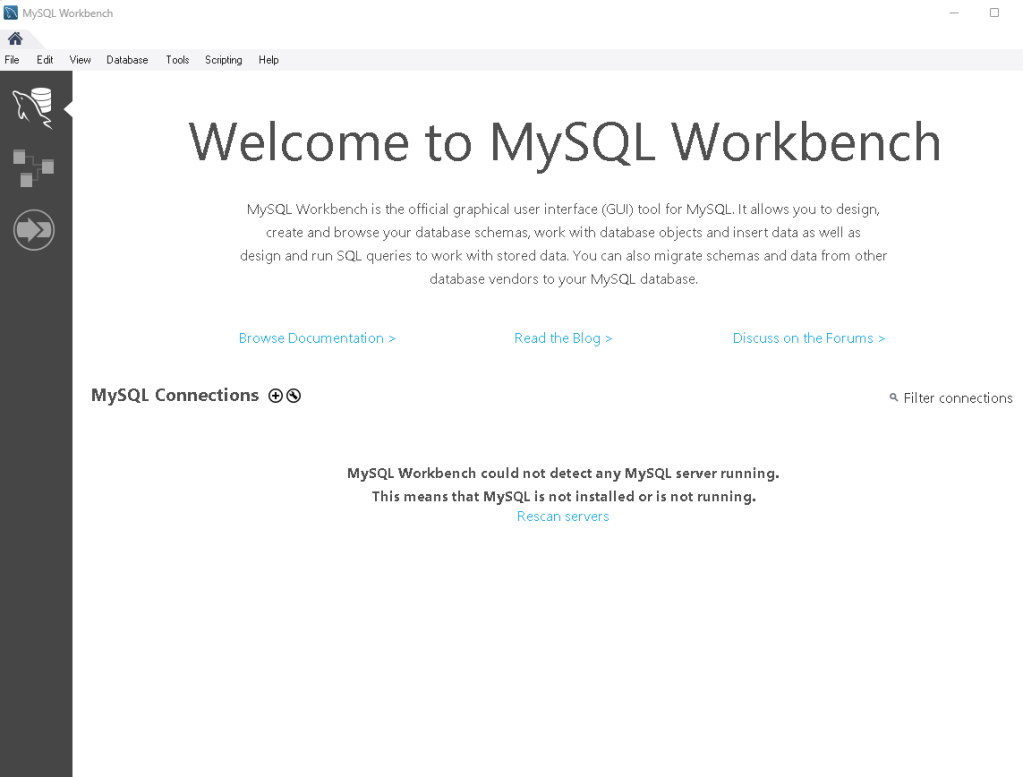
Pre-requisites
- MySQL server running on the Linux host.
- MySQL Workbench installed on your Windows machine.
- The IP address or hostname of your Linux machine.
- Credentials (username and password) for MySQL on the remote Linux server.
- Firewall settings adjusted to allow remote connections to MySQL (port 3306 by default).
Step-by-Step Guide to Connect Remotely
1. Allow Remote Connections on the Linux Host
To allow remote connections, you need to configure MySQL to accept connections from any IP, not just localhost.
- Edit the MySQL configuration file:
The MySQL configuration file is usually located at/etc/mysql/mysql.conf.d/mysqld.cnfor/etc/my.cnf. Open the file with a text editor:
sudo nano /etc/mysql/mysql.conf.d/mysqld.cnf
- Modify the bind-address:
Look for the following line:
bind-address = 127.0.0.1
Replace 127.0.0.1 (localhost) with 0.0.0.0 to allow MySQL to accept connections from any IP address:
bind-address = 0.0.0.0
- Restart MySQL to apply the changes:
sudo systemctl restart mysql
2. Grant Remote Access to the MySQL User
You need to ensure that the MySQL user you’re using to connect remotely has the proper privileges.
- Log in to MySQL as root (or another privileged user):
sudo mysql -u root -p
- Grant remote access to the user by running the following command. Replace
username,password, and%with your actual username and IP address (or use%to allow access from any IP):
   GRANT ALL PRIVILEGES ON *.* TO 'username'@'%' IDENTIFIED BY 'password';
   FLUSH PRIVILEGES;
This allows the user username to connect from any IP address (%). For more security, you can specify an IP range or a specific IP.
3. Check the Firewall on the Linux Host
Ensure that the firewall on your Linux server allows traffic on MySQL’s default port (3306).
- On Ubuntu/Debian:
sudo ufw allow 3306/tcp
- On CentOS/RedHat:
   sudo firewall-cmd --permanent --zone=public --add-port=3306/tcp
   sudo firewall-cmd --reload
4. Configure MySQL Workbench on Windows
Now that MySQL is configured to accept remote connections, you can connect using MySQL Workbench from your Windows machine.
- Launch MySQL Workbench and click on the “+” button to add a new connection.
- Set up the connection details:
- Connection Name: Any descriptive name for the connection.
- Connection Method: Select Standard (TCP/IP).
- Hostname: Enter the IP address or hostname of the remote Linux machine.
- Port: Default is
3306, unless you have configured a different port. - Username: Your MySQL username (for example,
root). - Password: Either leave blank to be prompted or click Store in Vault to save the password.
- Test the connection:
- Click the Test Connection button. MySQL Workbench will attempt to connect to the remote server.
- If the connection is successful, you should see a message like “Connection successful.”
- Save and connect:
After a successful test, click OK to save the connection details, and then click on the connection to connect to the MySQL server.
Troubleshooting
If you encounter issues, check the following:
- MySQL Configuration:
Ensure the MySQL server is configured to accept remote connections (checkbind-address). - Firewall:
Ensure the firewall on your Linux machine is allowing traffic on port 3306. - MySQL User Permissions:
Ensure the MySQL user has the correct permissions to connect remotely. - Network Connectivity:
Ensure your Windows machine can reach the Linux server over the network. You can test this by pinging the server:
ping [Linux_server_IP]
Conclusion
Connecting to a remote MySQL server from a Windows machine using MySQL Workbench is a straightforward process once the server is properly configured. Ensure that remote connections are allowed, grant appropriate user permissions, and check firewall rules to allow access through the default MySQL port (3306). With these steps in place, you should be able to manage your MySQL databases from anywhere.
Code Summary
# Step 1: Allow MySQL to listen on all interfaces
sudo nano /etc/mysql/mysql.conf.d/mysqld.cnf
# Change bind-address to:
bind-address = 0.0.0.0
sudo systemctl restart mysql

# Step 2: Grant remote access to a MySQL user
sudo mysql -u root -p
GRANT ALL PRIVILEGES ON *.* TO 'username'@'%' IDENTIFIED BY 'password';
FLUSH PRIVILEGES;

# Step 3: Allow MySQL port 3306 through the firewall
# For Ubuntu/Debian:
sudo ufw allow 3306/tcp
# For CentOS/RedHat:
sudo firewall-cmd --permanent --zone=public --add-port=3306/tcp
sudo firewall-cmd --reload

 edvaldo b. guimarães filho
Leave a comment